V-Ray for Blender
Shading Objects with a Single Material
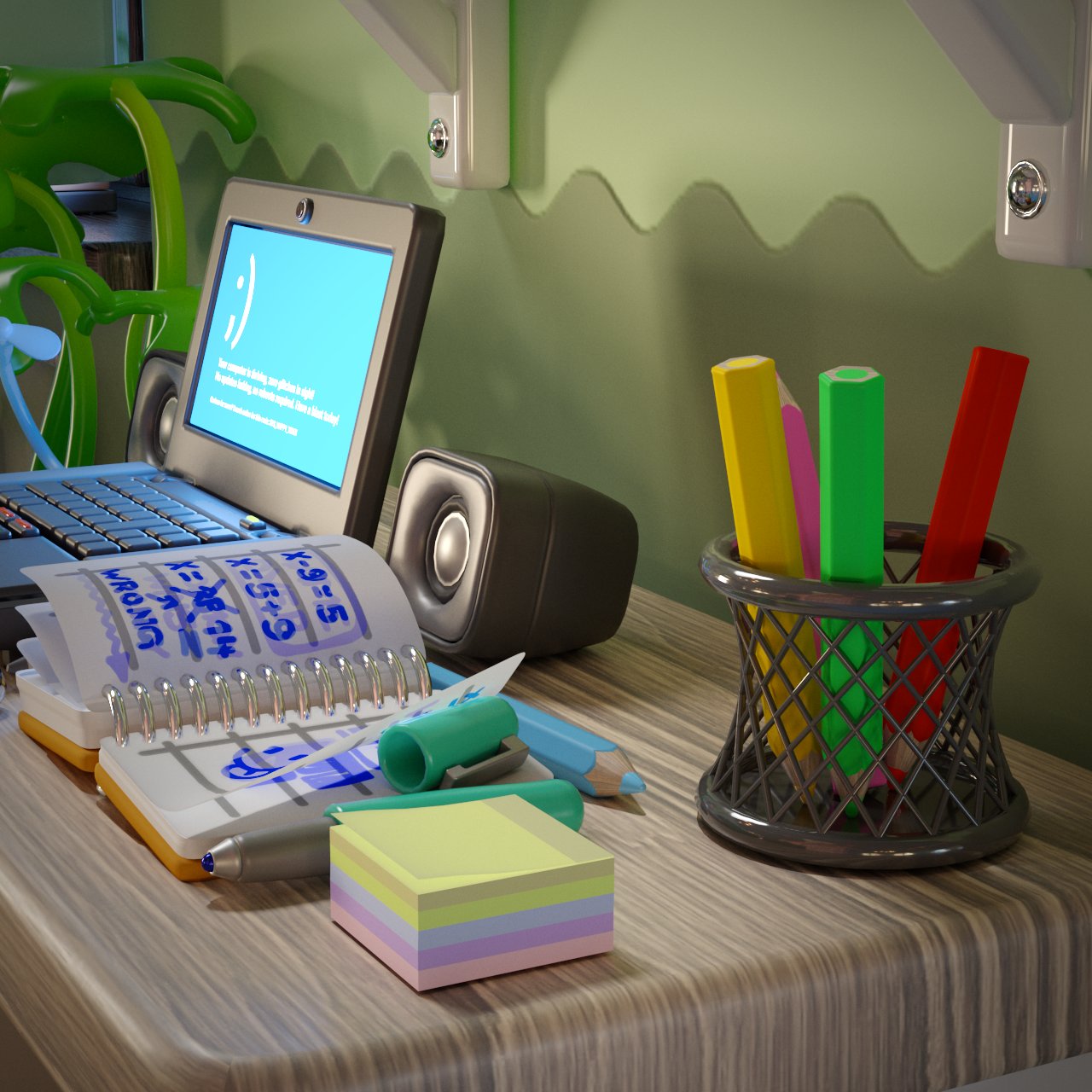
This tutorial shows you how to shade multiple objects using one material by connecting a V-Ray MultiSubTex to it.
Last updated 7 November 2025
This tutorial shows you how to shade multiple objects using one material by connecting a V-Ray MultiSubTex to it.
Overview
The V-Ray MultiSubTex allows multiple textures or colors to be assigned to multiple objects/faces (based on a factor) using a single material. You assign the same material, with the MultiSubTex, to multiple objects/faces, and you can still customize how each item is shaded. This workflow allows easy editing of the shading, as there is only one material to edit. Visit the MultiSubTex page to see the texture's properties.
Download the scene to follow along
This scene is made with V-Ray 7 hotfix 2, on Blender 4.3.

Steps
1. Initial Setup
We will be editing the Paint_Colored_Pencils_Mtl material. To explore the material's properties, select it from the Outliner. You can find it at the bottom of the children's list of any Pencil geometry in the scene. To view shader properties, set an Editor in the scene to the V-Ray Node Editor and set it to the Shader Node Tree.
Then, in the V-Ray Node Editor, use Shift + A to open the Add menu and search for the V-Ray MultiSubTex texture utility. Connect it to the V-Ray Material.
youtu.be
2. Textures List
Open the Node menu on the side of the Node Editor. Alternatively, you can find the material's settings in the Material Properties tab of the Properties Editor. The V-Ray MultiSubTex has a list of sub-textures. By default, there are five, and we have five geometries we want to shade, so no changes in the number of textures are needed, but you can add or remove textures as you wish from the + Add Texture and Remove / - buttons.
For this tutorial, these color values are set, but you can set any colors you like:
- Texture 1 (for Pencil_Blue): HSV = 0.587, 0.785, 1.0
- Texture 2 (for Pencil_Green): HSV = 0.355, 0.922, 0.8
- Texture 3 (for Pencil_Pink): HSV = 0.902, 0.748, 0.978
- Texture 4 (for Pencil_Red): HSV = 0.002, 0.956, 0.885
- Texture 5 (for Pencil_Yellow): HSV = 0.109, 0.968, 1.0

Note that the IDs of the sub-textures are ascending. That is why the colors match the order of the pencils - for easier orientation. We will later use these IDs to assign each color to each pencil. You can, however, assign any ID as you wish.

3. Set the Mode
Open the Options rollout of the MultiSubTex. The mode is currently set to Random by Composite Key, and that Composite Key is the Render ID. We do not control the render ID, and we can’t say which pencil gets which color this way. So, let's change the mode. Set it to Object ID

Now, go to Pencil_Blue and open its Object Properties. Scroll down to find the V-Ray Object Properties tab. There, you will find Object ID. Since we want this pencil to be blue, and the blue texture is first in the MultiSub texture’s list (with an ID of 1), we set the Object ID to 1.


4.
Set the Object IDs of all pencils to match the color we want to assign to each of them.
- Pencil_Green needs to have an Object ID of 2, as that matches the green color ID.
- Pencil_Pink requires an Object ID of 3.
- Pencil_Red's Object ID should be 4.
- Pencil_Yellow should match the yellow sub-texture's ID of 5.
5. Copy the Texture
When we render now, all pencils have the colors we want. Let's replicate this color assignment onto the graphite tips of the pencils.

Go to the Paint_Colored_Pencils material and select the MultiSubTex. You can right-click and select Copy, or you can click CTRL + C. Now go to the Graphite_Colored_Pencils material. It’s the same one on all pencil geometries, so you can find it in any one.
Here, click CTRL + V or right-click and select Paste. This adds the same MultiSubTex to this material. Connect it to the Diffuse of the V-Ray material.
6. Final Render
We have easily replicated the same color assignment on the graphite tips of the pencils. We can start our final render now. Start a Production Render from the V-Ray Menu.

Apply this workflow to your scenes and make color or texture assignment easier with the V-Ray MultiSub texture. Happy rendering!