V-Ray for Cinema 4D
ACEScg Workflow Setup
This page explains the proper ACEScg color space workflow with V-Ray for Cinema 4D.
Last updated 19 September 2025
This page explains the proper ACEScg color space workflow with V-Ray for Cinema 4D.
Overview
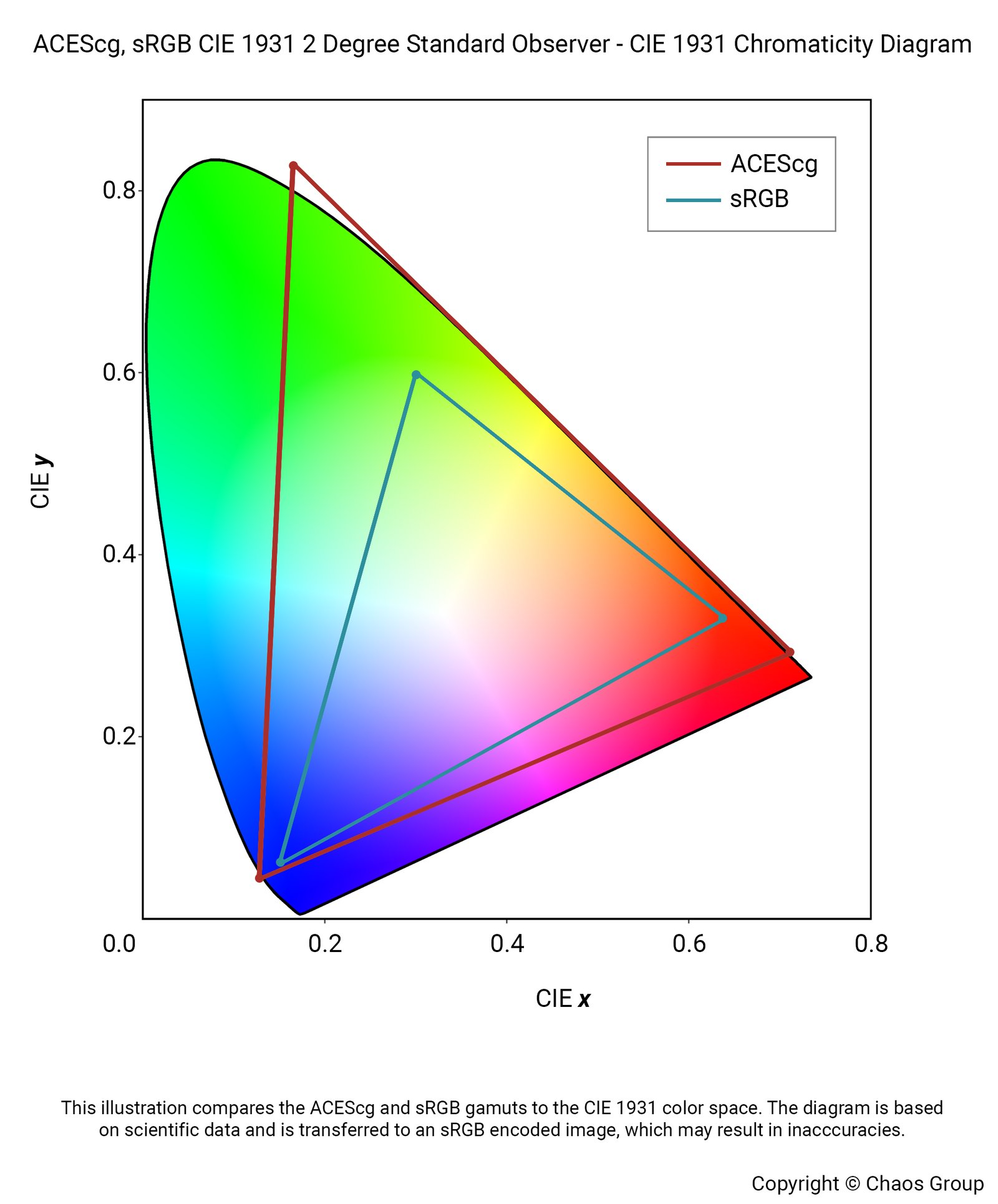
ACES is the Academy Color Encoding System and was developed by the Academy of Motion Picture Arts and Sciences. ACEScg is the version of the ACES encoding system for computer graphics, widely adopted in the industry. It has become the industry standard, because compared to sRGB, ACEScg works with a lot more color information, as illustrated in this gamut graph.
V-Ray 5 and V-Ray 6 come with an implementation of the ACEScg out of the box, and in this tutorial, we explain the render setup in V-Ray for Cinema 4D in this color space. V-Ray supports only ACEScg as the primary color space of choice in CGI.
Want to follow along but don’t have a license?
Setup
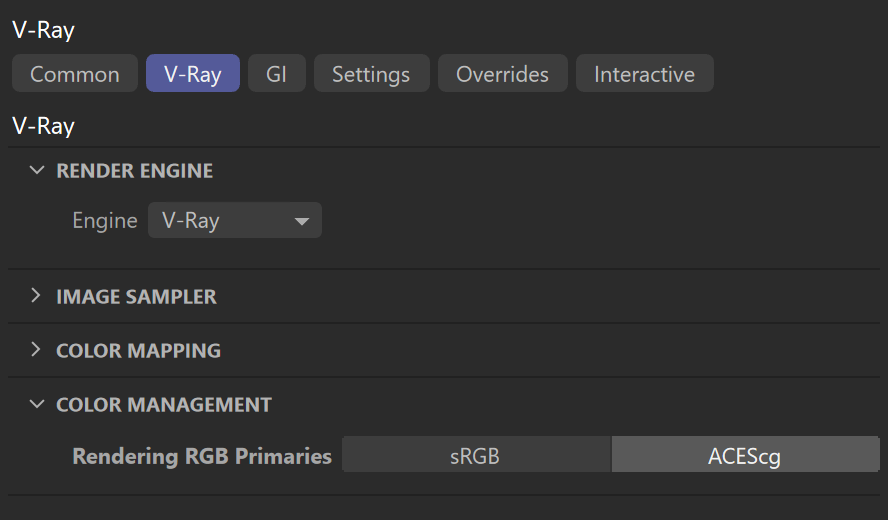
From Render Settings> V-Ray > Color Management, choose ACEScg.
Any 8-bit texture map should be renamed according to the color space that they are in, using a “_lin_srgb”, “_srgb” or “_acescg” suffix.
If neither is present, the map is assumed to be in the renderer color space specified in the Color management rollout (in this setup, ACEScg).
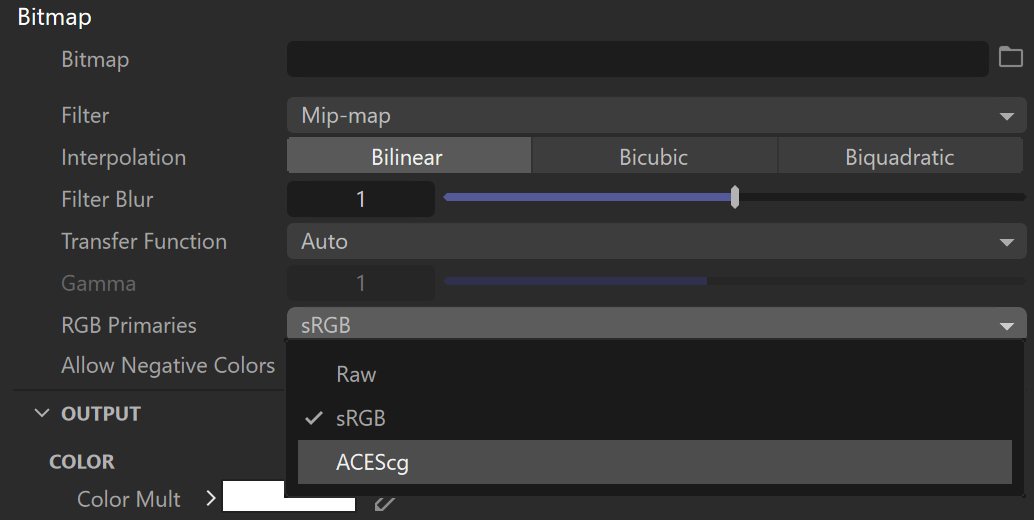
Alternatively, set the RGB color space manually for each Bitmap texture. This can also be done if there are files that are exceptions to the rule-based file naming system - the settings in the Bitmap texture overrides the automatic algorithm.
Using OCIO Configuration with VFB
An automated OCIO configuration can be set with the OCIO environment variable. This option comes in handy when using the default Cinema 4D bitmap. The OCIO configuration can be specified in the V-Ray Frame Buffer.
There are а few steps you need to follow to set this up:
- Download the Open Color IO configuration package from GitHub: https://github.com/colour-science/OpenColorIO-Configs
- Set the OCIO environment variable and point it to the config.ocio file.
For example, to set up the OCIO configuration with aces_1.2:
<code data-v-c2b1f83f=""><span data-v-c2b1f83f="" class="line">Windows: set OCIO=C:\OpenColorIO-Configs\aces_1.2\config.ocio</span><span data-v-c2b1f83f="" class="line"> </span><span data-v-c2b1f83f="" class="line">macOS: export OCIO=/home/user/OpenColorIO-Configs/aces_1.2/config.ocio</span></code>
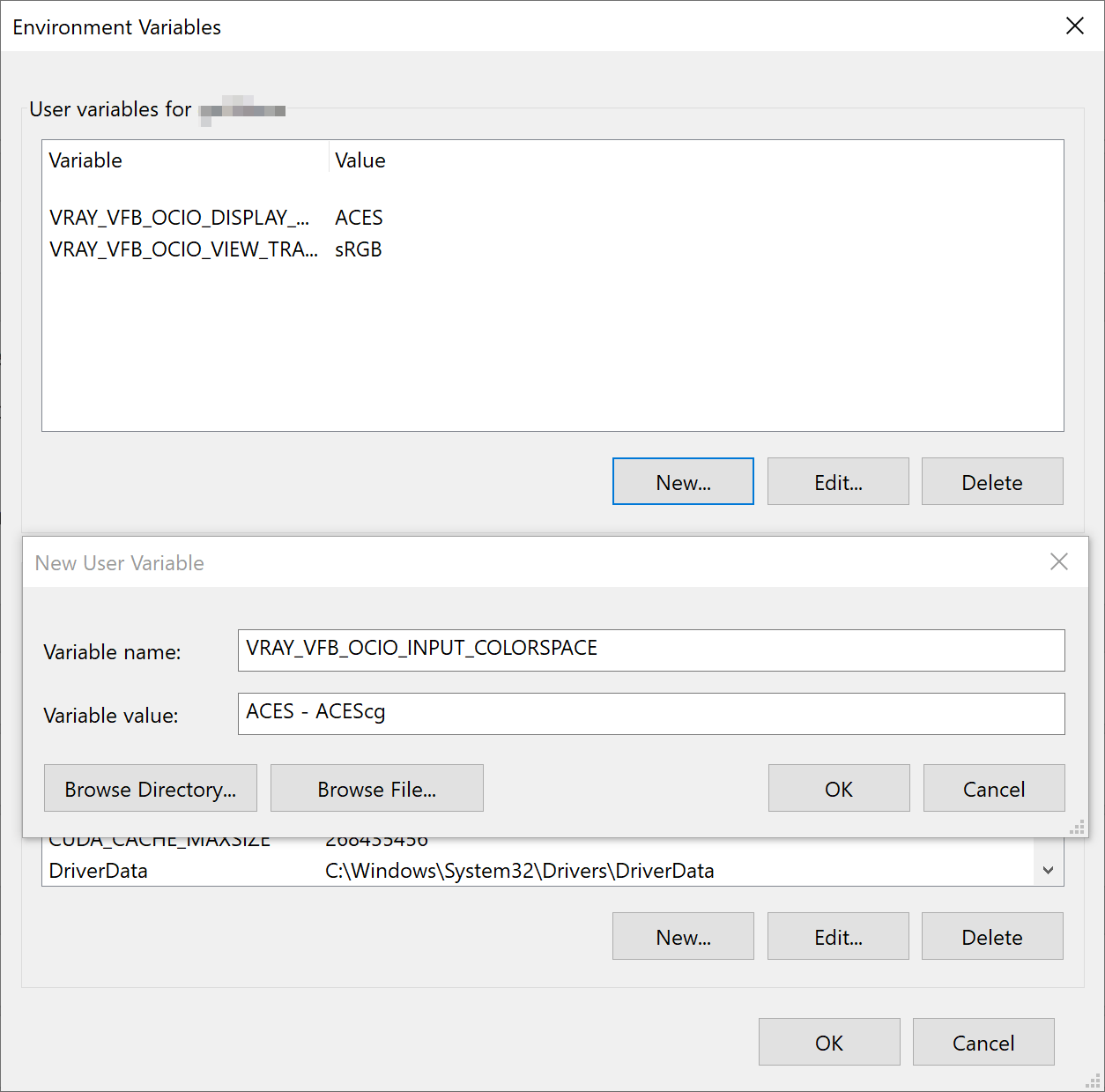
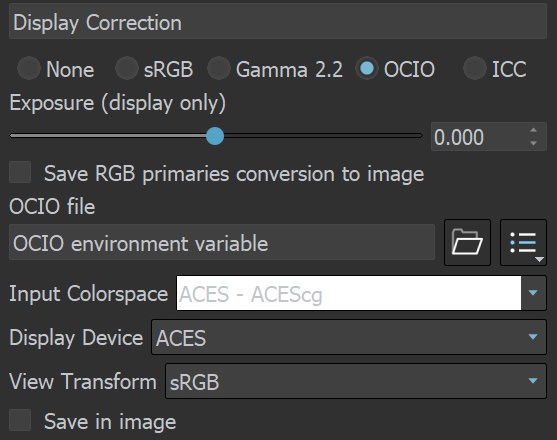
3. When the VFB Display Correction is switched to OCIO, V-Ray reads the OCIO variable and loads the configuration there as well. Choose ACES - ACEScg for your Input Colorspace and sRGB for your View Transform. Leave the Display Device at ACES.
See the Getting Started with Environment Variables page for more information.
V-Ray Standalone OCIO Configuration
When rendering with V-Ray Standalone, an OCIO configuration can be set with the following VFB OCIO environment variables:
VRAY_VFB_OCIO_INPUT_COLORSPACE – Specifies default OCIO input color space.
VRAY_VFB_OCIO_DISPLAY_DEVICE – Specifies default OCIO display device.
VRAY_VFB_OCIO_VIEW_TRANSFORM – Specifies default OCIO view transform.
For example, set a default OCIO input color space, display device, and view transform:
<code data-v-c2b1f83f=""><span data-v-c2b1f83f="" class="line">Windows: </span><span data-v-c2b1f83f="" class="line"> </span><span data-v-c2b1f83f="" class="line">set VRAY_VFB_OCIO_INPUT_COLORSPACE=ACES - ACEScg</span><span data-v-c2b1f83f="" class="line">set VRAY_VFB_OCIO_DISPLAY_DEVICE=ACES</span><span data-v-c2b1f83f="" class="line">set VRAY_VFB_OCIO_VIEW_TRANSFORM=sRGB</span><span data-v-c2b1f83f="" class="line"> </span><span data-v-c2b1f83f="" class="line">macOS: </span><span data-v-c2b1f83f="" class="line"> </span><span data-v-c2b1f83f="" class="line">export VRAY_VFB_OCIO_INPUT_COLORSPACE=ACES - ACEScg</span><span data-v-c2b1f83f="" class="line">export VRAY_VFB_OCIO_VIEW_TRANSFORM=sRGB</span></code>
Note that without setting these variables, it is not possible to render in ACES color space with V-Ray Standalone.
See the Getting Started with Environment Variables page for more information.