V-Ray for Cinema 4D
Chaos Cosmos Browser
This page gives information about Chaos Cosmos Browser in Cinema 4D.
Last updated 10 July 2026
This page gives information about Chaos Cosmos Browser in Cinema 4D.
Overview
Chaos Cosmos Content System delivers an asset library of high-quality, render-ready 3D content carefully selected from the rich Chaos ecosystem. It allows Chaos users from their respective Chaos products to browse, place, and render 3D assets in their visualization projects. The asset categories span across vegetation, materials, furniture, accessories, lighting fixtures, vehicles, people, animals, architecture, presets (i.e. ready-to-use predefined sets of 3D models like grass and dandelion lawns, tree avenues, river bed, wild bushes, palm forest, hedges, group of people and more), enmesh-patterns and HDRI skies, organized in four main categories and nine spaces.
In addition, all assets go through a rigorous process of selection and Chaos quality checks to make sure that they work seamlessly in different Chaos renderers (V-Ray 5 and later, V-Ray GPU, Corona, Vision, as well as Chaos Vantage) and host apps (3ds Max, Cinema 4D, Revit, Rhino, SketchUp, Maya, Houdini, etc).
Find out more about Chaos Cosmos by following the link.
UI Path

Installation
Chaos Cosmos Browser is part of the installations of all Chaos renderers - V-Ray, Corona, and Vantage - and does not require any other specific actions. You can access the downloadable content of the Chaos Cosmos Platform from within the host platform once the renderer's installation is complete.
When installing V-Ray for Cinema 4D from a .zip file, note that Chaos Cosmos is not included by default in the installation. To add it, you can separately download and install it.
Usage
To start using the Chaos Cosmos Browser, you have to first sign in. Press the Sign in button at the top-right corner and enter your Chaos credentials in the opened browser tab.


- Then, you can use the buttons at the top or use the Search tab to find assets.
- You can also search through the different Categories.
- You can choose whether Cosmos displays all assets, only the ones downloaded on the current machine, liked assets, or assets that need an update.
- You can also search by themes.
- The filters help you refine your search by date, popularity, color, and space.


Click on the GIF to view it in full size
Download
When you choose an asset, you have to download it first. Hover over it and click on the blue icon at the lower-right corner. Another way to download an asset is to click on it. This reveals additional information. You can see the category/space/color of the asset and other relevant additional information.


Import
Once the download is complete, a window pops up stating that the asset is downloaded successfully. The Import button places the asset at 0,0,0 of the coordinates system.
Note that assets can be reused across different host platforms. They are saved locally at the following directory: C:\Users\[User]\Documents\Chaos Cosmos\Packages.
The download storage can be configured. For more information on how to do it, refer to the Configuring the Asset Download Directory page.


Multiple-Selection Mode
Chaos Cosmos can Download and Import multiple assets at a time. Multiple-Selection Mode allows you to select multiple assets and Download or Import them. If multiple scenes are open, when importing, a dropdown menu allows you to select the scene where the assets are imported.

Variants
Chaos Cosmos has multiple variants available for some of the materials and assets in the library. In the filters, you can find the Variants filter, which displays all assets with available variants.
There are two types of variants - material and asset variants.
Material variants provide one asset with various material setups, all downloaded together for quick and easy changes after import.
Asset variants provide different versions (geometry and materials) of one asset, downloaded separately to save storage space.
For more information, see the Chaos Cosmos page.
Click on the GIF to view it in full size
Parameters
The imported Cosmos assets are listed in the Objects tab. They can be identified by the Cosmos icon. They can be renamed and deleted.

If Cosmos assets are misplaced or are missing from the system, they appear in the Objects tab with this icon - . To relink or download them, use the Download Cosmos Assets tool, or the Relink Cosmos Assets option in the Cosmos tab of the properties.
Like other proxy objects, Cosmos assets can be converted to full geometry using the Make Editable option.

Click on the GIF to view it in full size
Asset
Preview – Specifies the preview mode of the geometry in the viewport. You can choose between Full Geometry, Preview Geometry, Bounding Boxes, Points, None.
Reset Texture Tags – Reverts the state to the original asset tags. The option is useful in case the asset is moved, the tags are deleted, or any other changes to the tags are done.
Reset Visibility List - Reverts the Visibility List (in the Visibility tab) to its original state.

Visibility
Visibility List – Allows parts of the Cosmos proxy to be made invisible. Can be reverted manually or globally through the Reset Visibility List option in the Asset tab.

Cosmos

Relink Cosmos Asset – If the asset is misplaced or missing from the scene, it will appear in the Objects tab with this icon . Clicking on this option will automatically relink the asset to the scene.
Alternatively, you can relink assets using the Download Cosmos Assets tool.
Assets
Lights
Cosmos lights are imported as a hierarchy - the VRayProxy, which holds the geometry of the Cosmos asset, is a parent to the respective VRayLight. This means that moving or rotating the geometry, keeps its VRayLight together with it.
HDRIs
HDRI assets create a Dome Light with a VRayBitmap attached to it. Dome Lights overexpose a scene, if not viewed from a Physical Camera. When importing an HDRI from the Cosmos Browser, it is recommended to use a Physical Camera to achieve the correct exposure.
Materials


The Import button adds the material as a Node Material into the scene and is available for selection in the Material Manager. Press the green arrow for additional import options:
Use triplanar mapping – Enables triplanar mapping (when adding the material to scene or selection).

When an option is enabled in this menu, a blue circle () indicates the custom setup is in effect for any further material imports.

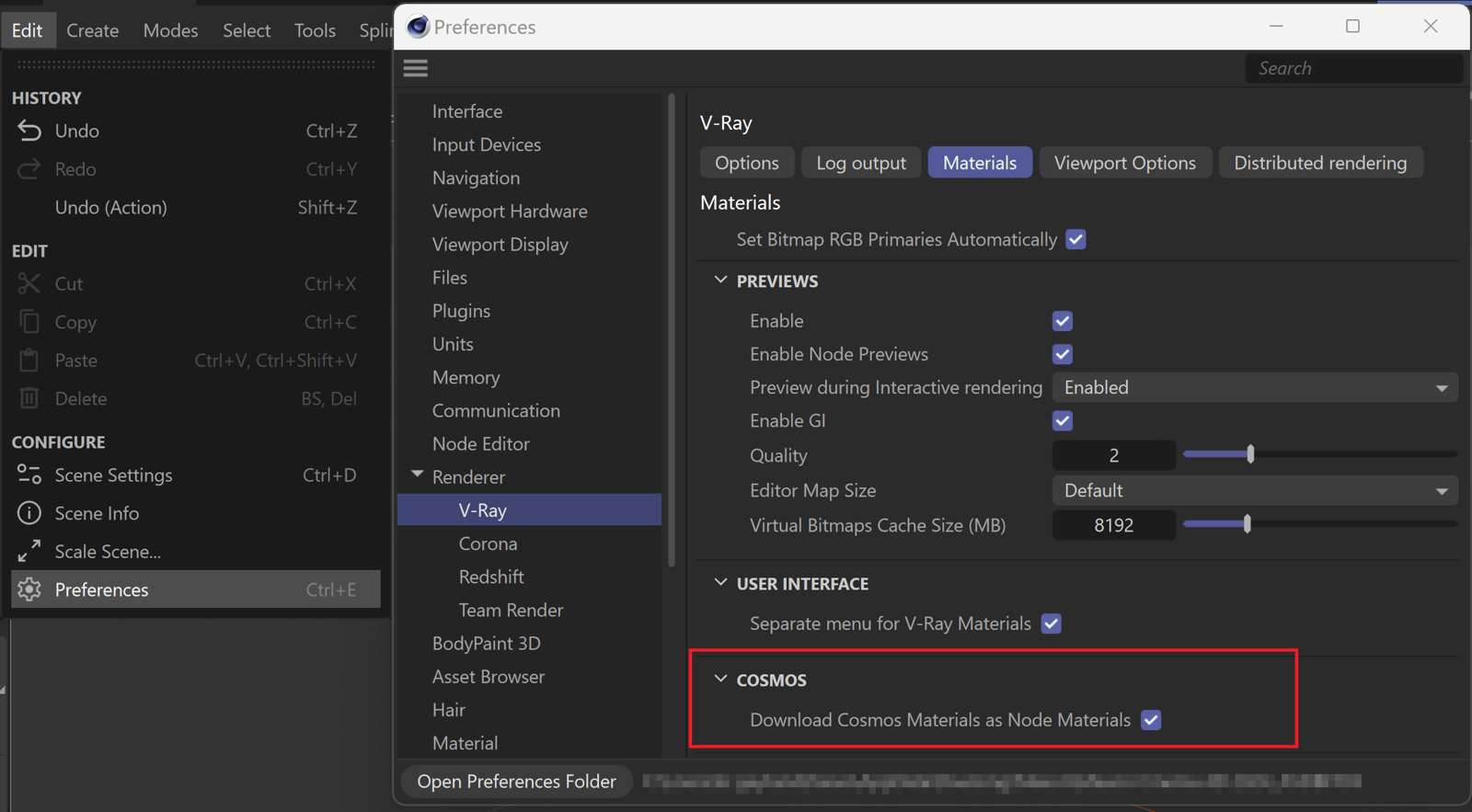
You can choose whether the Cosmos Materials are imported into the scene as Node or Classic materials.
Go to the Edit menu > Preferences > Renderer > V-Ray and select the Materials tab. Expand the Cosmos submenu and you can find the Download Cosmos Materials as Node Materials option. When disabled, all Cosmos materials are downloaded as Classic V-Ray materials. See the Materials page to find out more about Classic and Node materials.
Click on the image to view it in full size
AI Material Generator
You can generate custom materials using the AI Material Generator tool in Chaos Cosmos. All you need is a texture to base the material on. See the AI Material Generator page for more information.
Chaos Scans Materials

With V-Ray 7, update 1, Chaos Cloud includes the Chaos Scans Materials. They are marked by the Chaos Scans () marker. You can also find them through their dedicated filter.

Enmesh-Pattern
The Enmesh-Pattern category imports an Enmesh geometry, as well as a custom patterns that can be applied to the scene.
When an Enmesh asset is imported, a pattern and an enmesh geometry are created in the scene. You can then add a Source Object to the enmesh. This is the surface, onto which the pattern is repeated.
The Enmesh-Patterns can only be imported from the Import button. You can then edit the pattern from the parameters of the V-Ray Enmesh geometry.
Click on the GIF to view it in full size
Notes
- Scenes with Chaos Cosmos assets can be rendered in Chaos Cloud.
- Scenes with Chaos Cosmos assets can be exported as .vrscene files.
- Chaos Cosmos assets that contain light sources can be used with Light Mix.
- At render time, Chaos Cosmos objects work as V-Ray proxies. For more information, refer to the Proxy page.
- Chaos Cosmos assets are always in centimeters.
- If a warning appears when opening the Cosmos browser, follow its message to reset it.
- Chaos Cosmos assets work with the Cinema 4D relink option by adding the file path to the Cinema 4D preferences.