V-Ray for Cinema 4D
Menu Integration
This page provides information on how V-Ray integrates into the standard Cinema 4D menus.
Last updated 10 July 2026
This page provides information on how V-Ray integrates into the standard Cinema 4D menus.
Overview
V-Ray provides a menu on its own in Cinema 4D's toolbar, where you can find some commonly used V-Ray components.
In addition, there are a number of items to the Cinema 4D menus, in particular in the Preferences and Create menus.
V-Ray Menu
Option | Description |
|---|
Option | Description |
|---|---|
Start Production Render | Starts Production render in the VFB. |
Start Interactive Render | Starts Interactive render in the VFB. |
Submit to Chaos Cloud | Submits your current scene for render to Chaos Cloud. |
Chaos Vantage | Opens the Vantage submenu. |
V-Ray VFB | Opens the V-Ray Frame Buffer window. |
Render Elements | Opens the Render Elements window. |
Chaos Cosmos | Opens the Chaos Cosmos submenu. |
Chaos Scatter | Adds a Chaos Scatter Object to the scene. |
Chaos Collaboration | Submits the current render to Chaos Cloud Collaboration. |
Lights | Opens the Lights submenu. |
Cameras | Opens the Cameras submenu. |
Geometry | Opens the Geometry submenu. |
Volumetrics | Opens the Volumetrics submenu. |
Tools | Opens the Tools submenu. |
Licensing | Opens the Licensing submenu. |
Help | Opens the Help submenu. |
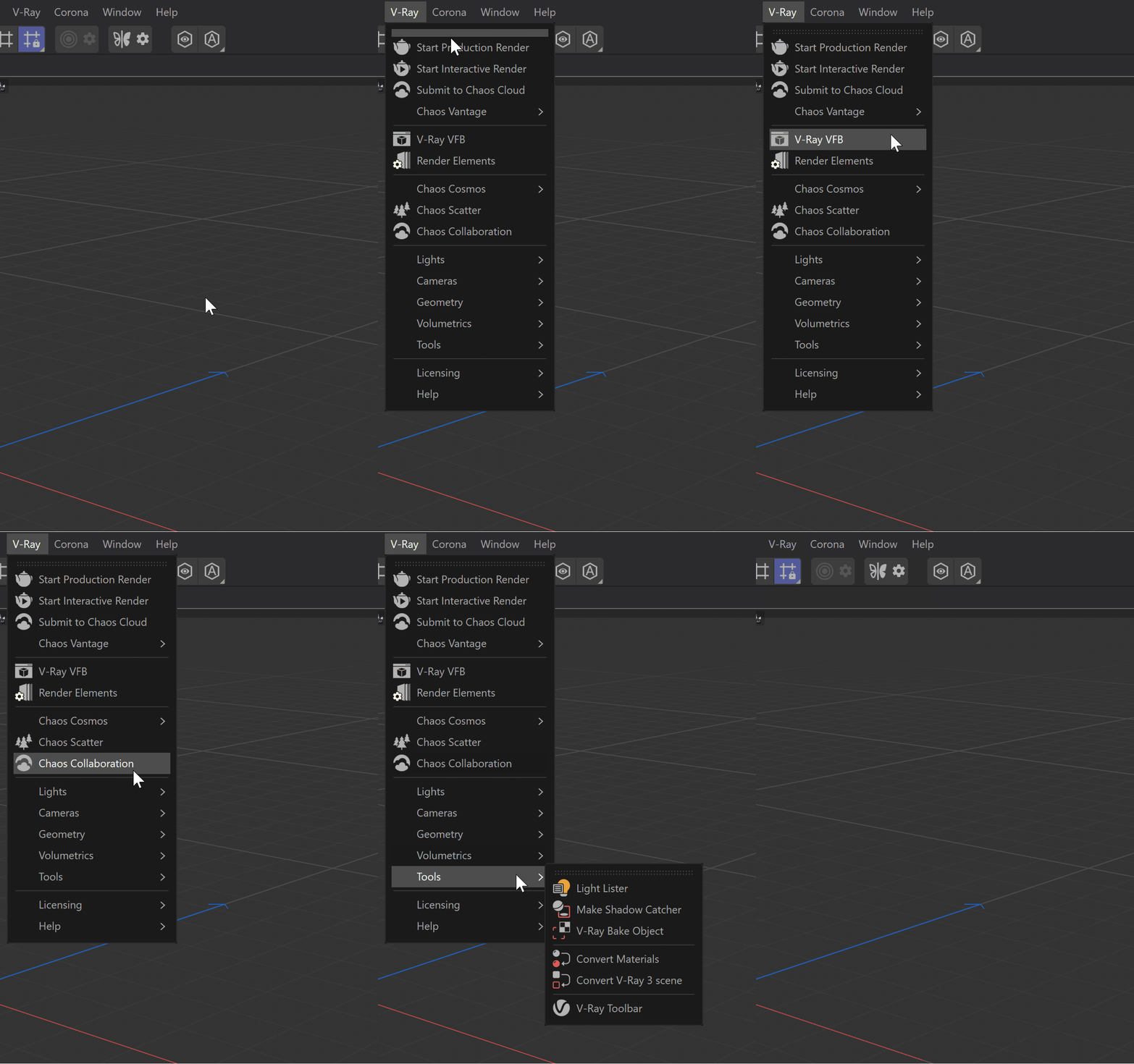
Chaos Vantage
Vantage Live Link | Initiates and sends a link to Chaos Vantage. For more information, see Live Link to Chaos Vantage. |
Vantage Live Link | Initiates and sends a link to Chaos Vantage. For more information, see Live Link to Chaos Vantage. |
Vantage Animation | Exports and sends the current animation range to Chaos Vantage. |
Vantage Settings | Opens a settings window. |
Chaos Cosmos
Cosmos Browser | Opens the Chaos Cosmos Browser window. |
Cosmos Browser | Opens the Chaos Cosmos Browser window. |
AI Material Generator | Generate materials based on an image using generative AI. For more information, see the AI Material Generator page. |
Download Cosmos Assets | Relocate or download missing Cosmos assets. For more information, see the Download Cosmos Assets page. |

Lights
Rectangle Light | Creates a Rectangle Light. |
Rectangle Light | Creates a Rectangle Light. |
Sphere Light | Creates a Sphere light. |
Dome Light | Creates a Dome light. |
Mesh Light | Creates a Mesh Light. |
IES Light | Creates an IES light. |
V-Ray Sun | Creates a V-Ray Sun. |
V-Ray Sun with Sky | Creates a V-Ray Sun and Sky system. |
V-Ray Environment | Creates a V-Ray Environment. |
Legacy Lights | Opens a selection of legacy lights. |

Cameras
Physical Camera | Creates a Physical camera. |
Physical Camera | Creates a Physical camera. |

Geometry
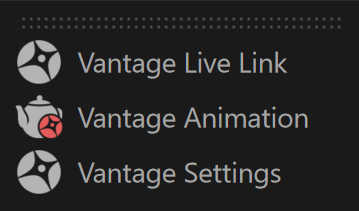
V-Ray Particles | Creates a V-Ray Particles object in the scene. |
V-Ray Particles | Creates a V-Ray Particles object in the scene. |
V-Ray Proxy | Creates a V-Ray Proxy object. |
V-Ray Scene | Creates a V-Ray Scene object. |
V-Ray Fur | Applies fur properties to the selected object. |
V-Ray Clipper | Makes the selected object a Clipper. |
V-Ray Decal | Creates a V-Ray Decal object. |
V-Ray Enmesh | Creates a V-Ray Enmesh geometry. |
V-Ray Gaussians | Creates a V-Ray Gaussians geometry. |
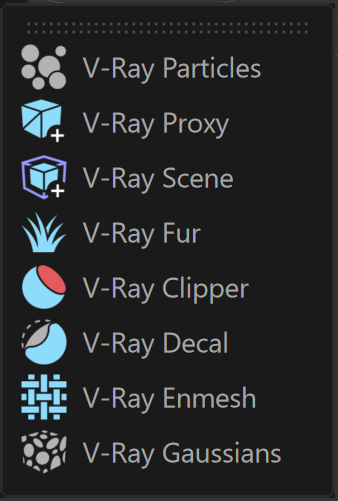
Volumetrics
V-Ray VolumeGrid | Creates a V-Ray VolumeGrid. |
V-Ray VolumeGrid | Creates a V-Ray VolumeGrid. |
Environment Fog | Creates an Environment Fog. |
V-Ray Toon | Creates a V-Ray Toon effect. |

Tools
Light Lister | Opens the Light Lister window. |
Light Lister | Opens the Light Lister window. |
Make Shadow Catcher | Converts the selected object into a Shadow Catcher Matte object. |
V-Ray Bake Object | Exports a Baked texture based on an object's appearance in the rendered scene. |
Convert Materials | Converts materials from one type to another. |
Convert V-Ray 3 scene | Opens the Convert V-Ray 3 scene tool. |
V-Ray Toolbar | Opens the V-Ray Toolbar palette. |

Licensing
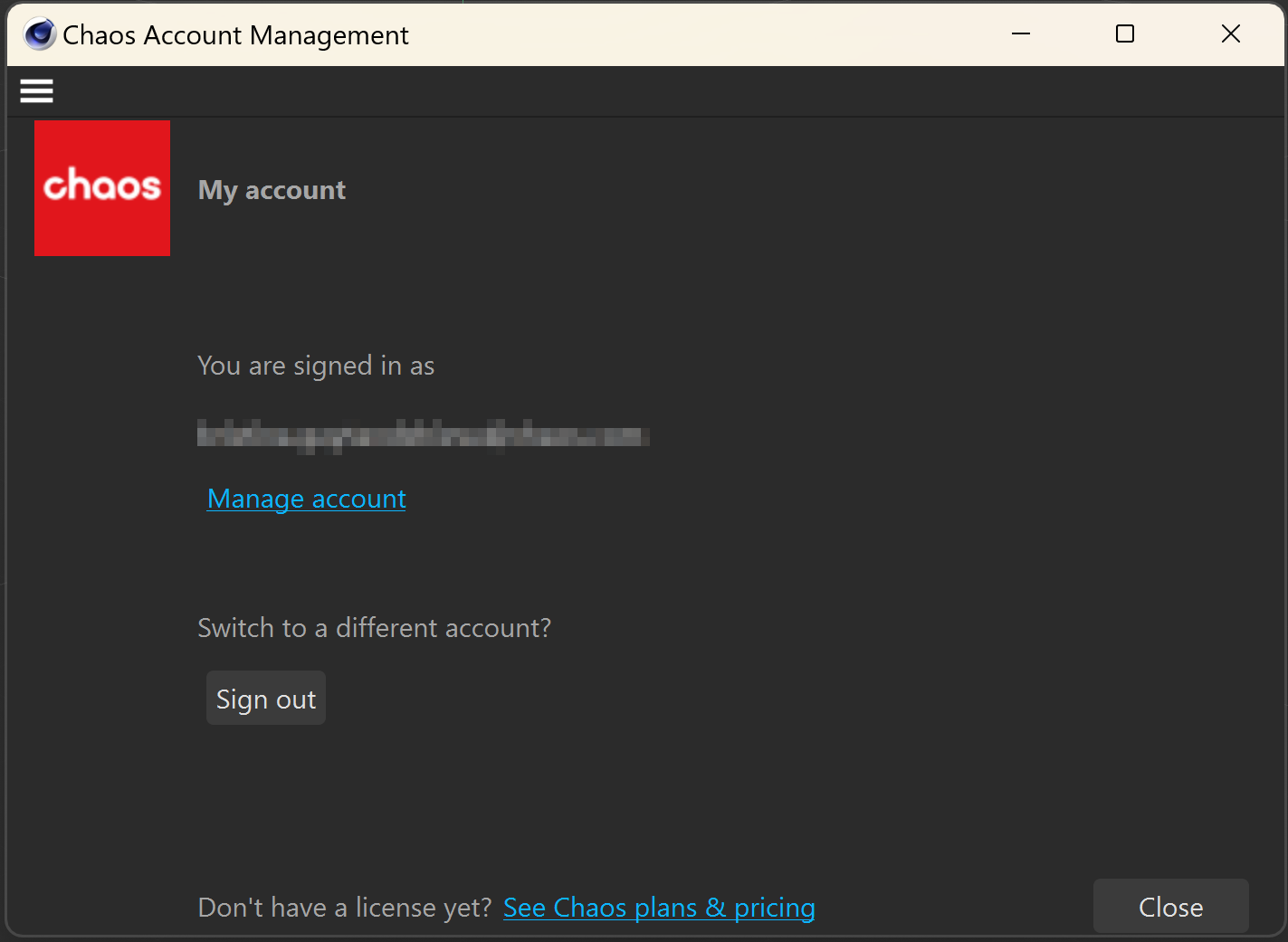
Chaos Account Management | Opens the Chaos Account Management Window, which allows you to sign in and manage your Chaos Account. |
Chaos Account Management | Opens the Chaos Account Management Window, which allows you to sign in and manage your Chaos Account. |

This window shows which account is currently logged in.
Press the Manage account link to open the My Chaos portal. You can assign, remove, and allocate licenses to different users. For more information, see the My Chaos Portal Guide page.
To switch the current account, press the Sign Out button.
If you haven't signed in yet, this is how the window will look instead:

You can Sign in, or See the Chaos plans & pricing, which will take you to the Chaos website.
Help
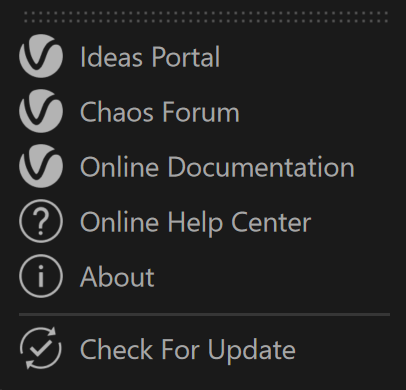
Ideas Portal | Opens the V-Ray for Cinema 4D ideas portal. |
Ideas Portal | Opens the V-Ray for Cinema 4D ideas portal. |
Chaos Forum | Opens the V-Ray for Cinema 4D forum. |
Online Documentation | Opens the V-Ray for Cinema 4D documentation in a browser. |
Online Help Center | Opens the Chaos Help Center in a browser. |
About | Opens an About window. |
Check for Update | Checks if a newer V-Ray version is available for download. |
About window
The About window contains information about the current V-Ray version installed, copyright notice and information if this is the latest released version or if there is a newer update available for download.
The About window is accessible from V-Ray menu > Help > About.

Other Menus
Edit > Preferences > Renderer > V-Ray

See more information on the Preferences V-Ray Menu page.
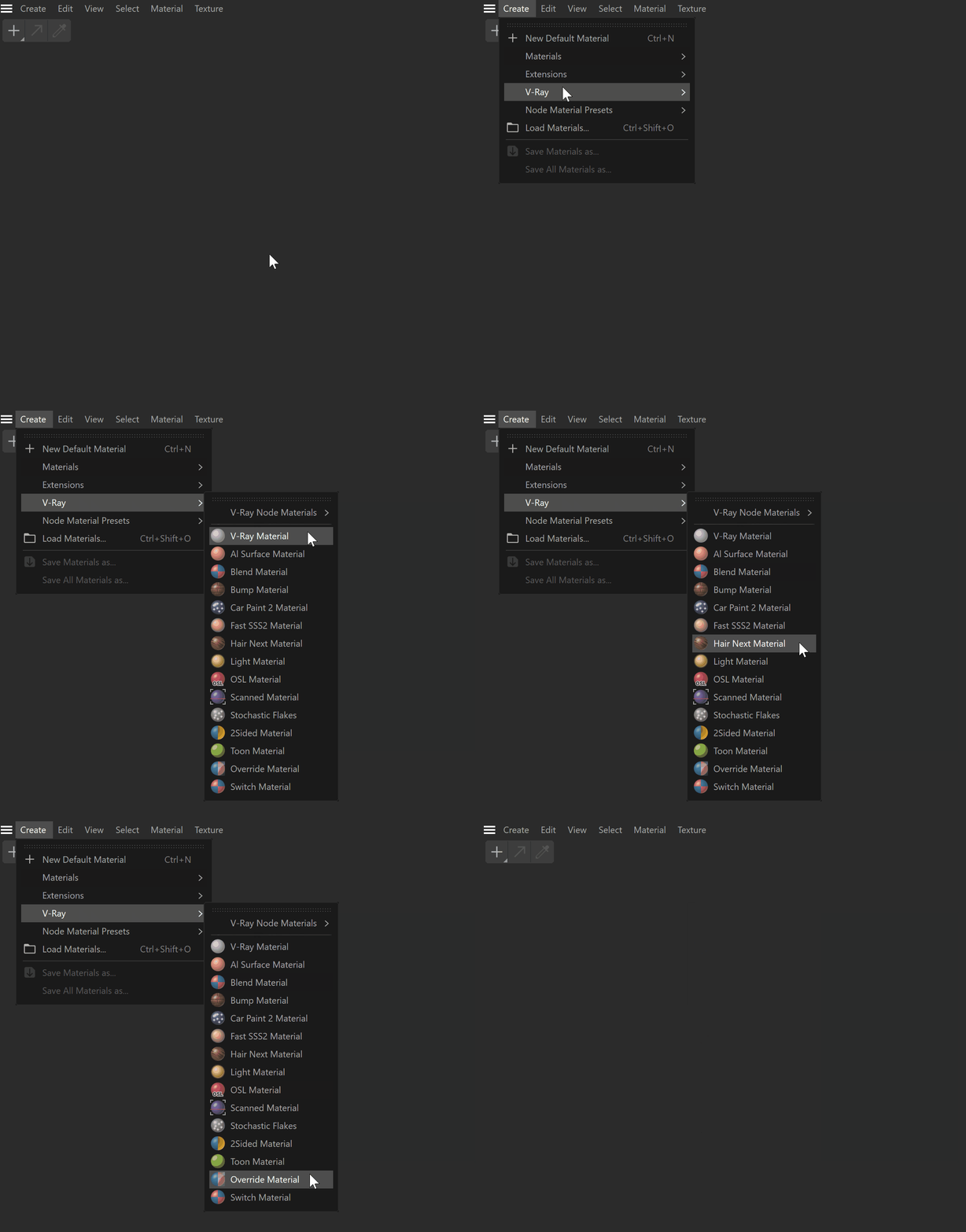
||Material Manager|| > V-Ray (when Separate menu for V-Ray materials is enabled)

||Material Manager|| > Create > V-Ray (when Separate menu for V-Ray materials is disabled)
V-Ray Output Console
You can access the V-Ray log from Extensions > Console > V-Ray
