V-Ray for Cinema 4D
Post-production and Generating Different Types of Images with the VFB
This page provides information on using the V-Ray Frame Buffer for post-production of EXR images rendered in Chaos Cloud.
Last updated 19 September 2025
This page provides information on using the V-Ray Frame Buffer for post-production of EXR images rendered in Chaos Cloud.
Overview
The V-Ray Frame Buffer can be used to apply post-production color corrections to EXR images rendered in Chaos Cloud. For V-Ray versions newer than 4.12, images have all color corrections baked in. For older V-Ray versions, EXR and VRIMG are raw image formats, and no corrections are written to them by default. That is why it is recommended to save your color correction presets separately. This page explains how to save the color-corrected image from the VFB for older V-Ray versions.
youtu.be
Generating Different Types of Images with VFB
Chaos Cloud supports all output image formats on the 3D host app, except for Deep EXR, Tile EXR, TIFF, and TGA. If you need an image output in one of the unsupported formats, you can do the following:
- Generate your output in EXR or VRIMG format.
- Open the EXR / VRIMG files in the VFB on the host app and you can save it with the Save Current Channel button in the output you need.
Applying Color Corrections to EXR Images Rendered in Chaos Cloud
By default, Chaos Cloud Rendering generates an EXR and JPG versions of render jobs submitted to Chaos Cloud, unless another format is set within the settings of the 3D editing platform used. The EXR image can then be loaded within the VFB to apply color corrections manually or using a saved preset.
If you have enabled the Include additional JPG output toggle in the Options page, Chaos Cloud Rendering generates an additional high-quality JPG file for your output at no extra cost.
Manual
To apply corrections manually, you first have to load the EXR image within the VFB. This is done through the File > Load image option inside the VFB. The Layers panel is exposed by default. You can use different layers to add some color corrections and adjust the appearance of the image as you wish.


Once ready, you can save the processed image in any desired image format using the Save current channel () button on the VFB.

Presets
Color corrections can also be saved and applied as a preset. Jobs submitted from Cinema 4D will have their color corrections written to the .vrscene file and rendered on the cloud, but if the render output is set to EXR no color corrections will be written to it since it's a raw image format. In that case it is useful to save your color corrections separately. Go to the Save layer tree preset button to save all modification from the layers.

Separate layers can also be saved and loaded using the right-mouse button and the context menu:
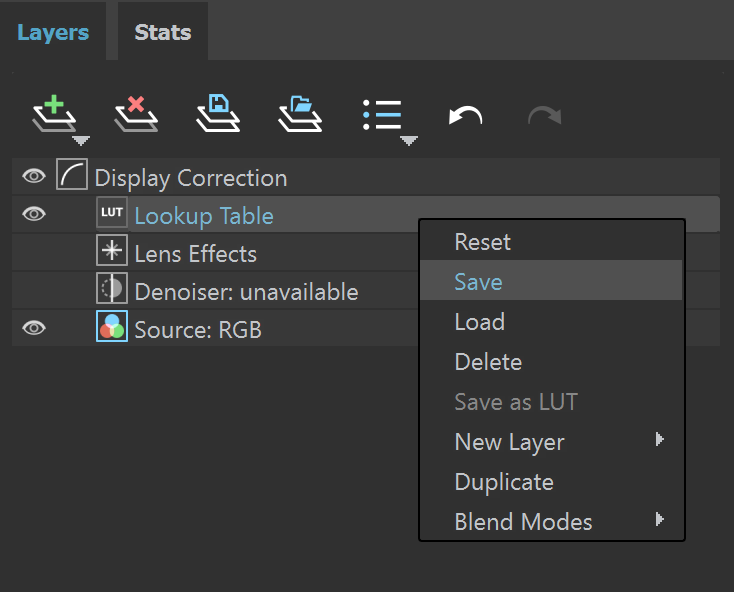

Once a preset is applied, you can use the Save current channel () button to save the image in the format of your choice.