V-Ray for Cinema 4D
Render Elements
This page provides information about the V-Ray Render Elements in Cinema 4D.
Last updated 10 December 2025
This page provides information about the V-Ray Render Elements in Cinema 4D.
Overview
Render Elements are a way to break out renders into their component parts such as diffuse color, reflections, shadows, mattes, etc. This gives fine control over the final image when using compositing or image editing applications to reassemble the component elements. Render elements are also sometimes known as render passes.
Render elements appear in the V-Ray Frame Buffer (VFB) and can be viewed from the drop-down at the upper left corner of the VFB. They can also be saved out of the VFB as many common file formats.
Render elements are generated at render time based on the user's selection before rendering. Most render elements have parameters that can be customized to further assist the composting process. These parameters are described on each render element's individual page.
Context Menu
When you select render element(s), a context menu appears, allowing you to:
Remove – Removes the currently selected render element.
Remove All – Removes all render elements added to the scene.
New Folder – Creates a new folder to organize your render elements.
Presets – Allows you to create render element presets from your current setup.
Save All as Preset – Saves all the render elements in the scene as a preset.
Save Preset from Selection – Saves the currently selected render element(s) as a preset.
Show Help – Opens the documentation page for the selected element. If multiple render elements are selected, the one closest to the right-click's page is opened.

Render Elements Manager
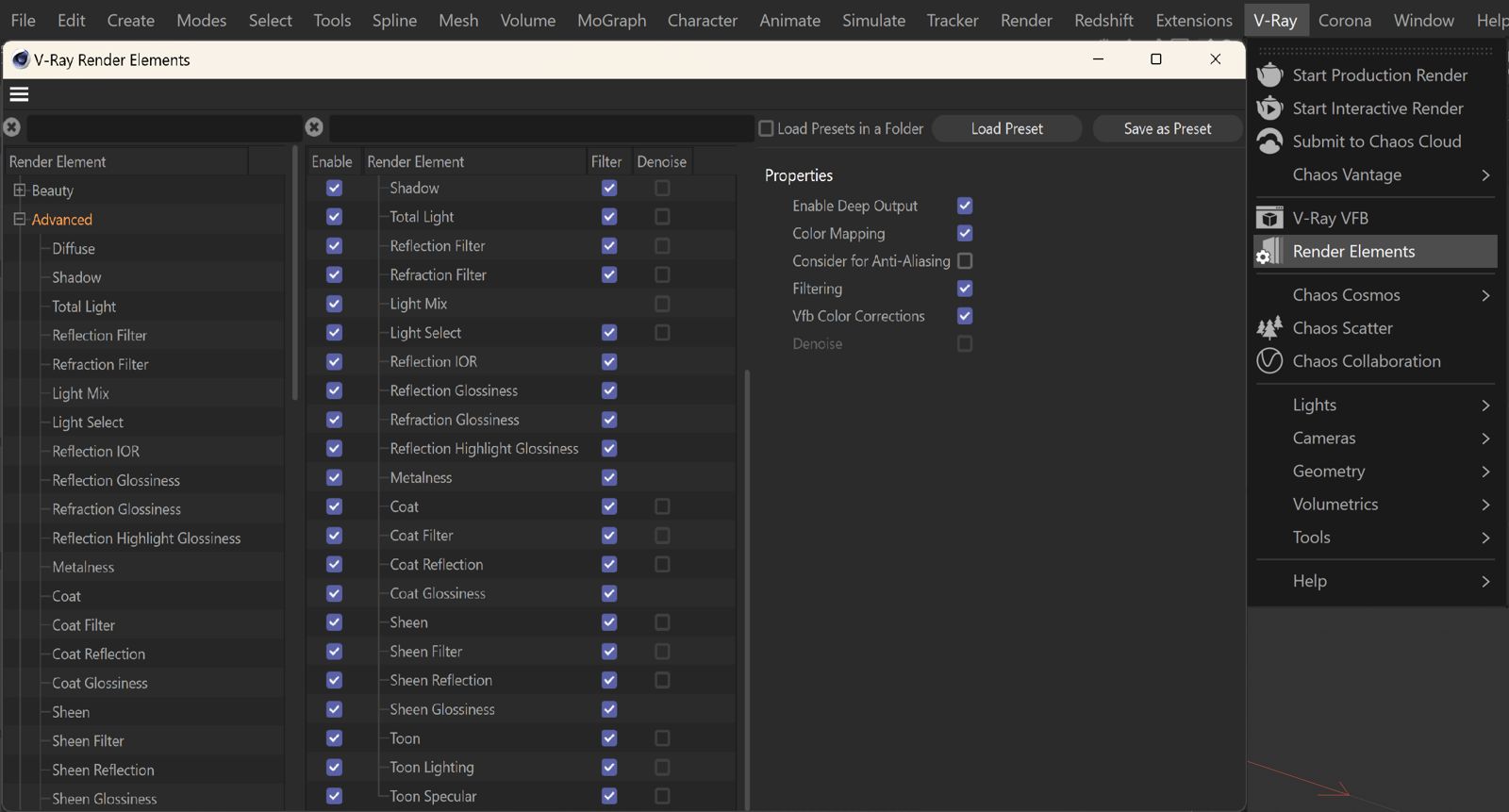
The Render Elements window consists of three panels.
The left panel contains all of the V-Ray render elements. There is a search bar on top to help narrow down your search.
You can drag and drop a render element on its own to add it for rendering or add the whole group. Adding elements can also be done by double-clicking on them. The render elements are grouped into the following categories: Beauty, Advanced, Matte, Geometry, Utility, and Other.
The center panel lists the added render elements that are included in the VFB as render channels. Options are also available to Enable, Filter, and Denoise the render element.
- You can turn on and off each render element using the Enable option.
- The Filter option toggles whether or not the Anti-Aliasing filter is applied to that render element. It is recommended to disable anti-aliasing for render elements such as Material ID and Object ID.
- The Denoise option is disabled by default. It needs to be enabled from the Common tab of the V-Ray Render Settings. It reduces noise produced when rendering.
Properties are displayed on the right-hand panel, which offers control over the representation of the selected channel.

How to manage Render Elements
This section describes an example workflow to customize the render elements to be included in the V-Ray Frame Buffer.
- Creating folders can be done by right-clicking in the center panel and selecting New Folder.
- You can duplicate folders by selecting and dragging them while holding CTRL.
- Folders can be renamed by double-clicking on their names and typing out the new value.
- You can add categories or individual render elements. Double-clicking on either adds them to the selected folder in the middle section.
- To delete all the created folders, right-click and select Remove All.

Categories
All render elements are grouped into the following categories: Beauty, Advanced, Matte, Geometry, Utility, and Raw.
Beauty – Contains all the needed render elements for "Back to Beauty" compositing inside the V-Ray Frame Buffer.
Advanced – Contains render elements for an advanced beautification of the light, coat, and sheen.
Matte – Contains all the needed render elements for matte compositing in the V-Ray Frame Buffer.
Geometry – Contains all the render elements responsible for editing geometries from the scene, such as Object ID, Normals etc.
Utility – Contains render elements that assist your work in the V-Ray Frame Buffer.
Raw – Contains render elements that concern RAW layers.
You can find the applied render elements in the dropdown menu in the VFB. The new render elements become visible in this list after a new render is started.

Presets Options
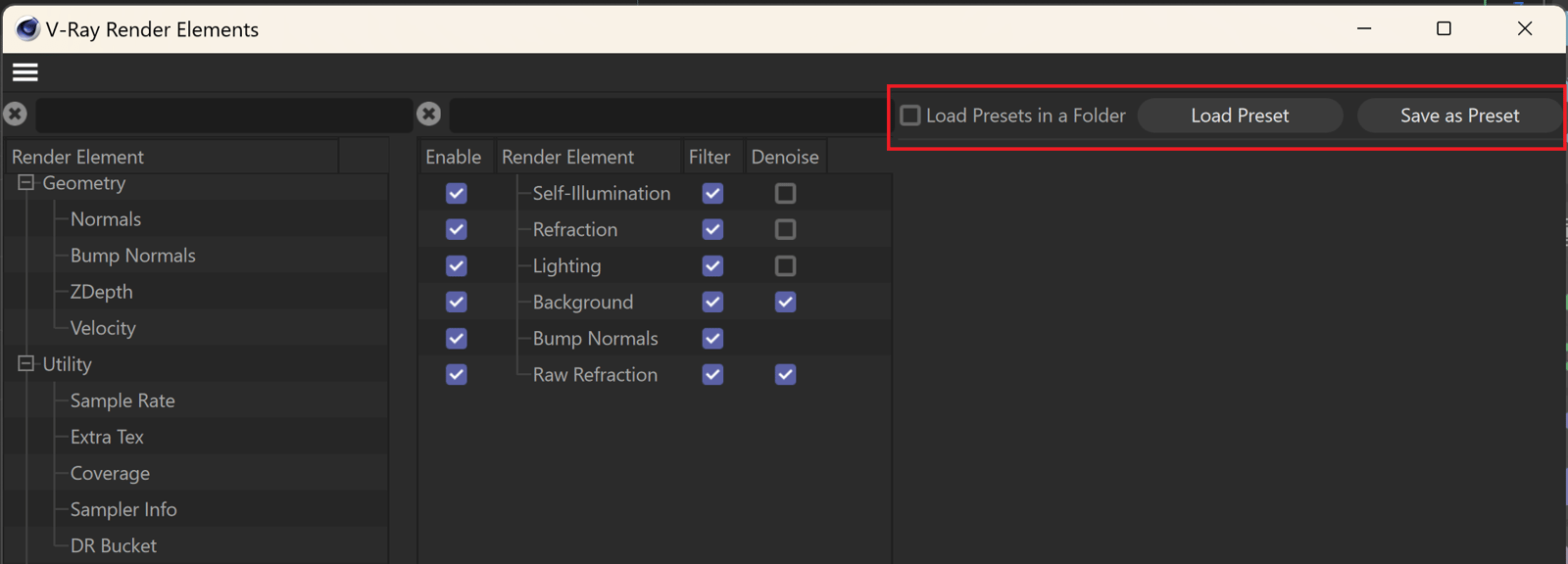
You can save your Render Elements setup, along with their Properties, for future use. This is done using the Preset options or through the Render Elements' context menu.
To select multiple elements, hold Shift on your keyboard and click-select them.
Load Presets in a Folder – Loads a single preset from a local directory into a folder, with the same name as the preset file.
Load Preset – Loads a single preset from a local directory.
Save as Preset – Saves the current selection as a preset. If no Render Elements are selected, all of them are saved into the preset.
Preset options
Supported Render Elements
V-Ray supports the following render elements. All render elements support native V-Ray materials.
Beauty
Render element | Color Depth of EXR floating-point channels | Description |
|---|
Render element | Color Depth of EXR floating-point channels | Description |
|---|---|---|
16bit/32bit | Image background, such as any Background Texture specified in the Environment overrides. | |
16bit/32bit | Diffuse direct surface lighting. | |
16bit/32bit | The diffuse surface global illumination. Only present if Global illumination is enabled. | |
16bit/32bit | All indirect reflections from a surface. | |
16bit/32bit | Refractions through a surface. | |
16bit/32bit | All direct specular highlights coming from a surface. | |
16bit/32bit | Renders just the subsurface part of the VRaySSS2 material on a separate layer. | |
16bit/32bit | Self-illumination of the surface. | |
16bit/32bit | The caustics on the material. These caustics are present only when the Caustics option of V-Ray is enabled. This channel does not include GI caustics. | |
16bit/32bit | Atmospheric effects, such as Environment Fog. |
Advanced
Render element | Color Depth of EXR floating-point channels | Description |
|---|
Render element | Color Depth of EXR floating-point channels | Description |
|---|---|---|
16bit/32bit | Pure diffuse surface color. | |
16bit/32bit | Diffuse light that is blocked by other objects. | |
16bit/32bit | Total lighting in the scene, both direct and indirect. | |
16bit/32bit | Reflection filter (the color by which the raw reflections are multiplied to give the final surface reflection). This may be considered an alpha channel for reflections. | |
16bit/32bit | The refraction filter mitigates the raw refraction layer. This render element returns the color by which the raw refractions are multiplied to give the final surface refraction. This may be considered an alpha channel for refractions. | |
Provides adjustment control to the lights in the scene from inside the V-Ray Frame Buffer. | ||
16bit/32bit | Extracts the contribution of a user-defined light or a set of lights in the scene as a separate render element. | |
Used to enhance or reduce Fresnel IOR effects in the final composite. | ||
16bit/32bit | Returns a float value that corresponds with the Reflection Glossiness value of an object's material. | |
16bit/32bit | Returns a float value that corresponds to the Refraction Glossiness value of an object's material. | |
Returns a grayscale image that corresponds to the value in the Highlight Glossiness of the materials in the scene. | ||
16bit/32bit | Returns a grayscale image that corresponds to the metalness values of the materials in the scene. | |
16bit/32bit | Isolates the reflected light in the scene. | |
16bit/32bit | Reflection filter for V-Ray Material Coat layer. | |
16bit/32bit | Indirect reflections coming from the Coat layers of the V-Ray Material used in the scene. | |
16bit/32bit | Returns a float value that corresponds with the Coat Glossiness value of the V-Ray Material Coat layer. | |
16bit/32bit | Isolates the reflected light in the scene. | |
16bit/32bit | Reflection filter for V-Ray Material Sheen layer. | |
16bit/32bit | Indirect reflections coming from the Sheen layer(s) of V-Ray Material used in the scene. | |
16bit/32bit | Returns a float value that corresponds with the Sheen Glossiness value of the V-Ray Material Sheen layer. | |
16bit/32bit | Creates a toon-like effect on the render. | |
16bit/32bit | Stores direct lighting information from lights in the scene that hit the Toon Material and Toon Material Node. | |
16bit/32bit | Stores Toon Specular reflection (highlights) information calculated from the Toon Material and Toon Material Node |
Matte
Render element | Color Depth of EXR floating-point channels | Description |
|---|
Render element | Color Depth of EXR floating-point channels | Description |
|---|---|---|
– | Material ID of scene objects. | |
16bit/32bit | Renders only the object(s) assigned to a user-specified V-Ray compatible material. The material can be a top-level material or a sub-material of a VRayBlendMtl. | |
Uses a single R, G, or B channel to create a matte. | ||
Isolates objects with specific Multi Matte IDs for compositing purposes. | ||
– | Returns solid un-shaded colors to represent numerical identifiers set through that object's Attributes, Object Property, or assigned material. Useful for selection masks. EXRs and .vrimg formats are stored as integer values. | |
16bit/32bit | Renders only the object(s) called out with a specific Object or Material ID. This effect is reversible to create a render element that excludes a particular object or objects according to Object or Material ID. | |
– | Node render ID of the object that contributes most to the pixel value. | |
forced 32bit (for multi-channel files) | Uses the Cryptomatte convention by Psypop to encode mattes into multichannel OpenEXRs. | |
16bit/32bit | The matte shadow part of the image. |
Geometry
Render element | Color Depth of EXR floating-point channels | Description |
|---|
Render element | Color Depth of EXR floating-point channels | Description |
|---|---|---|
16bit/32bit | Surface normals in screen space (which is not the same as camera space). | |
16bit/32bit | Normals generated by bump maps in screen space (which is not the same as camera space). Use the VRaySamplerInfo utility texture node to get the normals in camera, world, or object space. | |
forced 32bit (for multi-channel files) | Z-depth of surfaces in the scene. | |
16bit/32bit | Surface velocity of an object. This render element is useful for generating motion blur in post-production. |
Utility
Render element | Color Depth of EXR floating-point channels | Description |
|---|
Render element | Color Depth of EXR floating-point channels | Description |
|---|---|---|
16bit/32bit | Contains three render channels: MaterialID, ObjectID, and depth. These channels are automatically generated and are necessary for accurate AI-based image enhancement using the Chaos AI Enhancer tool. | |
16bit/32bit | Shows an image where the pixel brightness is directly proportional to the number of samples taken at that pixel. | |
forced 32bit (optional for multi-channel files) | Renders the entire scene with a single defined texture mapped on all objects. | |
16bit/32bit | Provides а visual representation of the lighting intensity within a rendered frame. | |
16bit/32bit | For each pixel, the final values for the render element are taken from the object that makes the largest contribution to that pixel. | |
forced 32bit (for multi-channel files) | Provides information about various aspects of the shaded points - position, normal, bump normal, reflection/refraction vectors, and UVW coordinates. Can be used for world position passes or normal passes. | |
16bit/32bit | Displays the machine that rendered each bucket when using distributed rendering with the Bucket Image Sampler. |
Raw
Render element | Color Depth of EXR floating-point channels | Description |
|---|
Render element | Color Depth of EXR floating-point channels | Description |
|---|---|---|
16bit/32bit | Raw diffuse direct illumination before it's multiplied by the diffuse surface color. | |
16bit/32bit | Raw diffuse global illumination (not multiplied by the diffuse surface color). Only present if Global illumination is enabled. | |
16bit/32bit | The sum of all raw lighting, both direct and indirect. | |
16bit/32bit | Pure surface indirect reflection before it is multiplied by the reflection filter color. | |
16bit/32bit | Pure surface refraction before it is multiplied by the refraction filter color. | |
16bit/32bit | Creates a solid mask showing the areas of reflection in the Coat layer without being affected by Fresnel. | |
16bit/32bit | Pure surface indirect reflection from a V-Ray Material Coat layer before it is multiplied by the reflection filter color. | |
16bit/32bit | Holds information similar to Sheen Filter RE, but without being affected by Fresnel. | |
16bit/32bit | Raw light that is blocked by other objects. | |
16bit/32bit | Pure surface indirect reflection from a V-Ray Material Sheen layer before it is multiplied by the reflection filter color. |