V-Ray for Maya
How to Download and Install V-Ray Personal Learning Edition for Maya
This guide serves as a reference for the installation of V-Ray Personal Learning Edition (PLE) for Maya.
Last updated 2 July 2026
This guide serves as a reference for the installation of V-Ray Personal Learning Edition (PLE) for Maya.
Obtaining V-Ray PLE for Maya
Follow the steps below to obtain a V-Ray Personal Learning Edition (PLE) for Maya license and download the product:
- Create a Chaos account
- Download V-Ray PLE for Maya
- Install V-Ray PLE (default or advanced installation)
- Activate your V-Ray PLE license
If you’re an existing V-Ray PLE user, you can download it from here. Select your Maya version and operating system from the dropdown menus, then click the Download for… button.
Creating your Chaos account
To apply for V-Ray Personal Learning Edition (PLE) for Maya, sign in to your Chaos account at chaos.com .

If you don’t already have an account, click Create Account to register at chaos.com .

Downloading V-Ray PLE for Maya
After signing in to chaos.com, go to PRODUCTS and, in the Explore Our Ecosystem section, select Integration.
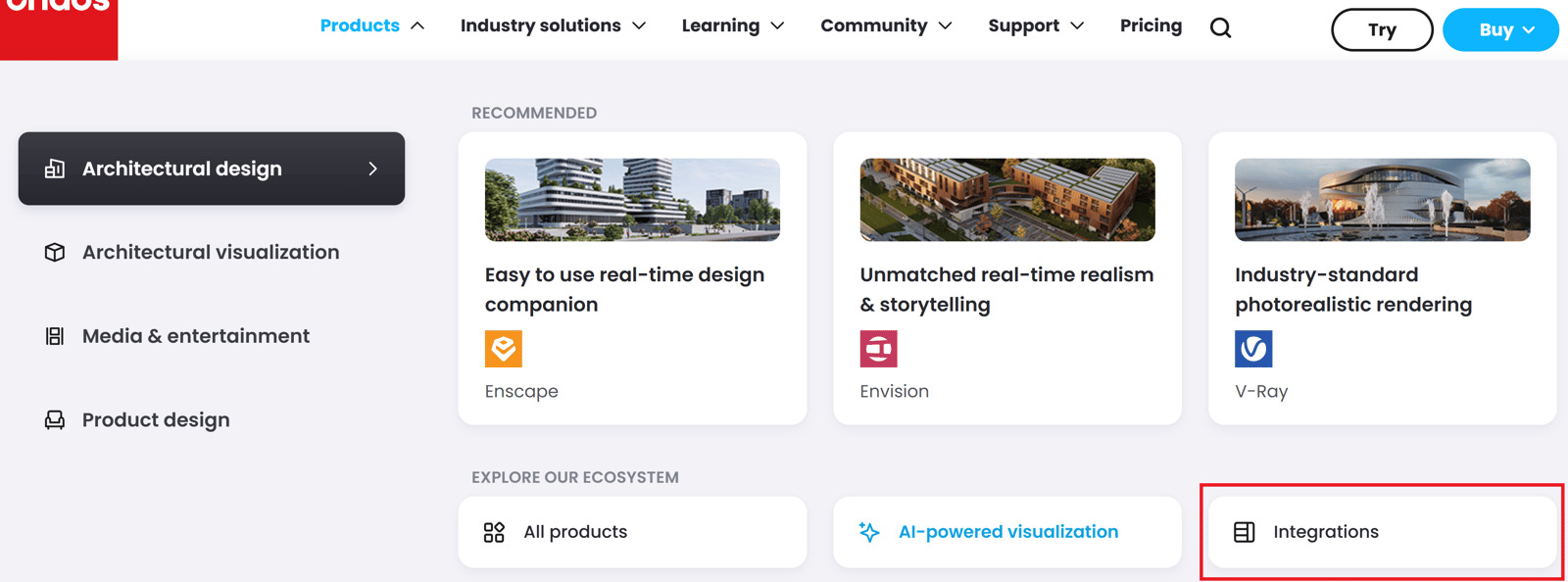
Then choose V-Ray for Maya from the list of available V-Ray integrations.

On the V-Ray for Maya page, scroll down to the PLE section, or use the navigation bar to jump directly to it.

Once scrolled down, click Learn more to be redirected to the Maya PLE section.
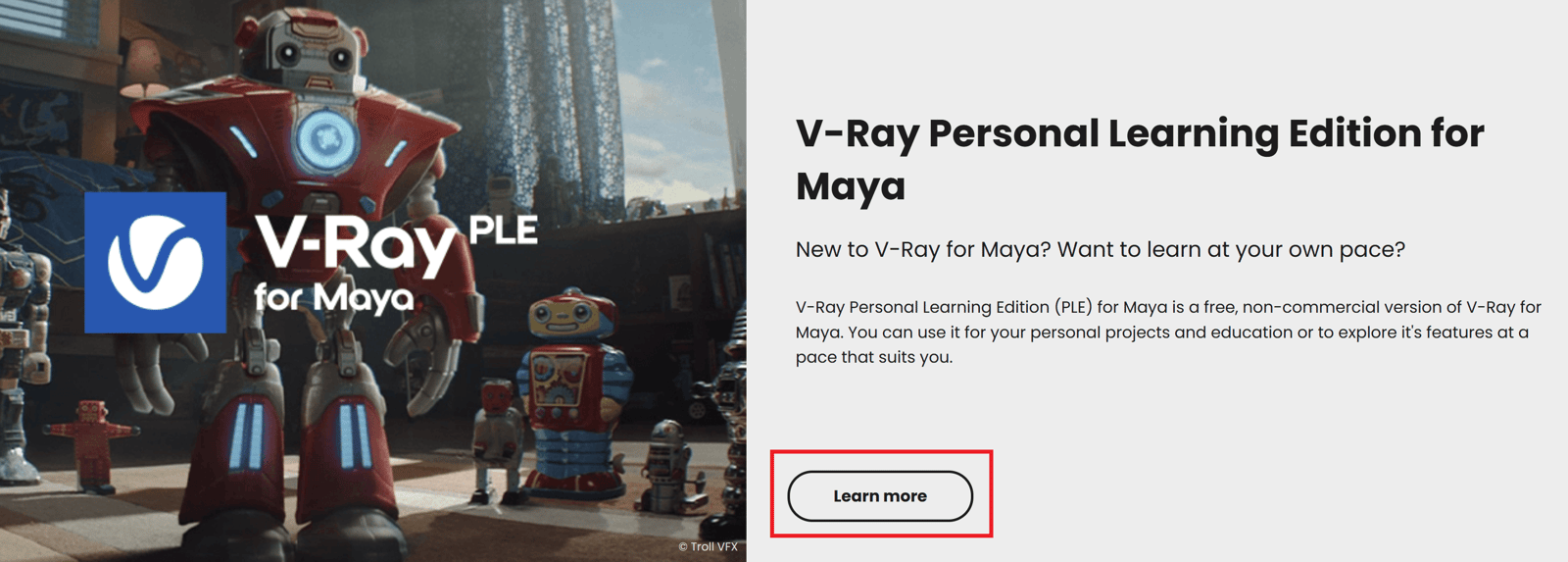
Click Get started to acquire a PLE license.

A new window opens. Select how you plan to use the product.
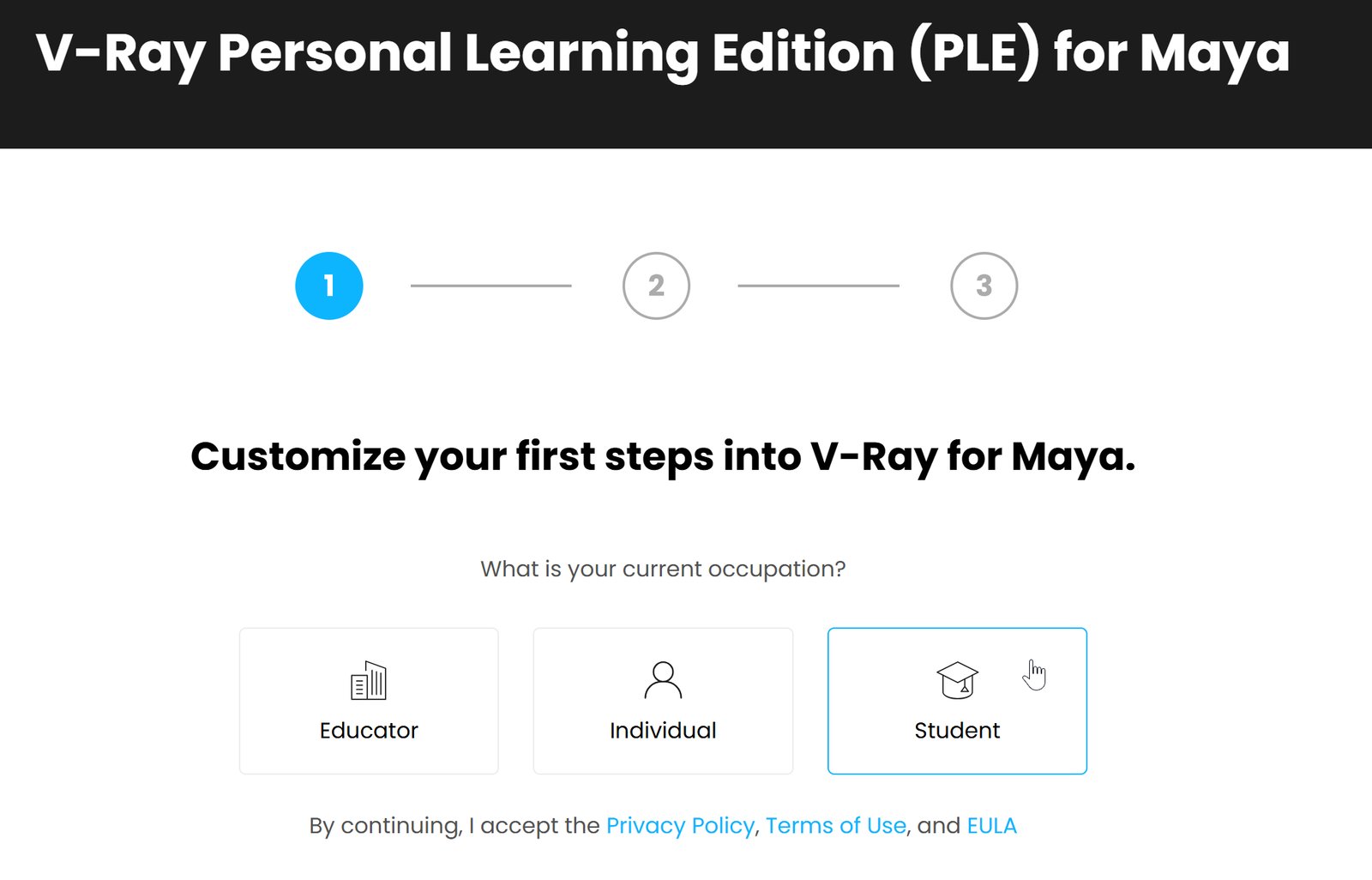
Depending on the role you choose, you are asked to provide additional information. When you’re done, click Submit to proceed.

Educator Customization
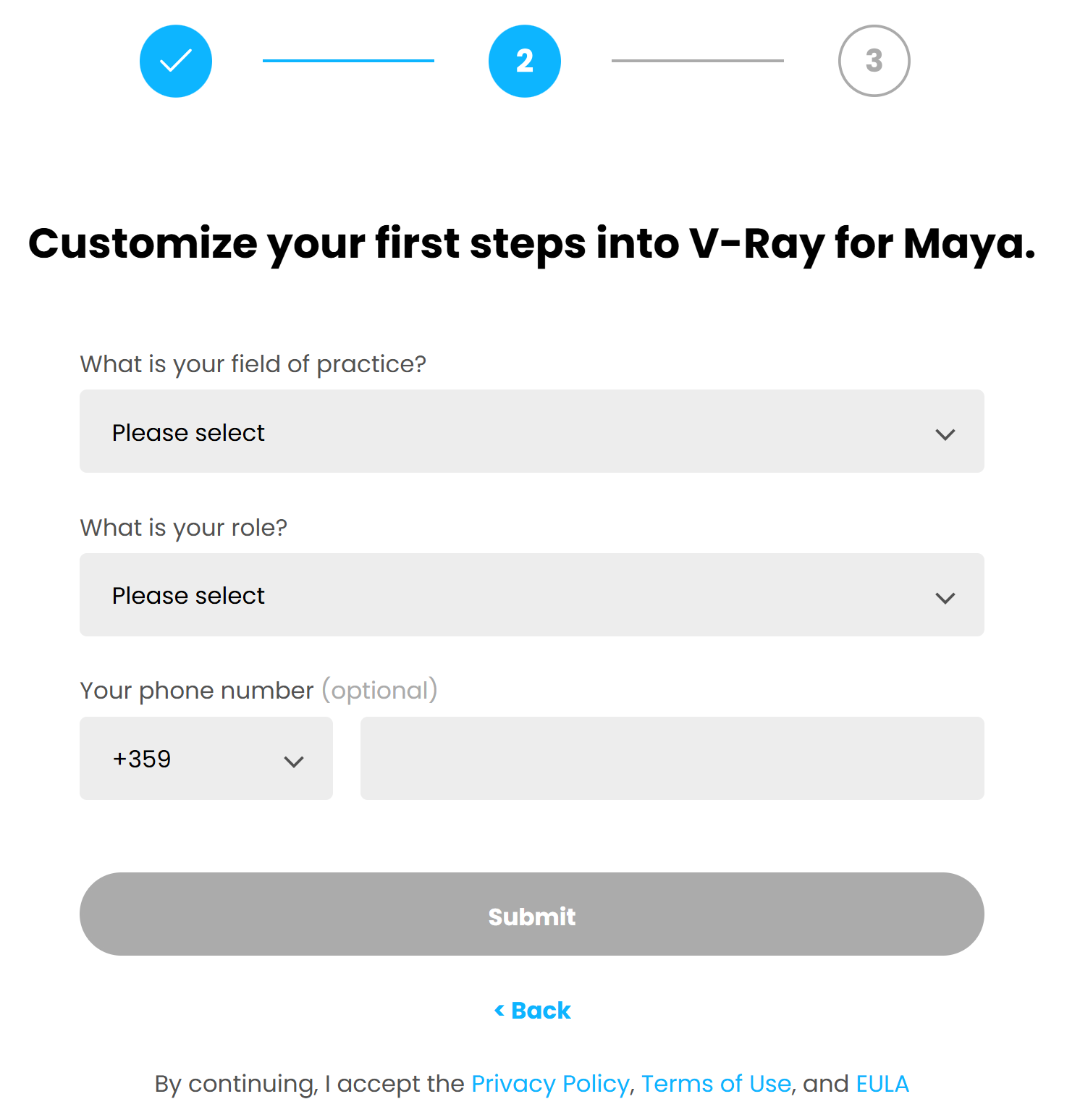
Individual Customization

Student Customization
Once your request is processed, you'll see a "Thank you" message and a Download Now link to access the product.

Select the version for your operating system, download it, and install it. For more information on how to do it, see the Installing V-Ray PLE for Maya section below. You can also download the license from my.chaos.com → Products → Active Products.

Installing V-Ray PLE for Maya
To complete the installation, follow the steps below.
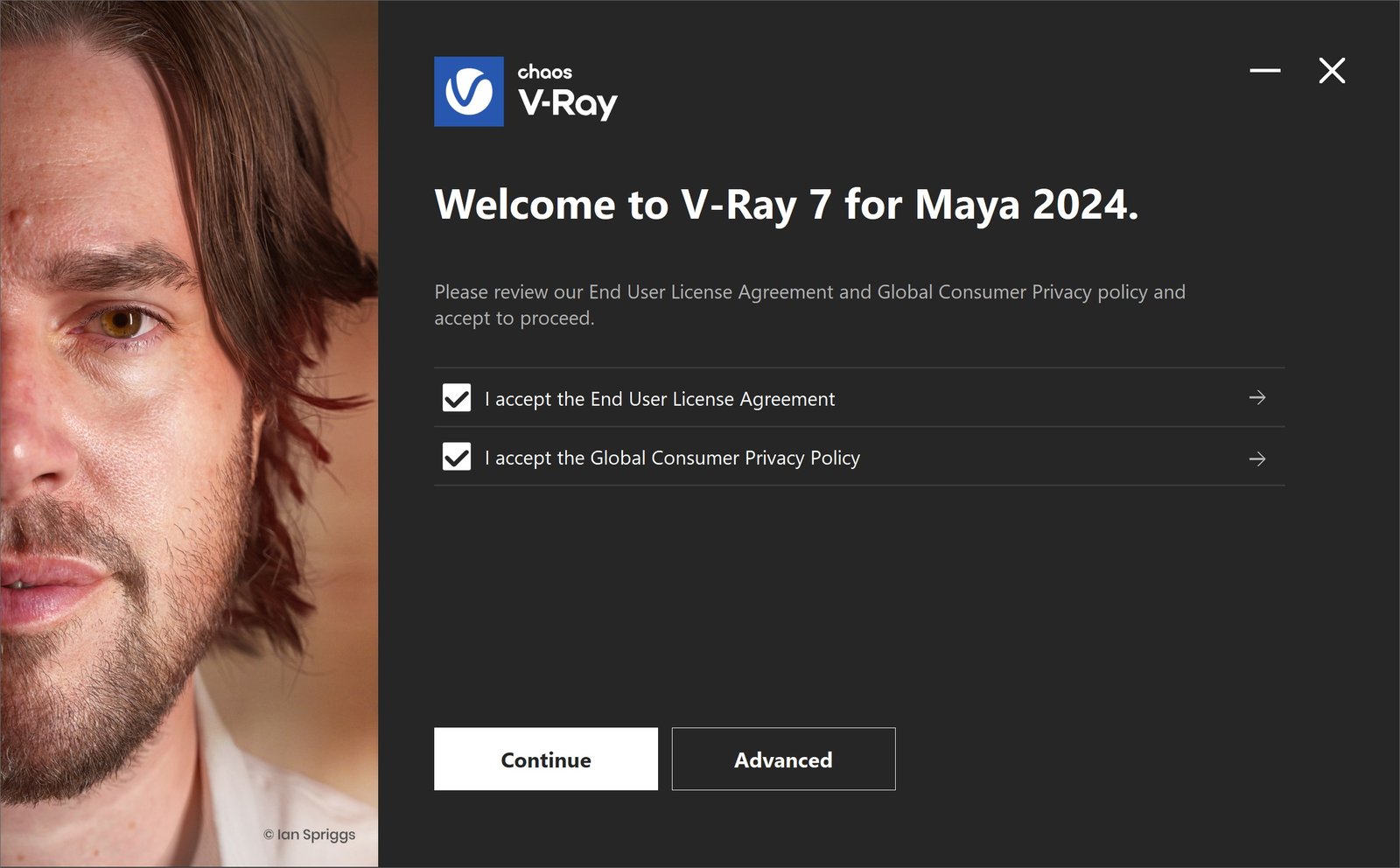
1. Welcome
Carefully read and accept the End User License Agreement and the Global Consumer Privacy Policy.
Then, click Continue. If you need to customize your V-Ray installation, click Advanced.
2. Cloud Licensing
When installing for the first time, V-Ray uses Cloud Licensing by default.
Click Install to continue with Cloud Licensing. If you need to connect to a network License Server, click Use License Server.
Chaos products use two licensing models: Cloud Licensing and the License Server. Cloud Licensing offers maximum flexibility, allowing users to sign in with their Chaos Account and use products from any location with an Internet connection. The License Server allows to set up centralized network setups and requires you to be on the same local network or connect through a VPN.

3. Chaos Telemetry
V-Ray installation is successful.
Participate in the improvement decisions for future versions of V-Ray. No intellectual property is violated when agreeing to participate in the improvement program. Chaos does not gather scenes, assets, materials, etc. This preference can be changed anytime from V-Ray Render Settings > Settings > About V-Ray > Feedback program settings. For more information, see the Chaos Telemetry page.
Anonymized Telemetry – Includes the most used product functionality and/or parameter values. The data is not personally identifiable and is not tied to the user's individual account.
Personalized Telemetry – Includes the most used product functionality, parameter values, but also contains personally identifiable information tied to an individual user's license. This helps Chaos tailor and optimize the product for better personal use.
V-Ray installation is successful.

Advanced Installation Options
V-Ray type
Advanced settings
Full – Includes all components. It allows you to use V-Ray in Maya, run V-Ray Standalone or a V-Ray render server for Distributed or Network Rendering.
Standalone only – Installs only V-Ray Standalone and V-Ray render server. Choose this option if you only use this machine for Distributed Rendering.
Add firewall exceptions – Automatically add firewall exceptions so Distributed Rendering and V-Ray Standalone can run uninterrupted.

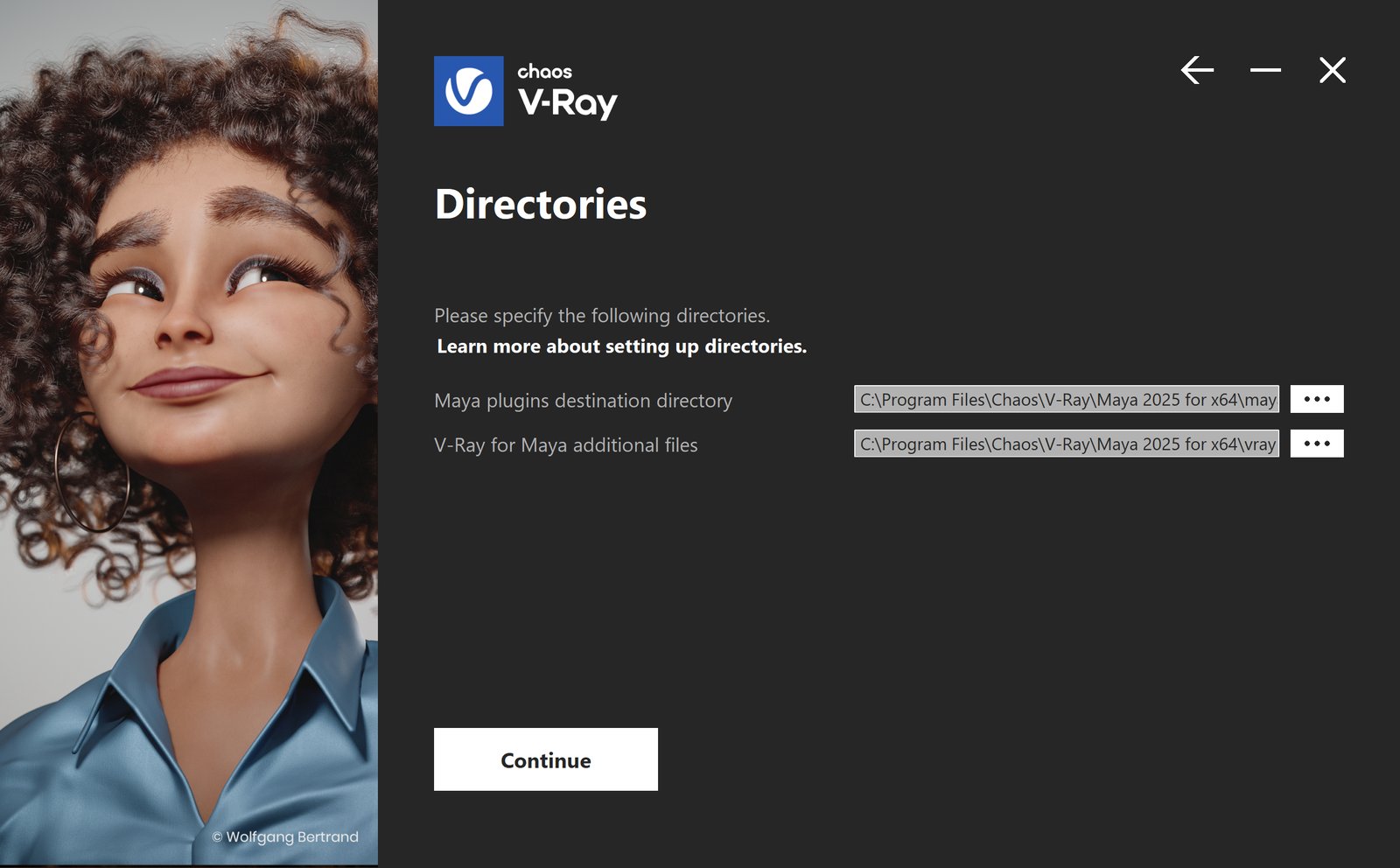
Directories
Here, you can specify the installation paths. Please check if the default folders are correct.
Licensing
In this step, specify whether the Chaos License Server runs locally or on another machine.
If you select Remote licensing, you have to enter the IP address of your Chaos License Server in the Primary License Server field. Leave port 30304 unchanged. An Alternate License Server can be used for redundancy in case the primary one does not respond. The License Server will not install when the Remote option is selected. When Local licensing is selected, the Chaos License Server is installed with V-Ray.

Chaos License Server Options
At this step, you can choose where to install the Chaos License Server.
Add firewall exception – Allows the default licensing port (TCP 30304) in the firewall. If you disable it at this step, you must manually add firewall exceptions later. This option is available for Windows OS only.

Activate Chaos Licensing
To activate your V-Ray PLE for Maya license, you need to enable online licensing with your Chaos account.
Once the installation of the License Server is done, you are directed to the License Server local host (127.0.0.1:30304) in order to sign in and activate it.
Your License Server and V-Ray PLE for Maya license are now active.