V-Ray for Maya
How to Use Substance Textures with VRayMtl
This tutorial shows how to import textures from Substance Painter and Substance Designer into V-Ray for Maya and then use them with VRayMtl.
Last updated 18 September 2025
This tutorial shows how to import textures from Substance Painter and Substance Designer into V-Ray for Maya and then use them with VRayMtl.
Overview
In this tutorial, we will export textures from Substance Painter and Substance Designer and then import them in V-Ray for Maya to demonstrate how they can be used with VRayMtl.
In Substance Painter, we can work with either the Metallic/Roughness or Specular/Glossiness workflows to create shaders. The shaders then can be exported for use with V-Ray by using the V-Ray export preset.
You can find out more about exporting textures from Substance Painter here: https://helpx.adobe.com/substance-3d-general/home.html
Want to follow along but don’t have a license?
Step 1: Export Textures from Substance
- In Maya, create your textures and then go to File / Export Textures…
- In the Export Tab, select the Vray Configuration and click Export.
Step 2: VRayMtl Setup
- Create a VRayMtl material in Maya.
- Import the textures exported from Substance Painter/Substance Designer into Maya from File > Import....
- Link the textures to the input channels as follows:
Substance Painter Texture | Colorspace | V-Ray Material Channel |
|---|
Substance Painter Texture | Colorspace | V-Ray Material Channel |
|---|---|---|
Diffuse | sRGB | Diffuse Color |
Reflection | sRGB | Reflection Color |
Glossiness | RAW | Reflection Glossiness |
IOR | RAW | Fresnel IOR |
Normal | RAW | Bump and Normal Mapping |
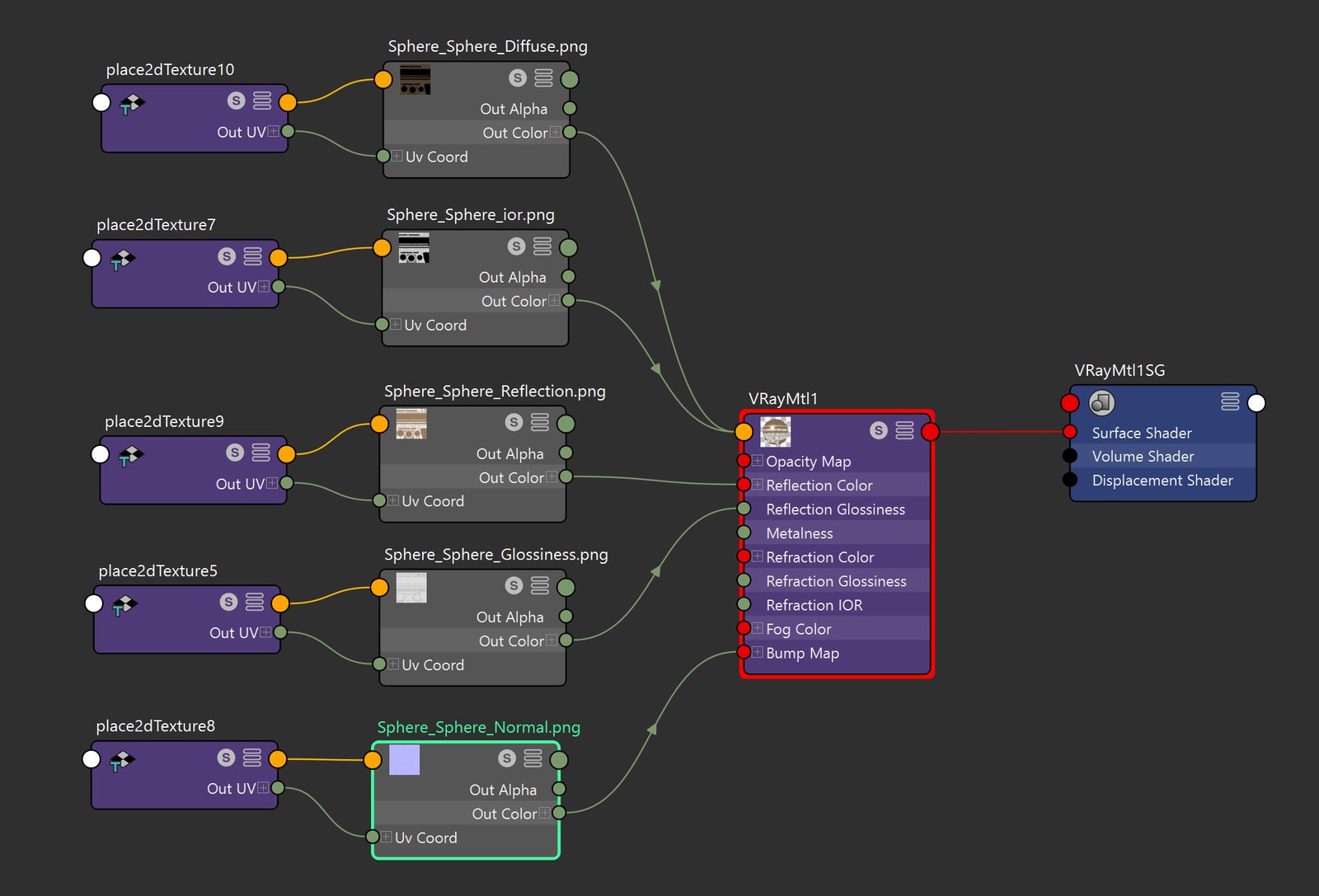
- In VRayMtl parameters > Reflection rollout, disable the Lock Fresnel IOR to Refraction IOR option. Alternatively, you can leave it locked, but connect the IOR texture to the refraction IOR of the VRayMtl.
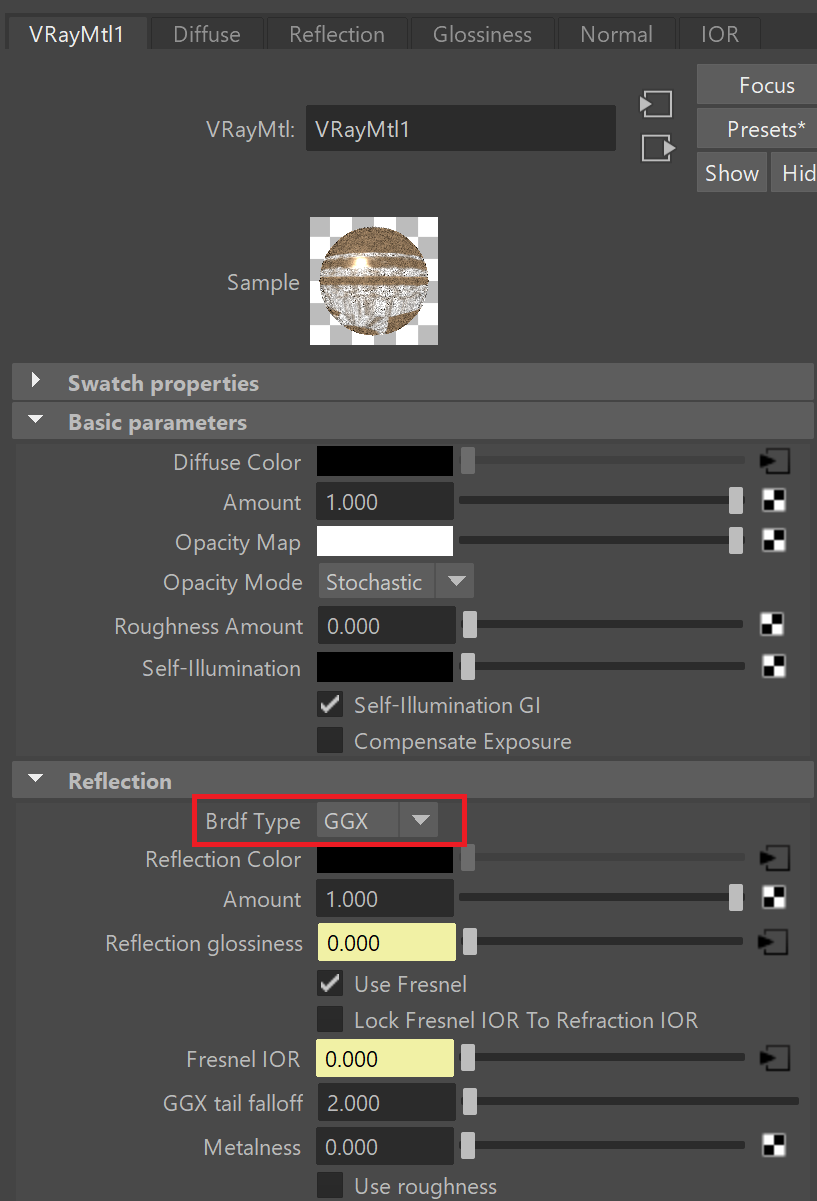
- In VRayMtl parameters > Reflection rollout, set the BRDF Type to GGX .
Step 3: Adjust Colorspace of Imported Textures
- Change the colorspace to RAW for the Glossiness, IOR and Normal maps from the File Attributes rollout > Color Space > RAW.
- Make sure that the colorspace of the Diffuse and Reflection maps is set to sRGB.

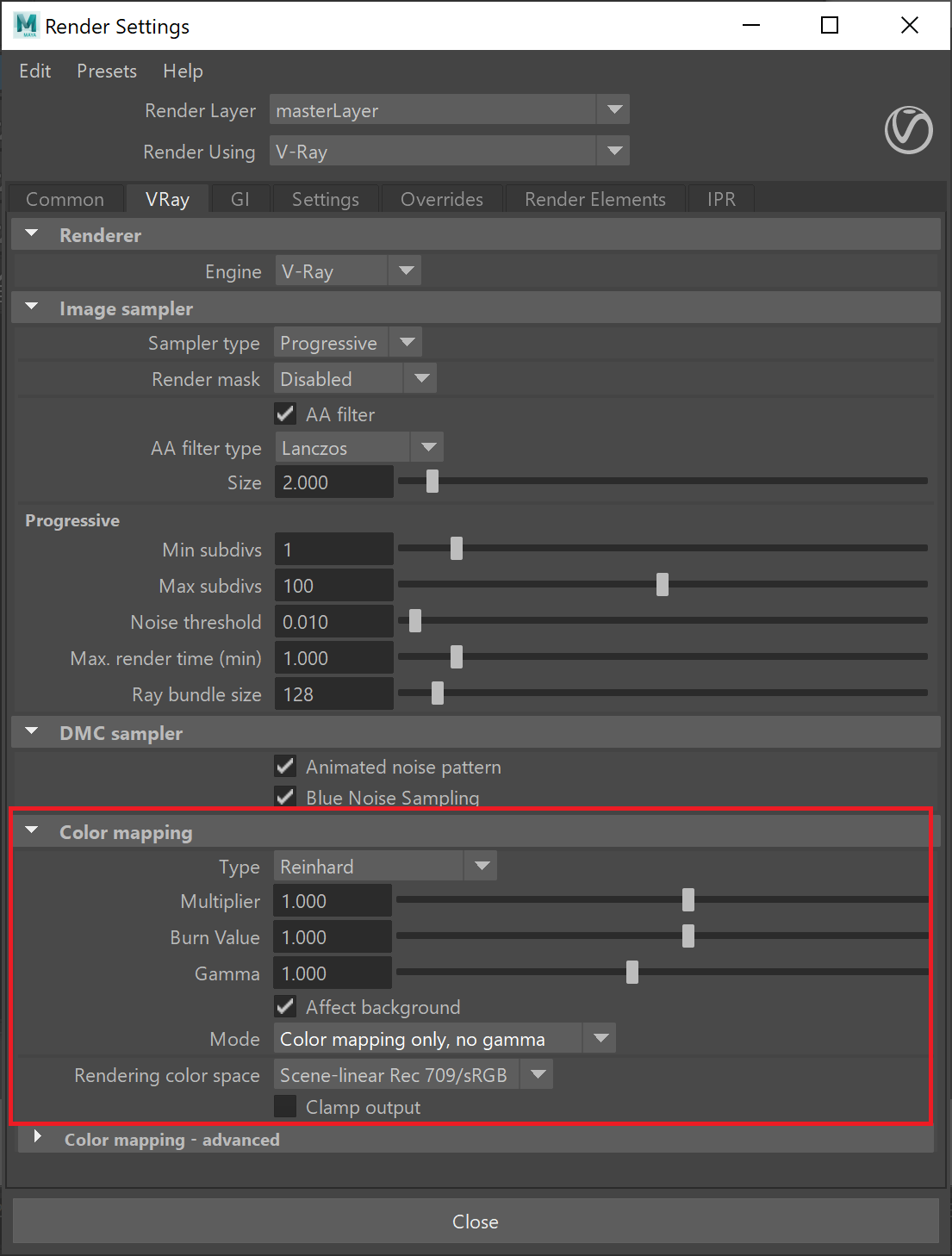
From Render Settings > V-Ray > Color mapping:
- Leave the Color mapping type to default Reinhard.