V-Ray for Maya
Live Link to Vantage from Different Machine or OS
This guide shows how to set a live-link connection from V-Ray for Maya, which runs on Linux or macOS, to Chaos Vantage, which runs on Windows.
Last updated 30 April 2026
This guide shows how to set a live-link connection from V-Ray for Maya, which runs on Linux or macOS, to Chaos Vantage, which runs on Windows.
Overview
Chaos Vantage requires a Windows machine with compatible GPU cards to operate; however, a Live Link connection can be established from any machine, regardless of its hardware capabilities or operating system, as long as it supports V-Ray.
Starting with V-Ray 7, update 2, the workflow for using Live Link on a non-Windows machine has been simplified. That machine only needs to have a V-Ray build with DR2.
Want to follow along but don't have a license?
Setup
Versions 7.2 and Later
This method works for Live Link and Live Link in Viewport. It does not support animations.
- On your machine, open the Chaos Vantage Settings. They can be found through the V-Ray Shelf > Chaos Vantage button > Chaos Vantage Live-Link Settings.
- In the IP Address field, enter the IP address of the Windows machine. Make sure that Chaos Vantage is running on the Windows machine. Leave the Port number property at its default value. It is set to 20703 for DR 2.
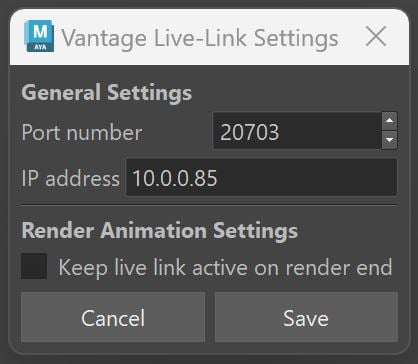
Click on the image to view it in full size
Versions Prior to 7.2
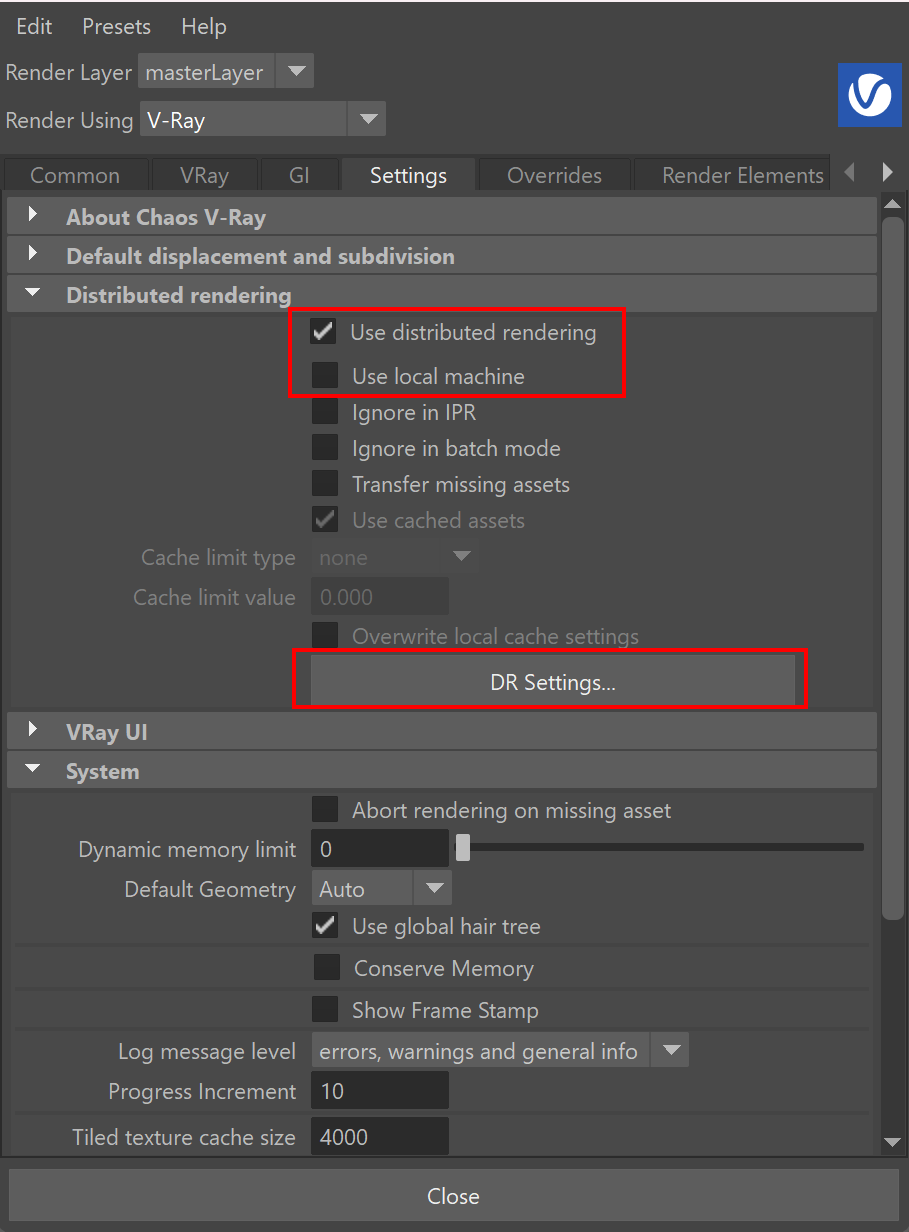
Open the expandable section to see the setup workflow for V-Ray versions prior to 7.2, regardless of the operating system.
V-Ray Setup for Versions Prior to 7.2
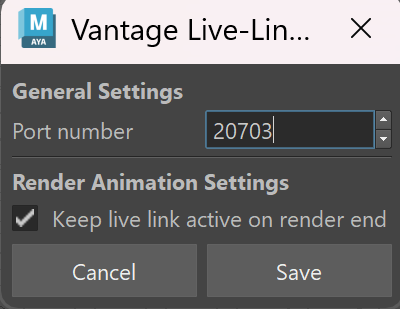
V-Ray Setup on Non-Windows Machine

Start the Connection
Start IPR in Maya on your machine. The VFB opens; leave it open for the duration of the connection; otherwise, the connection stops. Vantage loads the scene on the Windows machine. For the purpose of this tutorial, a Remote Desktop connection is used to view the Vantage window. You can adjust your scene from the Maya window and preview the changes live in Vantage. In this example, a light's intensity and temperature are enhanced. | Click on the GIF to view it in full size |
Start IPR in Maya on your machine. The VFB opens; leave it open for the duration of the connection; otherwise, the connection stops. Vantage loads the scene on the Windows machine. For the purpose of this tutorial, a Remote Desktop connection is used to view the Vantage window. You can adjust your scene from the Maya window and preview the changes live in Vantage. In this example, a light's intensity and temperature are enhanced. | Click on the GIF to view it in full size |
Rendering Animation Sequence
To render an animation sequence, open the Render Settings in Maya on the Windows machine.
Open the Translator rollout in the Common tab. Enable Export to a .vrscene file and turn off the Render option. Choose a name and location for the .vrscene file.
Since we want to export the whole animation to the .vrscene file, set the animation start and end frames to be exported.
Then, start the export by pressing the render icon in Maya.
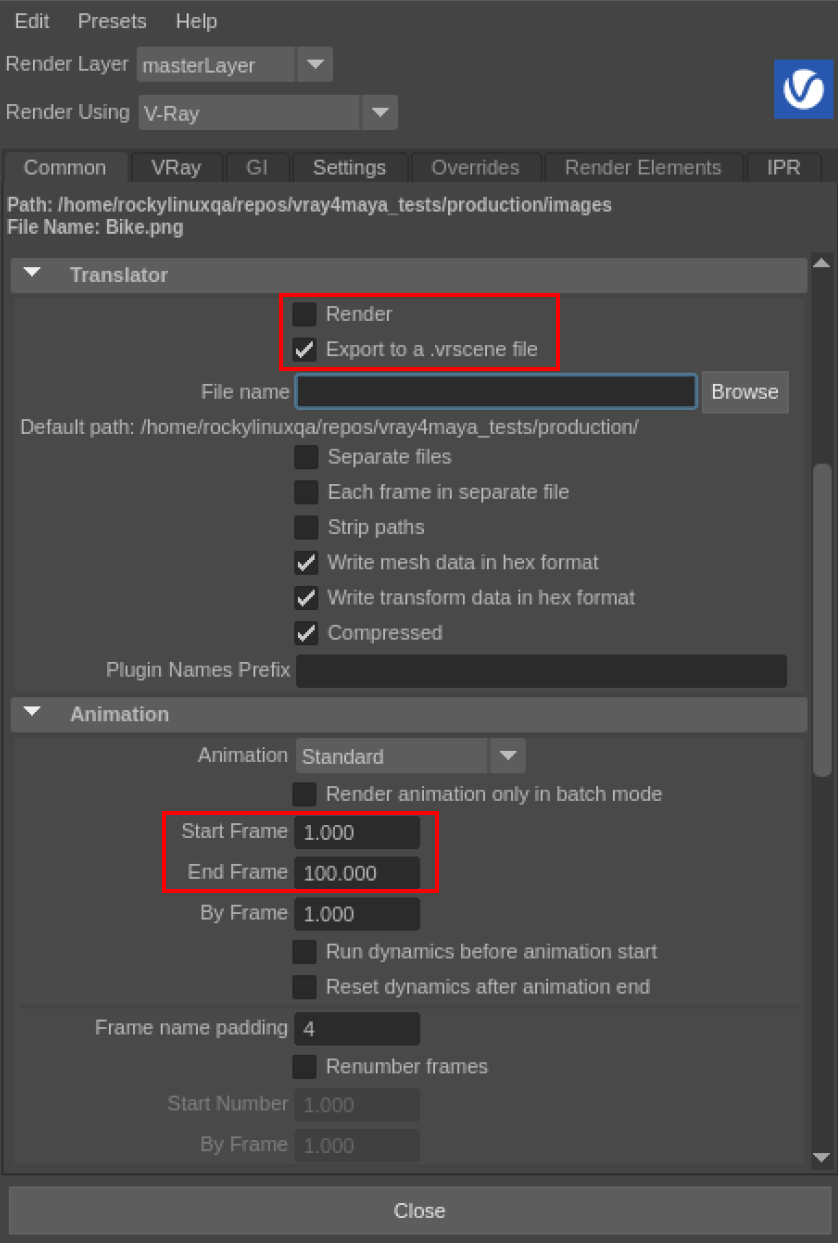
Click on the image to view it in full size
Transfer the exported .vrscene file to a location where your machine has access.
Go to File > Open Scene... and select the .vrscene file in Vantage.
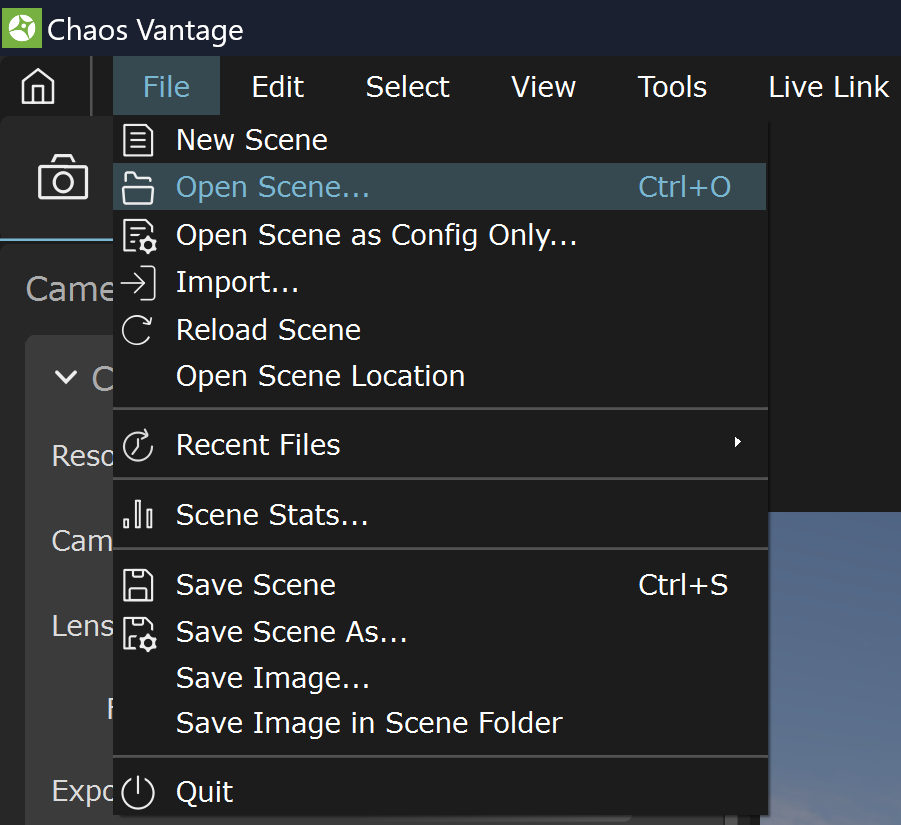
Click on the image to view it in full size
You can further adjust the sequence settings in Vantage. See the Offline Rendering article for more information about the settings in Vantage.