V-Ray for Maya
Standard Surface Shader Setup for USD Geometry
This guide shows how to use Standard Surface Shader on USD Geometry in LookdevX.
Last updated 19 September 2025
This guide shows how to use Standard Surface Shader on USD Geometry in LookdevX.
Want to follow along but don't have a license? Download Free Trial
Step 1: Create USD Layer
The example scene contains a shader ball modeled in Maya.
Let's create a new USD Stage Layer. Select the geometry object in the Outliner.
Go to the USD Layer Editor > Create > Stage with New Layer.
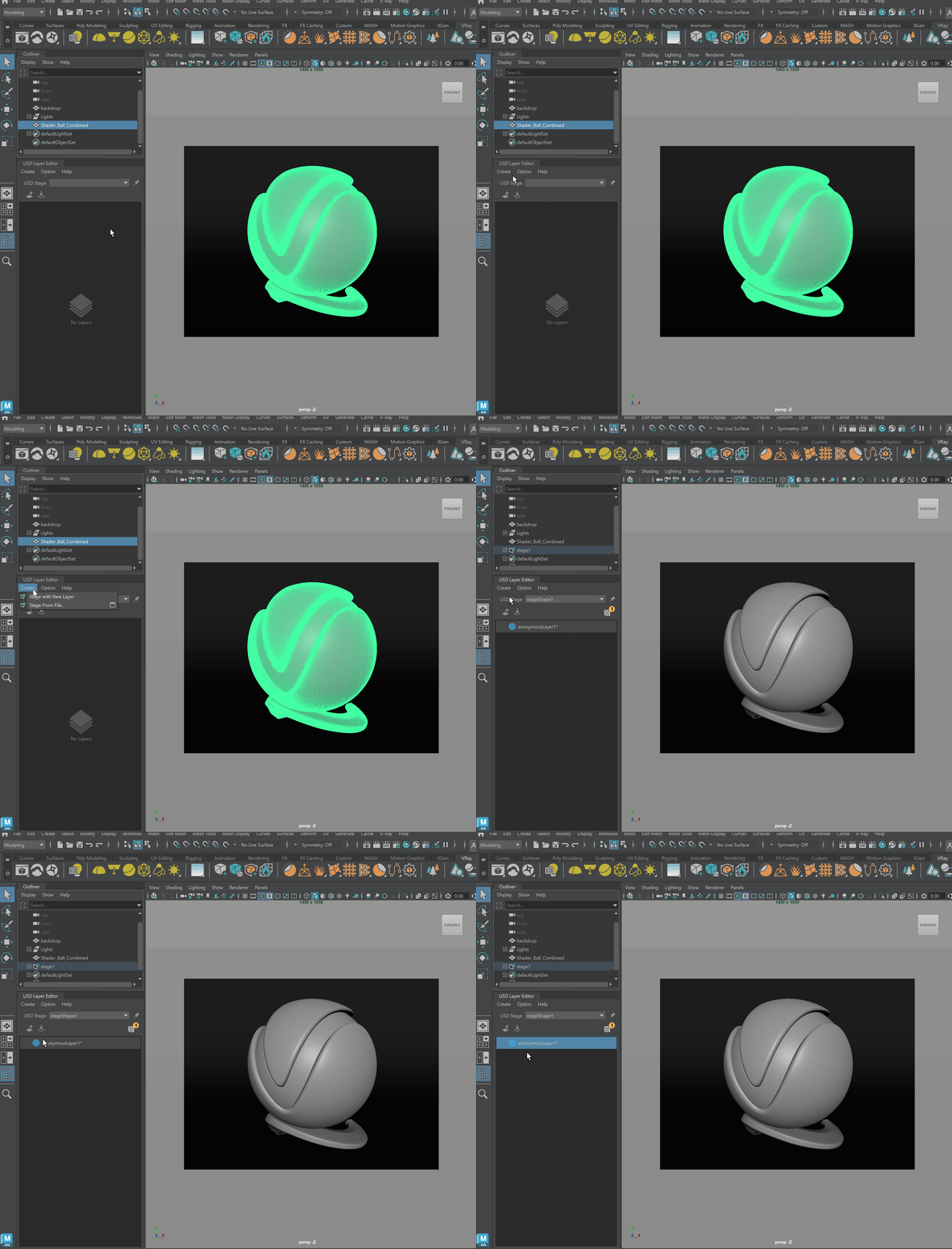
Select the geometry and right-click on it.
Select the option to Duplicate As USD Data > stageShape. Now, the shader ball is duplicated as a USD geometry.
You can remove the original model from the scene, as only the USD geometry is needed.

Step 2: Create and assign Standard Surface shader
Right-click on the geometry in the viewport. Select Assign New Material > MaterialX > Standard Surface.
Then, to access the shader, right-click again on the geometry and select Show in LookdevX > New Tab. This will load a new tab in the LookdevX Shader Graph.

Diffuse
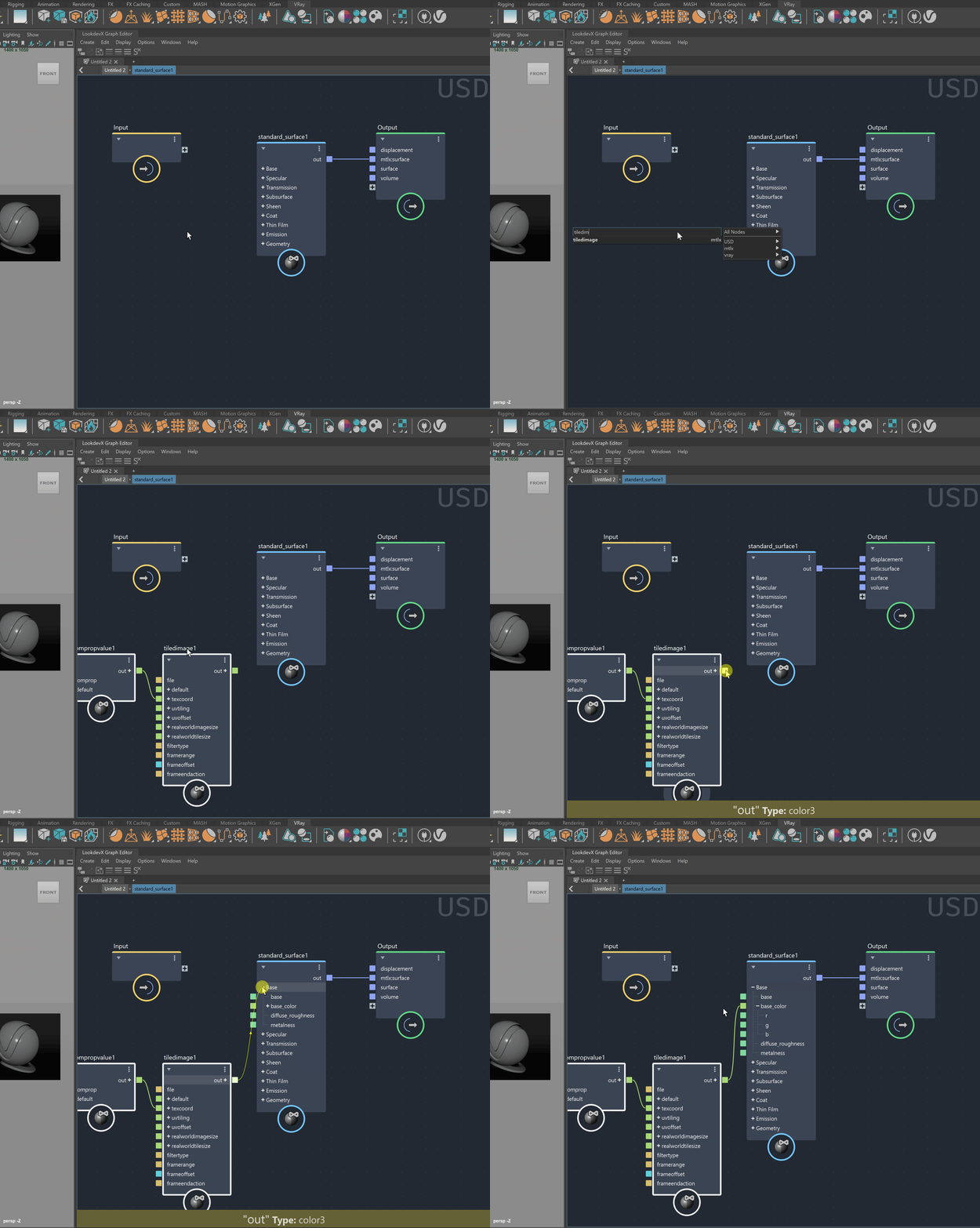
Dive into the Standard Surface node.
Create a new tiledimage node, which we use to load a diffuse map. Connect its output to the base_color input of the standard_surface node.
From the File field, load a texture map of your choice. For this example, Cosmos set of textures for diffuse, specular, and normal is used.
You can further adjust the texture's tiling by using the Uvtiling option of the tiledimage node.
Roughness
Either copy and paste the tiledimage and geompropvalue nodes or create a new tiledimage one.
Load a roughness map of your choice and connect the output of the tiledimage node to the specular_rougness input of the standard_surface node.
Make sure the Node Type of the tiledimage is set to float.

Normal Map
To set a normal map, copy and paste the tiledimage and geompropvalue nodes again.
Then, create a normalmap node.
Connect the output of the tiledimage node to the slot of the normalmap node.
Set the tiledimage's Type Node to vector3. The vector3 Node Type is used for reading normal maps.
Connect the output of the normalmap node to the normal input slot of the standard_surface node.
The LookdevX Graph Editor issues a warning that the normalmap requires a tangent reader connection.
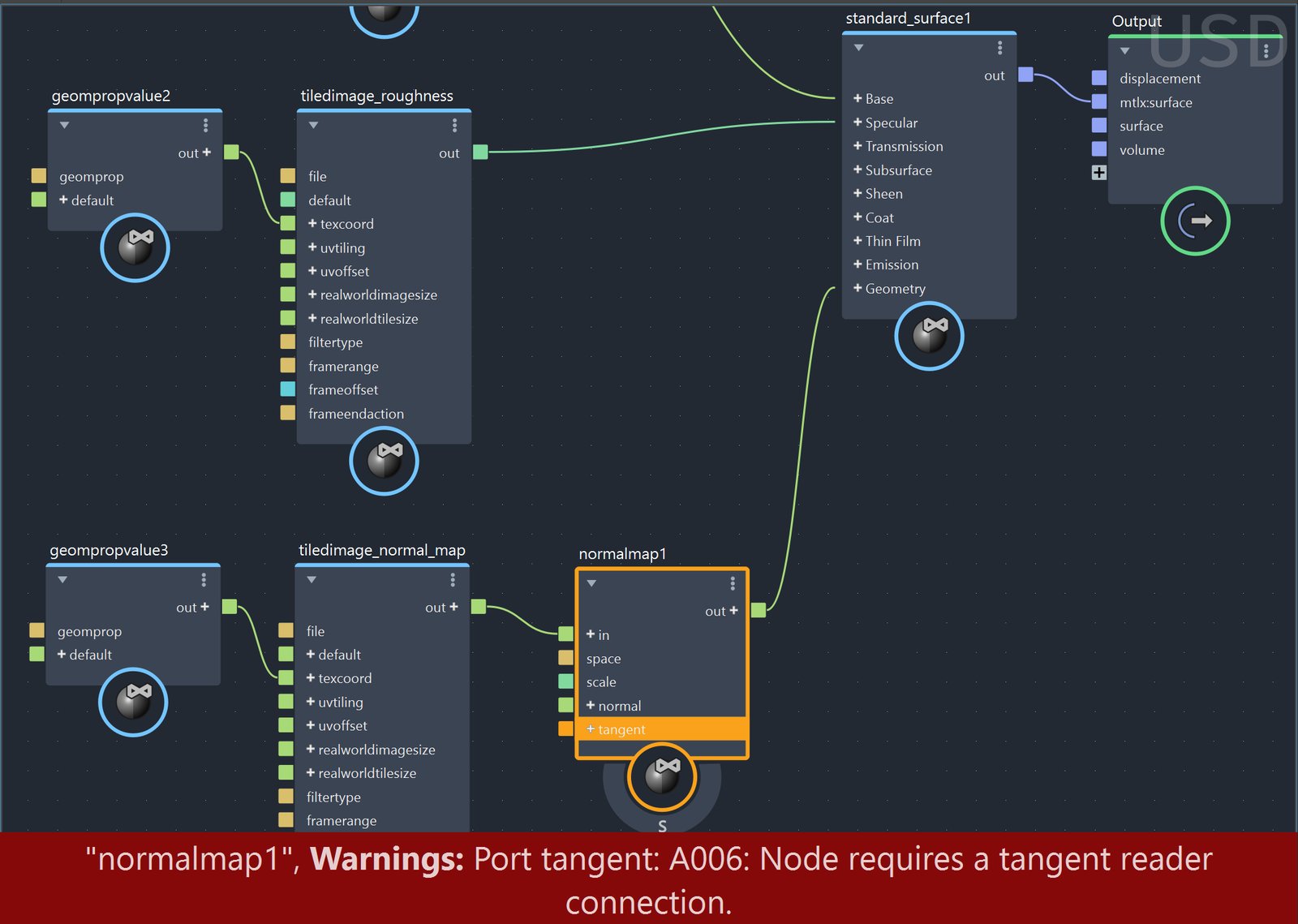
To address this warning, connect a new tangent node to the tangent input of the normalmap. Set the normalmap Space to tangent.
Set the tangent node's Space to world. World space is the default surface tangent vector.