V-Ray for Maya
USD Workflow
This page provides information on the USD import and export workflows in V-Ray for Maya.
Last updated 18 September 2025
This page provides information on the USD import and export workflows in V-Ray for Maya.
Import Workflow
USD files can be loaded in Maya and rendered with V-Ray using the MayaUSD plugin with mayaUsdProxy nodes.
We recommend following a standard workflow with MayaUSD when rendering with V-Ray. See the video for more.
- In Maya, go to Create > Universal Scene Description (USD) > Stage From File...
- Locate the desired USD file in the directory window.
- Click on Create.
Importing V-Ray materials using USD files
- V-Ray materials that are exported as USD files can be imported into Maya as native V-Ray materials using the mayaUSDImport command.
MEL example
<code data-v-c2b1f83f=""><span data-v-c2b1f83f="" class="line">mayaUSDImport -file "/path/to/file.usd" -primPath "/" -shadingMode "vray" "none"</span></code>
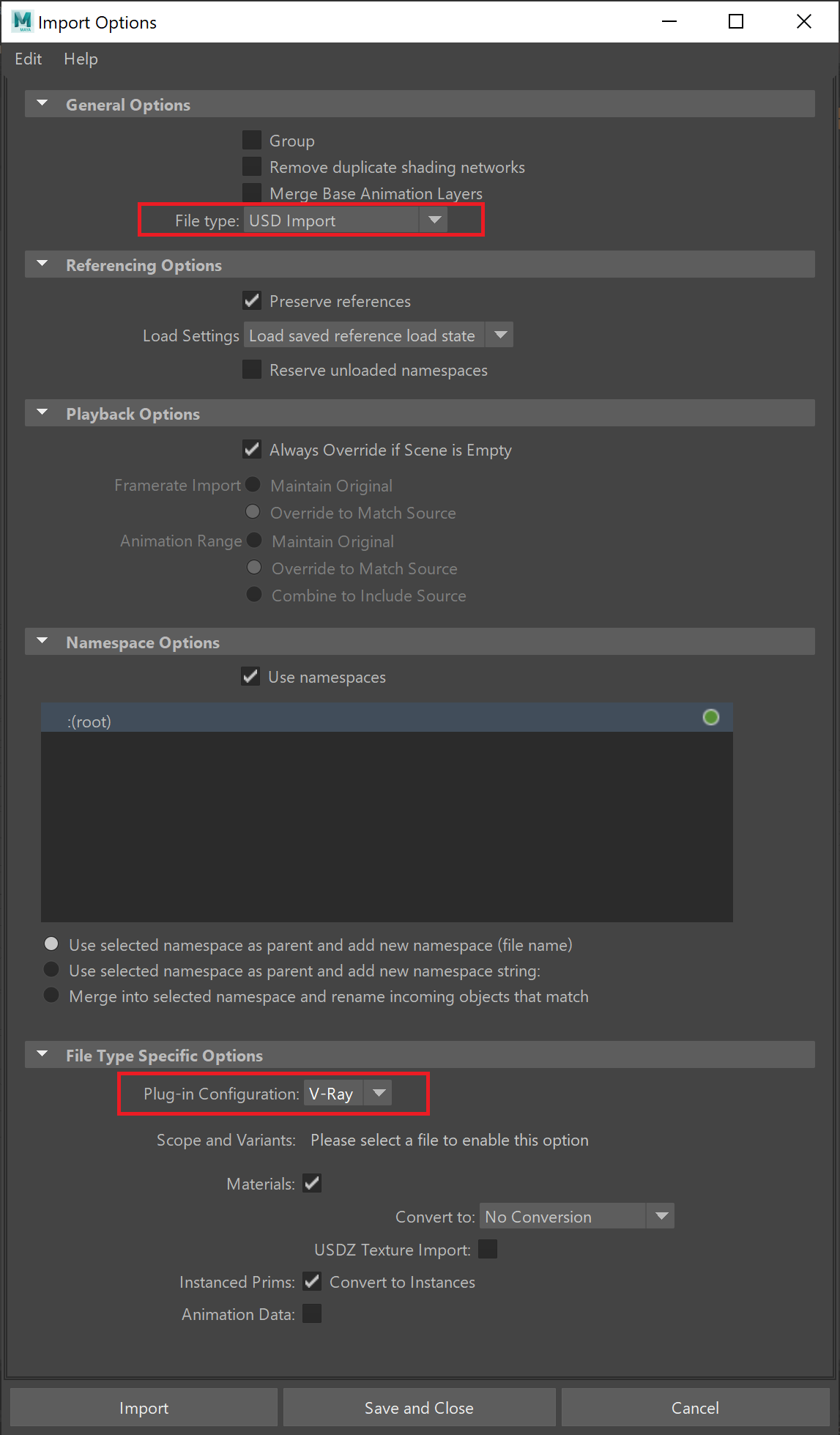
- Alternatively, there is an interface menu equivalent to the mayaUSDImport command. To import a USD file with native V-Ray materials, go to File > Import. In the pop-up menu, set the File Type to USD Import. Set the Plug-in Configuration to V-Ray.
Click here for UI example
Importing V-Ray Physical Cameras using USD files
USD files can be used to import V-Ray Physical Cameras and all their attributes using the mayaUSDImport command.
MEL example
<code data-v-c2b1f83f=""><span data-v-c2b1f83f="" class="line">mayaUSDImport -file"/path/to/file.usd" -primPath "/" </span></code>
Export Workflow
- In the File > Export All Options window, set the File Type to USD Export and choose whether the materials are exported as USD Preview Surface or as V-Ray materials. You can export all materials in the scene as one or multiple types of networks.
- Alternatively, you can use the V-Ray menu's Export Materials to USD option. For more information, please visit the Export Materials to USD page.
Disable the Merge Transform and Shape Nodes option from the Advanced rollout for a cleaner hierarchy and export. If you are using a version of V-Ray for Maya prior to 6.20.01, the Merge Transform and Shape Nodes option needs to be disabled to correctly export VRaySubdivisions.
When exporting objects with applied V-Ray Displacement, the displacement is exported along with the shaders. In this case, make sure the V-Ray materials option is enabled.
When exporting objects with an applied Subdivision attribute, the subdivision is exported separately from the shaders. In this case, enabling the V-Ray materials option is not mandatory, as it will not affect the export of the subdivision surface.
When exporting objects with applied Subdivision attribute and V-Ray Displacement, the subdivision and displacement are exported along with the shaders. In this case, make sure the V-Ray materials option is enabled.
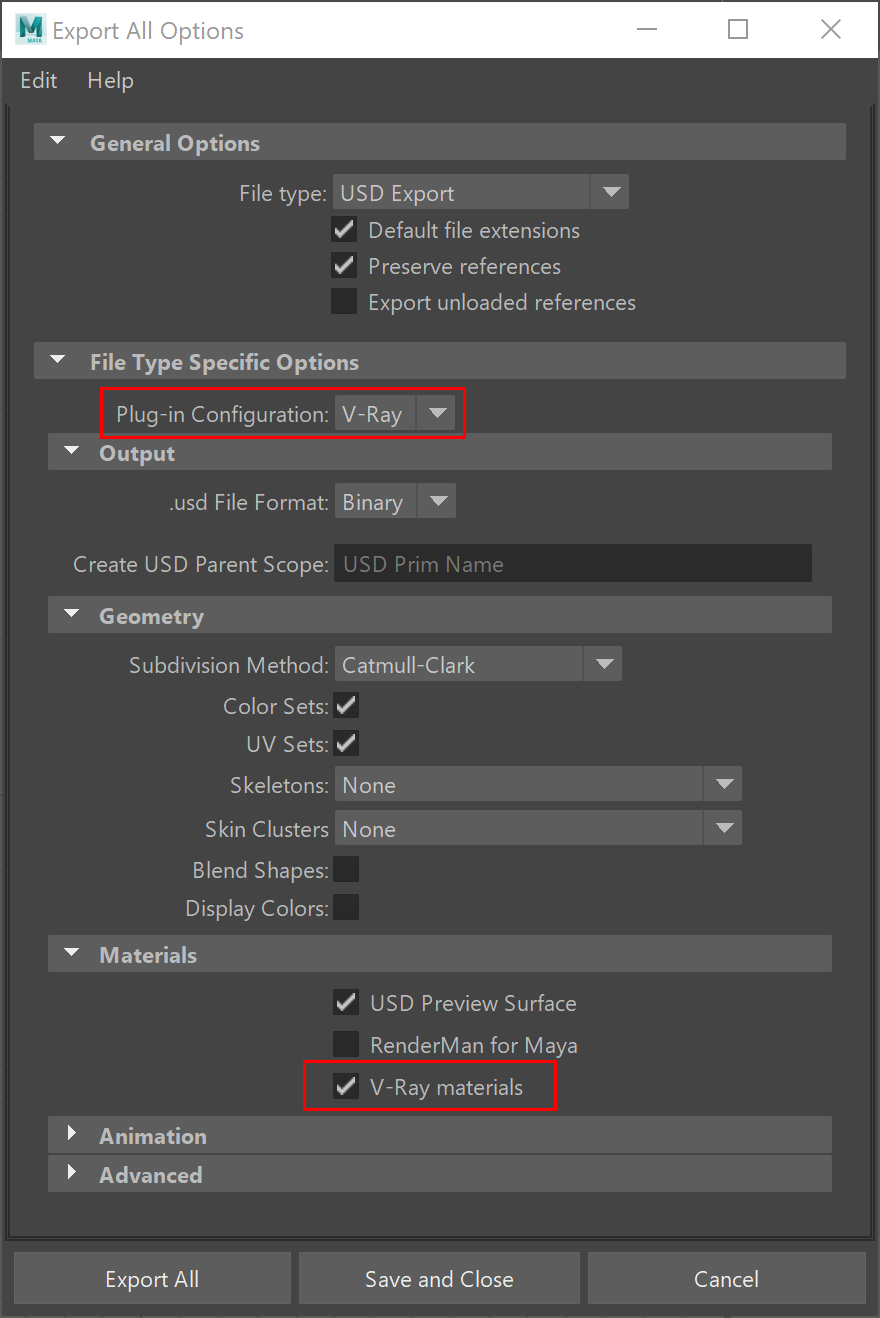
Export All Options
This section explains the options visible in the Export All Options window that pops up when exporting to a USD file.
Working with Multiple UVs
Starting with V-Ray 6, update 2 the default USD translator is Hydra compatible.
Export and import of multiple UVs is supported under the following condition: digits are forbidden as first characters in the name of the UVset.
To ensure proper workflow with UV sets the export Plug-in configuration should be set to V-Ray. Otherwise, they are exported with Maya's convention.
Should unexpected errors occur using older assets, it is recommended to re-export the UVset.