V-Ray for Maya
VRayLightLuminaire
This page describes the settings of the V-Ray Luminaire light.
Last updated 2 July 2026
This page describes the settings of the V-Ray Luminaire light.
Overview
The V-Ray Luminaire light allows efficient rendering of entire light fixtures by loading their respective precomputed light fields from .vlw files.
Such files are generated by Chaos and used in Chaos Cosmos light assets marked with a "luminaire" tag.
You can access the VRayLightLuminaireShape node's parameters by selecting the imported Cosmos asset holding the "luminaire" tag in the Outliner.
Basic Parameters
Enabled – Turns the VRayLuminaire light on and off.
Luminaire File – Specifies the .vlw file that holds the baked lighting.
Color Mode – Specifies the mode in which the color of the light field is tinted:
Color – When selected, the Color swatch specifies the tint color of the light field.
Temperature – When selected, the Temperature value expressed in Kelvin specifies the tint color of the light field.
Light Color – Specifies tint color to the Luminaire Light, when the Color Mode is set to Color.
Temperature – Specifies tint color temperature in Kelvin to the Luminaire Light, when the Color Mode is set to Temperature.
Intensity – Sets an intensity multiplier.
Scale – Allows the loaded asset to be scaled up or down.

Example: VRayLuminaire
These examples demonstrate how using V-Ray Luminaire enhances the image quality.

Disabled

Enabled
Options
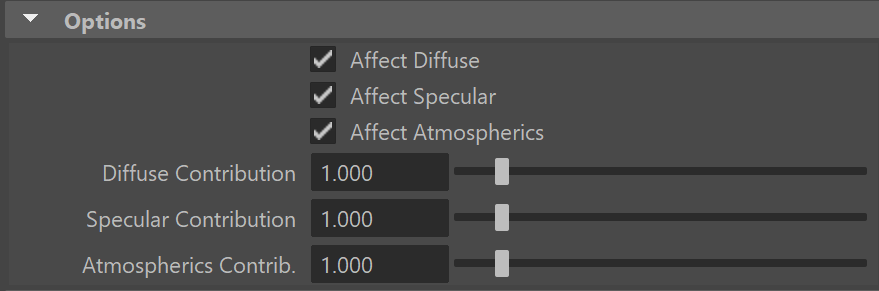
Affect Diffuse – Determines whether the light is affecting the diffuse properties of the materials.
Affect Specular – Determines whether the light is affecting the specular part of the materials.
Affect Atmospherics – When enabled, the light influences the atmospheric effects in the scene.
Diffuse Contribution – Specifies a multiplier for the effect of the light on the diffuse.
Specular Contribution – Specifies a multiplier for the effect of the light on the specular.
Atmospherics Contrib. – Determines the amount of influence the light has on the atmospheric effects such as VRayEnvironmentFog, VRayVolumeGrid or Phoenix effects.
Shadows
Cast Shadows – When enabled (the default), the light casts shadows. Turn this option off to disable shadow casting for the light.
Shadow Bias – Moves the shadow toward or away from the shadow-casting object (or objects). If the Bias value is too low, shadows can "leak" through places they shouldn't, produce moire patterns, or make out-of-place dark areas on meshes. If Bias is too high, shadows can "detach" from an object. If the Bias value is too extreme in either direction, shadows might not be rendered at all.

Sampling
Filtering On – Enables stochastic filtering of the light field to reduce aliasing.
Filter Strength – Specifies the strength of the stochastic filtering of the light field.
Cut-off Threshold – Specifies a threshold for the light intensity below which the light is not computed. This can be useful in scenes with many lights, where you want to limit the effect of the lights to some distance around them. Larger values cut away more from the light; lower values make the light range larger. If you set to 0.0, the light is calculated for all surfaces. This parameter is not available when the renderer is set to GPU.
