V-Ray for SketchUp
Gaussian Splat
This page provides information about Gaussian Splat objects in V-Ray for SketchUp.
Last updated 1 September 2026
This page provides information about Gaussian Splat objects in V-Ray for SketchUp.
Overview
3D Gaussian Splatting is a method used to create a 3D scene from images or videos. It requires several pictures of an object, each taken from a different angle. With Gaussian Splatting, the images are blended to produce a detailed, three-dimensional representation of the object. Instead of depicting the scene as a collection of meshes, a Gaussian splat represents the scene as a type of point cloud, where each point is a 3D Gaussian.
Gaussian splats help you create a realistic environment for your scenes.
UI Paths
||V-Ray Asset Editor|| > Geometries (right-click) > Gaussian Splat
||V-Ray Asset Editor|| > Create Asset (left-click) > Geometries > Gaussian Splat
||V-Ray Objects Toolbar|| > Import Proxy (left click)

Extensions menu > V-Ray > Objects > Import Proxy...
Preview Overlay
Select V-Ray Object previews to be displayed in the SketchUp viewport from ||V-Ray|| > Overlays > Preview Overlay.
Enable or disable all previously selected V-Ray Object previews from ||Window|| > Default Tray > Overlays > V-Ray Preview.


Parameters
Gaussian Splat – Turns on the Gaussian splat. This option also turns off the export of the Gaussian splats to a .vrscene.
File – Loads the Gaussian splat file. Currently, only .ply files are accepted.
Preview Type – Specifies the viewport preview mode. This does not affect the final render.
Reduced Points
All Points
Bounding Box
Point (Origin)
Custom Preview
Preview Percentage – Limits the number of preview points displayed in the viewport. Use this to optimize the viewport performance.
Scale Factor – Scales the Gaussian splat up and down.
Flip Axis – Changes the Up axis by rotating the object.
Color – Specifies a filter color for the splat. By default, the Color is white, which does not affect the splat. See the Color example below.
Intensity – Increases or decreases the Color multiplier for the Gaussian splat.
RGB Primaries – Specifies the color space of the data in the Gaussian splats file. For the Gaussian Splat to be read as it was written, select the respective input color space - sRGB, ACEScg or Raw
Clipping Texture - Controls the opacity of the Gaussian Splat. The black color in the texture makes the Splat transparent. White color makes it opaque. Use a Distance Texture to clip the splat using an object from the model. See the Clipping mask example below.

Example: Color
The Color shown on each render as a box is used as a filter for the original Gaussian Splat diffuse color.


Example: Clipping Masks
This example shows how to blend a Gaussian splat with a scene using a clipping mask to remove some unwanted objects from the render.

This is the Gaussian splat that we want to use as a natural environment for the scene.

The image shows the geometry we want to blend in with the Gaussian splat.
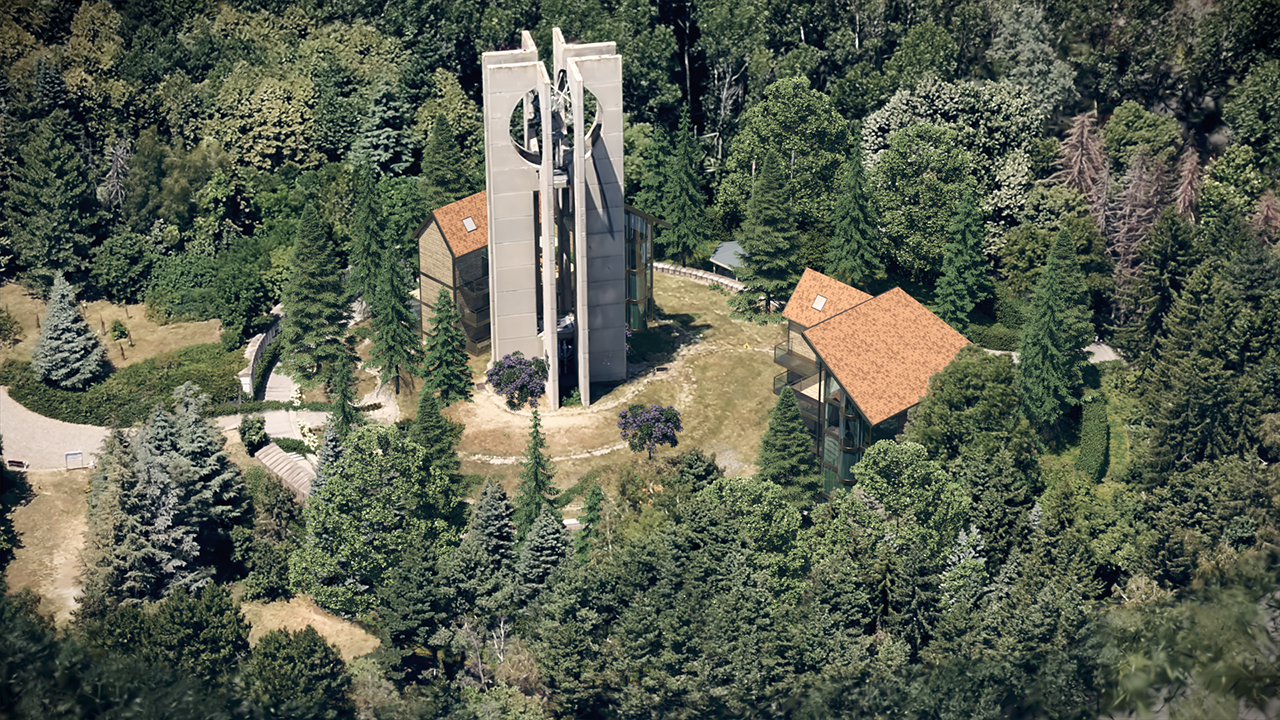
This render shows the Gaussian splat and the modelled geometry that are set to form a new scene. No further adjustment is done here.
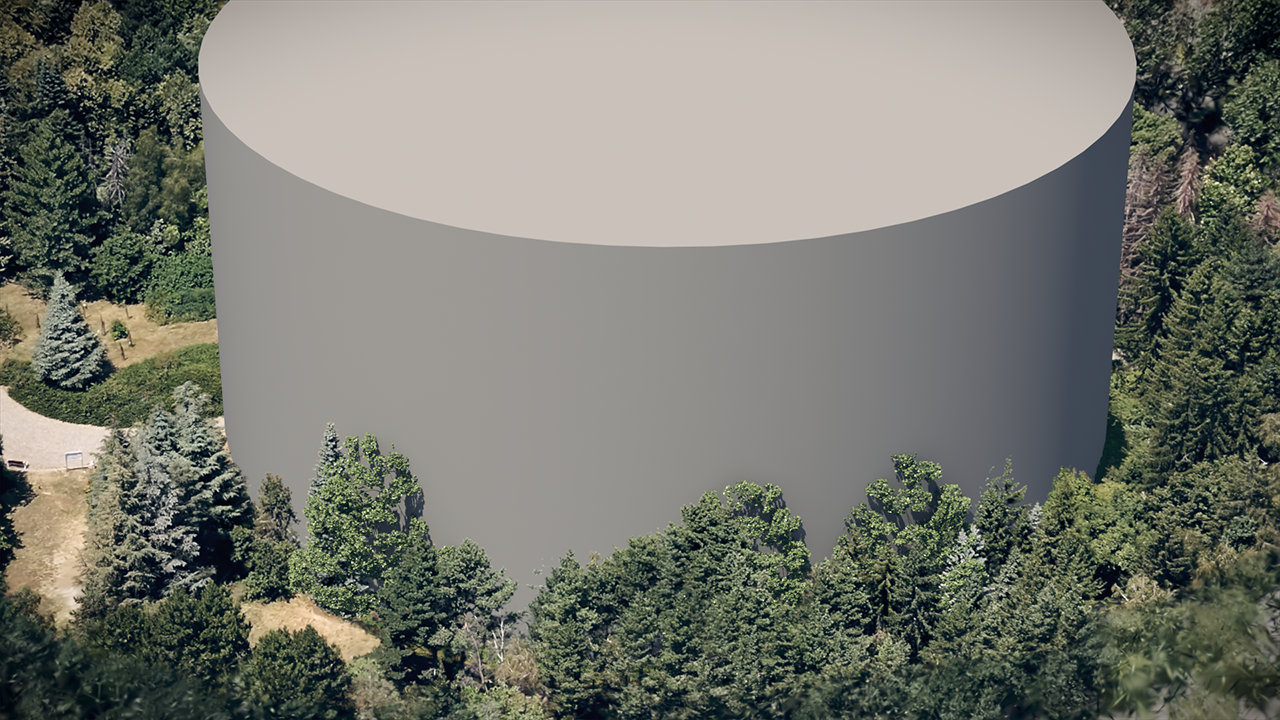
This image shows a cylinder that is used as an object in the Distance. The Distance texture
Inside
options are used to make the cylinder cut out the bell tower from the scene.
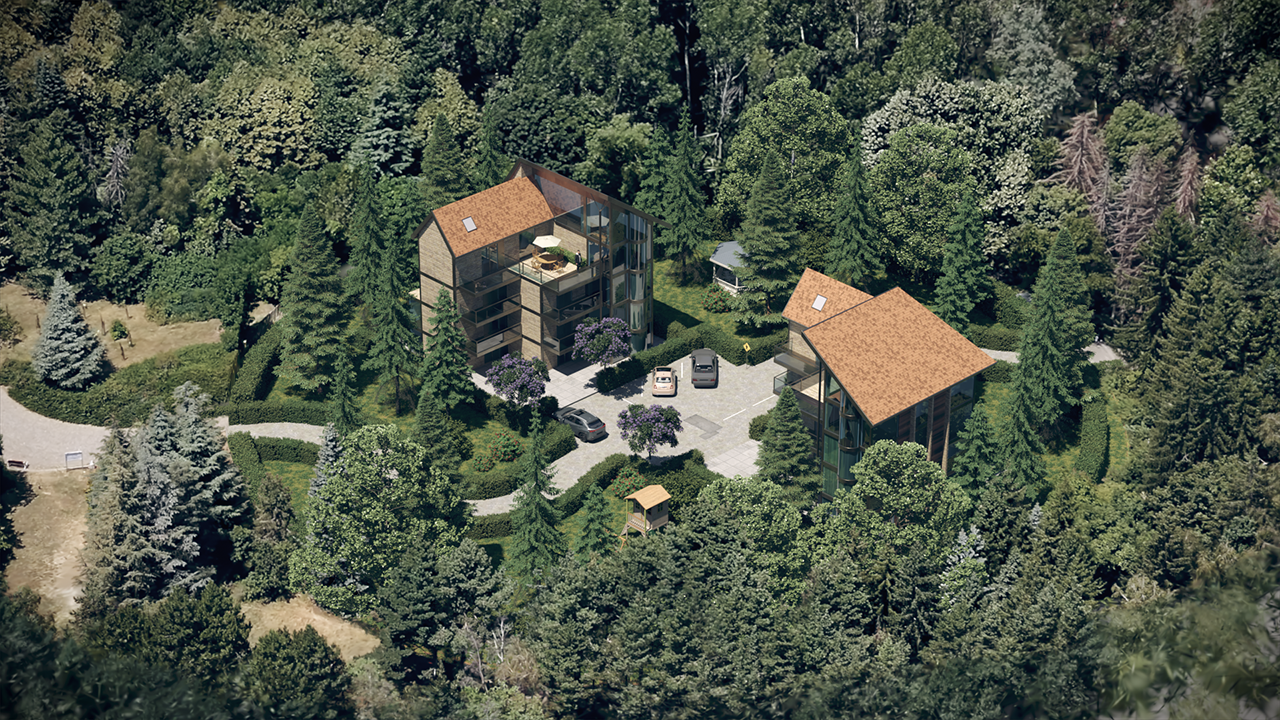
This image shows the final render with the Gaussian splat parts clipped out from the scene.
Lighting
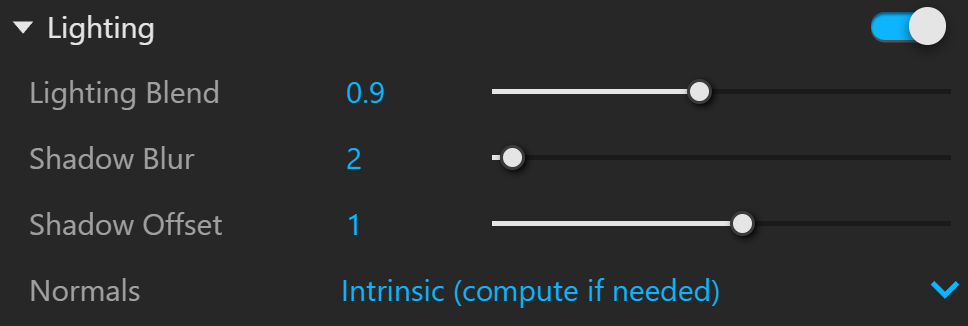
Lighting – Enables the lighting effects on the Gaussian splat object.
Lighting Blend – Blends the project lighting with the original splat color. A value of 0 disables the project lighting completely.
Shadow Blur – Specifies the shadow blurring radius measured in project units.
Shadow Offset – Specifies the distance of the shadow's offset, measured in project units, relative to the shadow caster.
Normals – Specifies how the lighting normals are calculated.
Disabled – Normals are ignored.
Intrinsic (compute if needed) – Uses normals from the Gaussian splats if present. Recalculates if missing.
Computed (force compute) – Recalculates all normals.
Options
Primary Visibility – Specifies whether the Gaussian splats should be visible to the camera. See the Primary Visibility example below.
Visible in Reflections – Specifies whether the Gaussian splats should be visible in reflections. See the Visible in Reflections example below.
Visible in Refractions – Specifies whether the Gaussian splats should be visible in refractions. See the Visible in Refractions example below.
Cast Shadows – Enable so Gaussian splats block shadows from lights. When disabled, the Gaussian splats become transparent to shadow and GI rays. It is recommended that this option be turned off when using the Gaussian splats as the environment or individual objects. See the Cast Shadows example below.

Example: Primary Visibility
The Gaussian Splat object can be hidden from the camera, like any other geometry object in the scene, by using the Primary Visibility option.

On

Off
Example: Visible in Reflections
The Visible in Reflections option controls whether the Gaussian Splat object is reflected in other objects in the scene.

On

Off
Example: Visible in Refractions
The Visible in Refractions option makes the Gaussian Splat object seen by other objects in the scene that exhibit refractive properties.

On

Off
Example: Cast Shadows
This example shows how the pink flamingo can produce shadows when the Cast Shadows option is enabled, and doesn't block light when it's not.

On

Off