Use the Area Modifiers rollout in the Scatter parameters to control where Scatter instances appear in V-Ray for SketchUp.
Parameters
Add Modifier lets you select objects whose dimensions define projected areas that include or exclude Scatter guests. The areas project along specified axes and use the dimensions of the objects or splines in the list. Scatter Area Modifier objects cannot also be Scatter Host objects. Area Modifiers are available only in Surface and Volume Scatter modes.
For Operation, see the Operation example below.
Include creates instances only within the projected area.
Exclude creates instances only outside the projected area.
Axis sets the area modifier's projection plane along the X, Y or Z axis. See the Axis example below.
Falloff Near sets the distance from the selected area modifier object where falloff begins. Across the falloff range, the area modifier's effect gradually fades between 100% and 0%. See the Falloff examples below.
Falloff Far sets the distance from the selected area modifier object where the falloff range ends and the area modifier has no effect.
Scale controls the scale of instances between the Near and Far Falloff distances. Its value sets the effect strength at the end of the falloff range.
For example, a value of 0.5 makes instance scale increase gradually from 0% at the Falloff Near distance to 50% at the Falloff Far distance. A value of 0 disables the falloff effect. See the Scale example below.
Density controls the density of instances between the Near and Far Falloff distances. Its value sets the effect strength at the end of the falloff range. For example, a value of 0.5 makes instance density increase gradually from 0% at the Falloff Near distance to 50% at the Falloff Far distance. A value of 0 disables the falloff effect.

Operation example
This example compares the Include and Exclude Operation modes.

Modifier
=
Cylinder

Modifier
=
Cylinder;
Operation =
Include

Modifier
=
Cylinder;
Operation =
Exclude
Axis example
This example shows the modifier's projection plane.
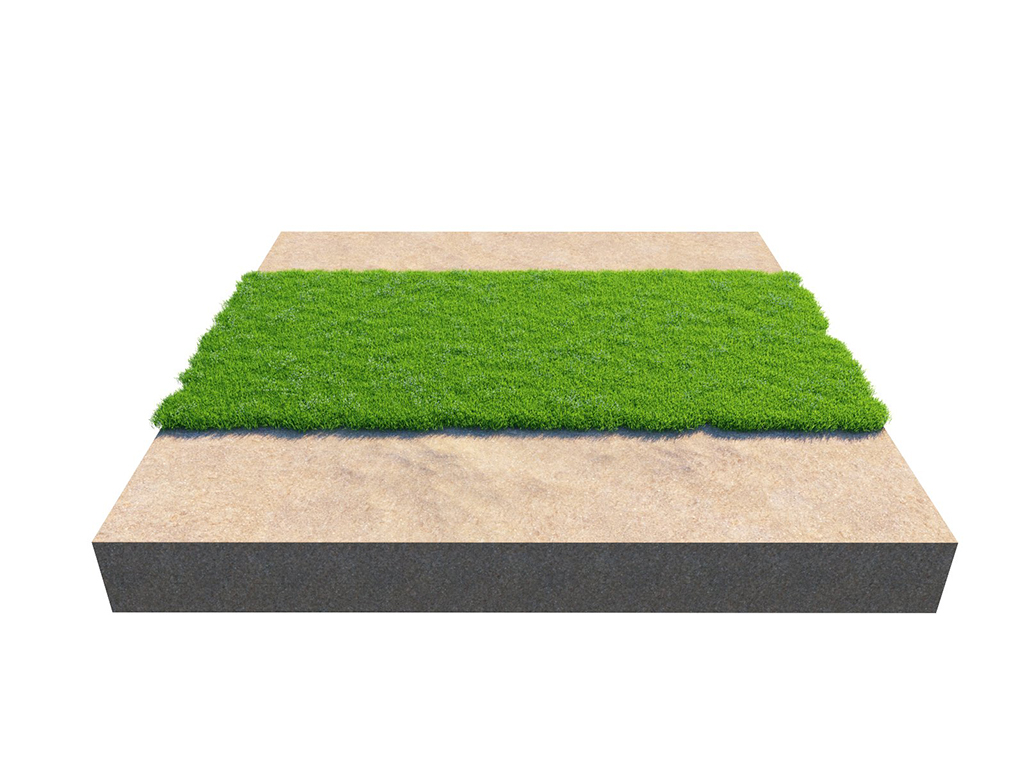
Modifier
=
Cylinder;
Axis
= X
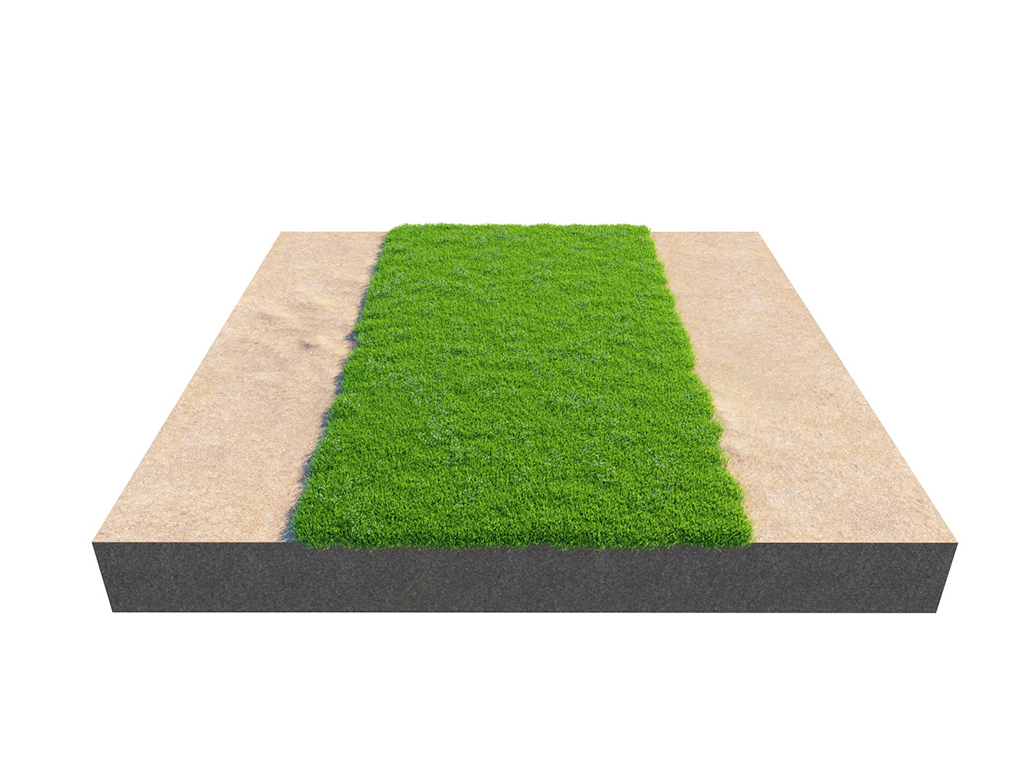
Modifier
=
Cylinder;
Axis
= Y
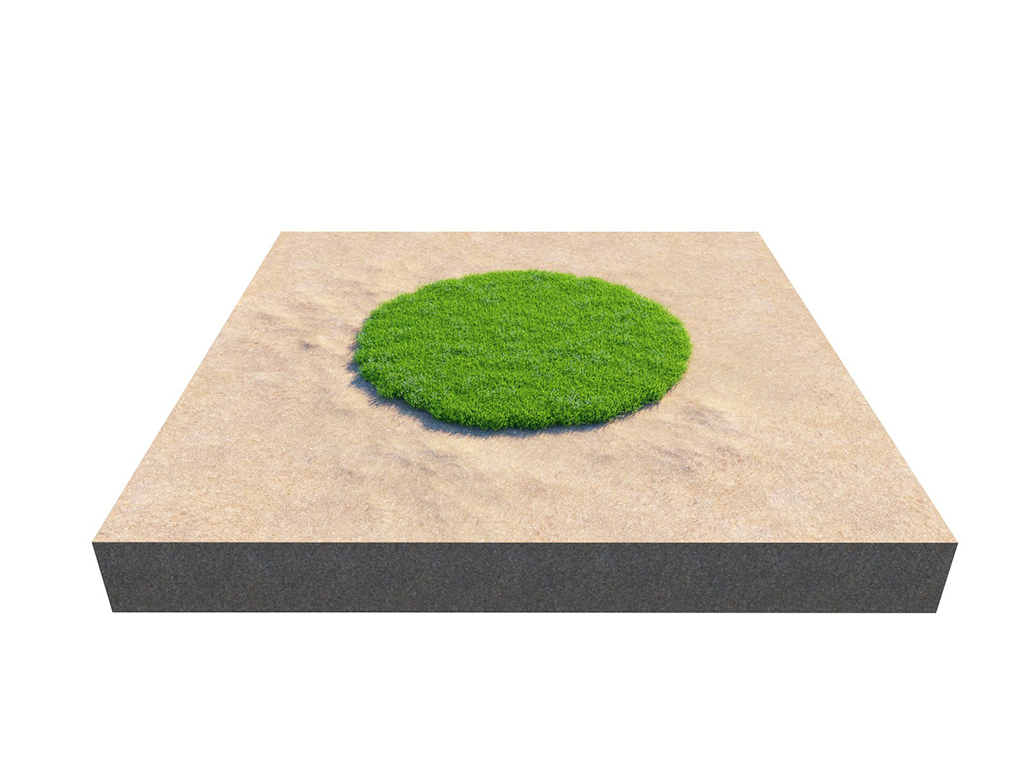
Modifier
=
Cylinder;
Axis
= Z
Falloff example
This example shows how different falloff ranges look.

Operation
: Include;
Falloff Near
= 0;
Falloff Far
= 0

Operation
: Include;
Falloff Near
= 30;
Falloff Far
= 30

Operation
: Include;
Falloff Near
= 60;
Falloff Far
= 0
Scale example
This example shows how Scale affects instances between the Near and Far Falloff distances. The settings are Operation = Exclude; Falloff Near = 5; Falloff Far = 40.

Scale
= 1

Scale
= 0.5
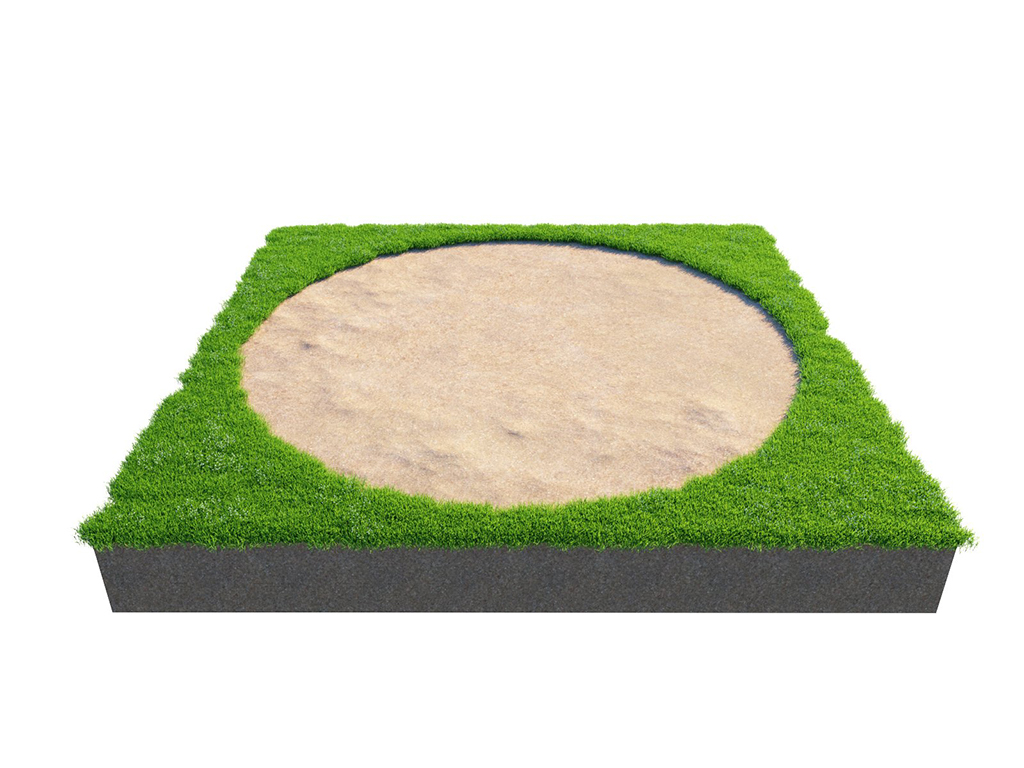
Scale
= 0