V-Ray for SketchUp
Leather
This page provides information on the V-Ray Leather Texture.
Last updated 1 September 2026
This page provides information on the V-Ray Leather Texture.
Overview
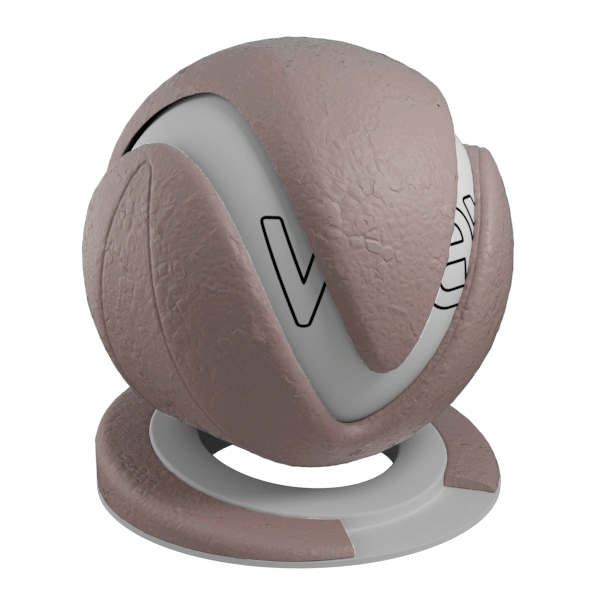
The Leather texture map generates a procedural leather texture. It uses two color channels that can also be assigned to texture maps.

UI Paths
||V-Ray Asset Editor|| > Textures (right-click) > Leather
||V-Ray Asset Editor|| > Create Asset (left-click) > Textures > Leather
Parameters
Color Cells – Controls the color of the cells. All parameters in this section can use a texture map, as long as the checkbox is enabled.
Color Creases – Controls the color of the creases.
Size – Controls the size of the procedural texture.
Density – Controls how close the cells are placed next to each other.
Threshold – Controls the transition between the Cell Color and Crease Color.
Spottiness – Controls how circular the cells appear.
Randomness – Controls how randomly the cells look in relation to each other.
Defined Creases – Enables and disables creases.
Color Manipulation
Invert Texture – Inverts the RGB texture values.
Alpha from Intensity – Uses the texture RGB intensity/luminance as alpha channel.
Color Gain – Corrects the color of the texture by multiplying the the RGB color values in the texture with the RGB color values specified here. A texture map can be assigned here.
Color Offset – Corrects the color of the texture by adding the RGB color values specified here to the RGB color values in the texture. A texture map can be assigned here.
Default Color – Specifies a default color used for polygons with no valid UVs. In case the map is not tiled, specifies a default color that is used outside the texture square. When a texture is selected, it overrides the color as long as the texture checkbox is enabled.

Multipliers
Mode – Specifies the multiplication mode of the colors.
Multiply – The color used for blending is black.
Blend Amount– The color used for blending is the one specified in the color slot.
Color Cells – Blends between the color and a texture, if specified.
Color Creases – Blends between the color and a texture, if specified.

Texture Placement
Type – Controls how the texture is positioned on the geometry.
2D (UV Channel) – The texture uses the object UV coordinates.
Environment – This mode is applicable if the map is connected to an Environment slot or a Dome light.
Texture Remapping – Uses UVW values from a color texture or separate grayscale textures.
Mapping Source – The texture uses an external UV placement source.
2D (UV Channel)
UV Channel/Set – Specifies the index of the mapping channel data to use. A value of 1 takes the first available channel.
Repeat U/V – Determines how many times the texture is repeated in the 0 to 1 UV square.
Lock U/V Repeat – Locks the U/V Repeat.
Offset U/V – Controls the texture offset in the U and V direction.
Rotate – Rotates the texture (in degrees).
Tile U/V – Tiles the texture in the U and V direction. If the option is disabled, the Default texture color is used outside the 0 to 1 UV square. Default color is found in Parameters > Color Manipulation.
Mirror U/V – Mirrors the texture in the U and V direction separately. The option cuts the texture in the half flipping one side vertically or horizontally. This can be used to avoid seams in-between non-tileable repeated textures.
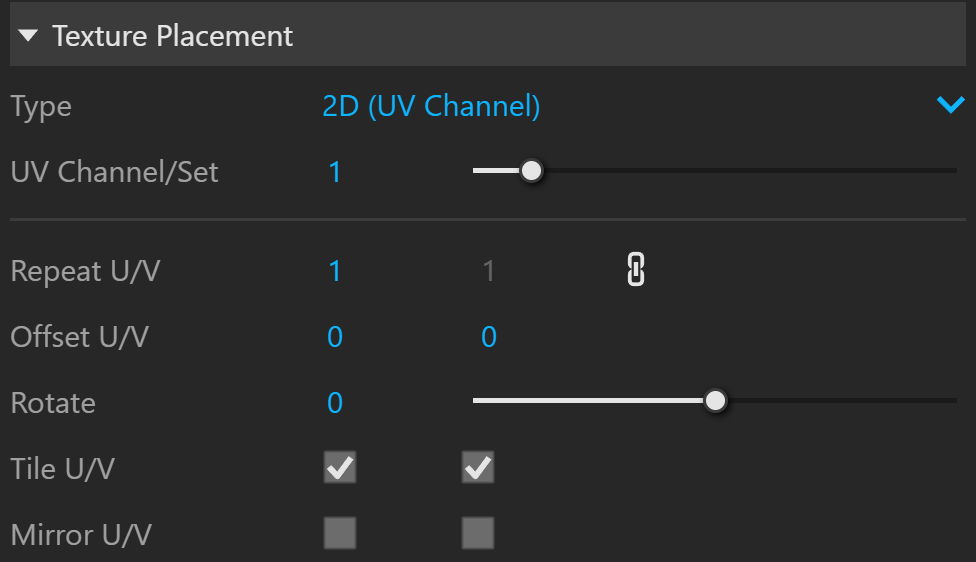
2D (UV Channel) Parameters
Environment
Mapping – Specifies the type and shape of the texture.
Angular
Cubic
Spherical
Spherical Inverted
Mirror Ball
Screen
Rotate H – Rotates the environment sphere horizontally.
Flip H – Flips the environment sphere horizontally.
Rotate V – Rotates the environment sphere vertically.
Flip V – Flips the environment sphere vertically. This option is active only in Spherical Mapping.
Ground – Enables ground projection of the texture.
Position X/Y/Z – Offsets the ground projection along the X/Y/Z axis.
Radius – Specifies a projection radius. Can be used to control the scale of the projection.
2d Transformation – see 2D (UV channel) parameters.
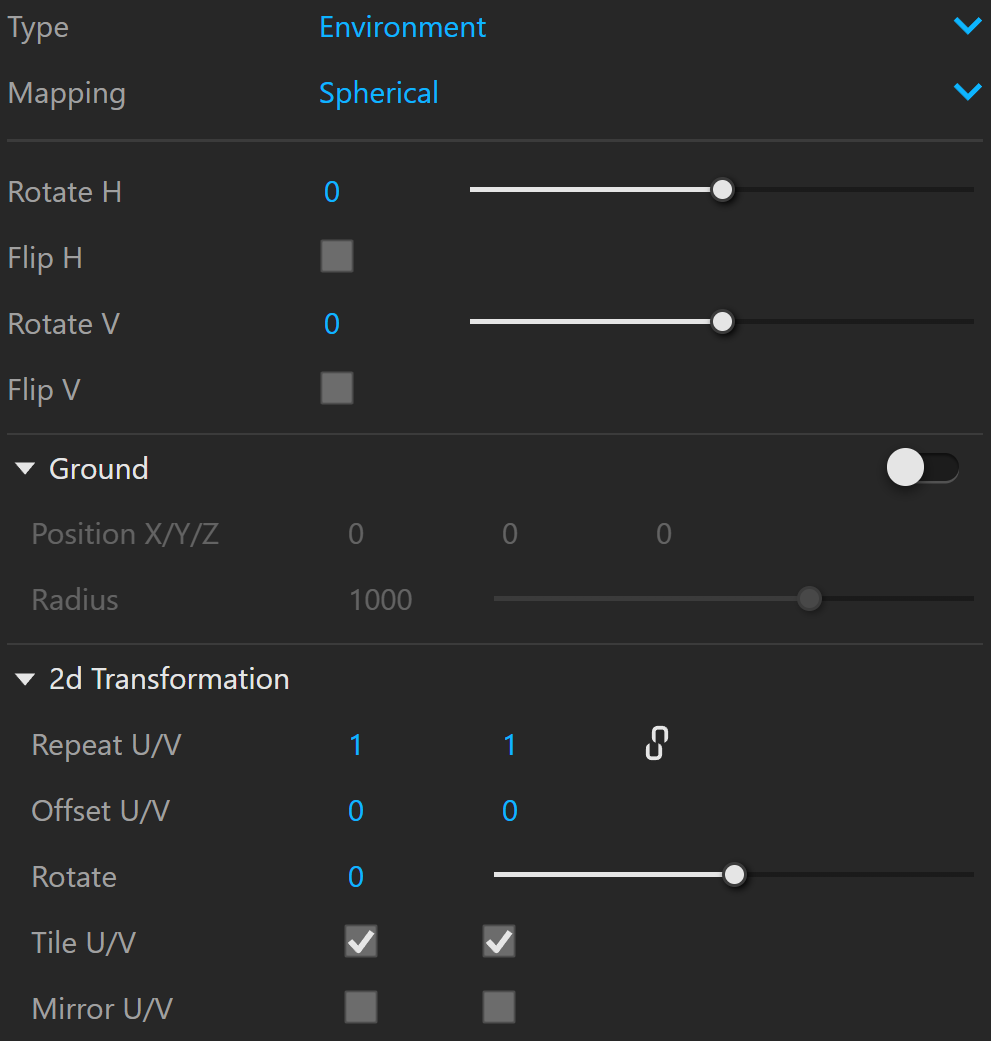
Environment Parameters
Texture Remapping
Mode – Determines whether a single or multiple textures should be used for U and V texture coordinates remapping.
UV – The Red input texture channel determines the U sampling coordinate. The Green input texture channel determines the V coordinate.
U – The value of this texture determines the U sampling coordinate.
V – The value of this texture determines the V sampling coordinate.

Texture Remapping Parameters
Mapping Source
UV Placement Source – External UV placement source to be used for the texture placement.

Mapping Placement Parameters