V-Ray for SketchUp
Light Mix
This page provides information about the Light Mix Render Element in V-Ray for SketchUp.
Last updated 1 September 2026
This page provides information about the Light Mix Render Element in V-Ray for SketchUp.
Overview
The Light Mix Render Element provides adjustment control to the lights in the scene from inside the New V-Ray Frame Buffer (VFB2).
When a Light Mix Render Element is added before rendering, the intensity and color of lights and light-emitting materials can be changed directly from the VFB during and after rendering. Lights can be enabled and disabled while rendering without re-rendering the final output or navigating to individual light parameters during Interactive Rendering.
UI Paths
||V-Ray Asset Editor|| > Render Elements (right-click) > Light Mix
||V-Ray Asset Editor|| > Create Asset (left-click) > Render Elements > Light Mix
Parameters
Group by – Specifies how the lighting information is arranged.
Individual Lights – Stores lighting information of each individual light object in a separate channel.
Group Instances – Groups all instances of a light asset together and stores them in a separate channel.
Layers – Separates lighting information in channels based on each layer that contains lights.
Light IDs – Creates channels based on the ObjectIDs assigned to light sources in the scene.
Separate Emissive Materials - When enabled, emissive materials are also included in the VFB LightMix controls together with the scene lights. The materials that V-Ray respects are V-Ray Material with non-black self-illumination and Emissive material.

How to Set up
To set the Light Mix for use:
- Add the Light Mix Render Element to your scene. (Render Settings > Render Elements tab > Add Light Mix)
- Then, render the scene.
- Now, you can tweak your lights!
www.youtube.com
LightMix Mode Parameters
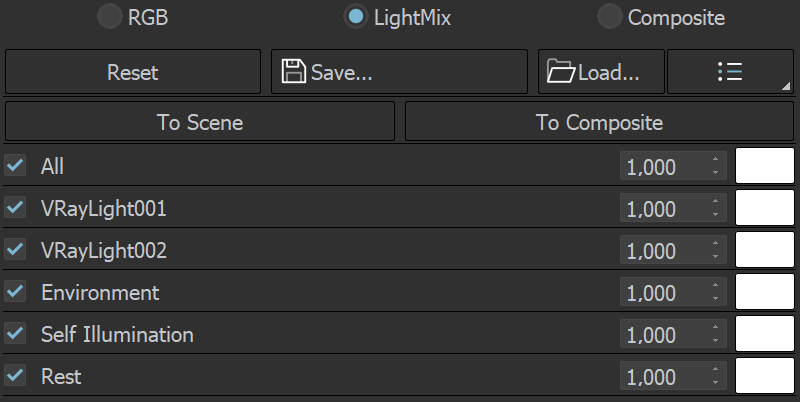
When the Source is set to LightMix, you can enable/disable lights and adjust light intensity and color during and after the render. The modifications can be saved as light mix presets and reused. VRayLightMix automatically creates Environment and Self Illumination render elements.
Reset – Resets all changes made to default values.
Save – Saves the changes as a light mix preset.
Load – Loads a light mix preset.
To scene – Applies the current VRayLightMix changes to the scene. It sends all changes to colors/intensities back to the scene lights. This option works only when Group by is set to Group Instances.
To Composite – Sends the Light Selects from LightMix to Composite for additional post adjustments.
Recent – Shows a list of recent light mix presets.
Checkbox – Enables/Disables the selected light.
Multiplier – Specifies an intensity multiplier.
Color Slot – Specifies a color for the selected light.
Examples: Light Mix
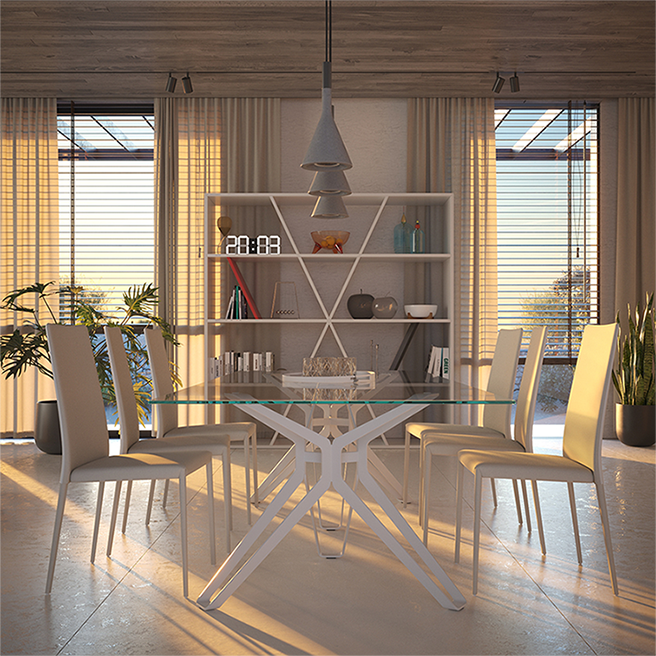
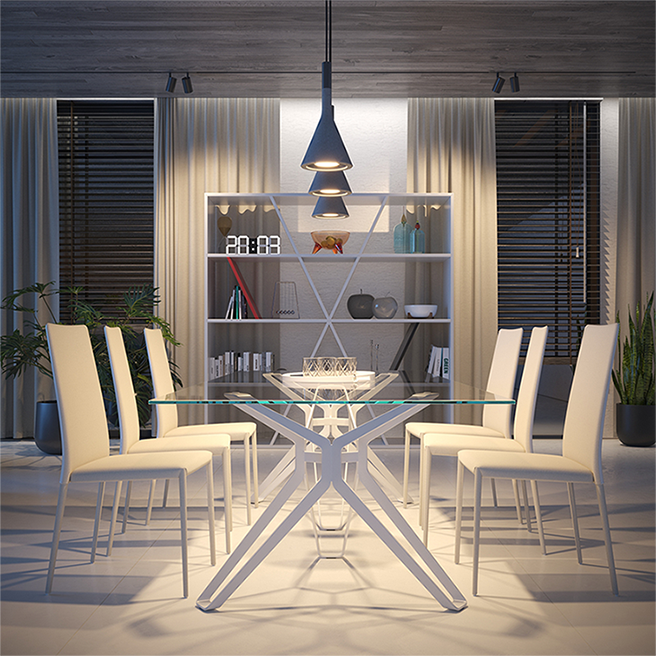
The example below shows two different light setups created with the help of Light Mix: daylight and dusk.
The Daylight appearance is achieved by using sunlight and an additional soft light to simulate light coming from the outside. The Dusk appearance is achieved by setting the sun Multiplier to 0, changing the color multiplier of the outside light to blue, increasing the intensity multiplier of all interior lights and tinting them with warmer colors (all ceiling and built-in furniture V-Ray Lights), adjusting the self-illumination multiplier of desk and ceiling lights shaded with V-Ray Light Mtl.

