Use Render Elements in V-Ray for SketchUp to separate your render into parts for compositing or image editing.
Overview
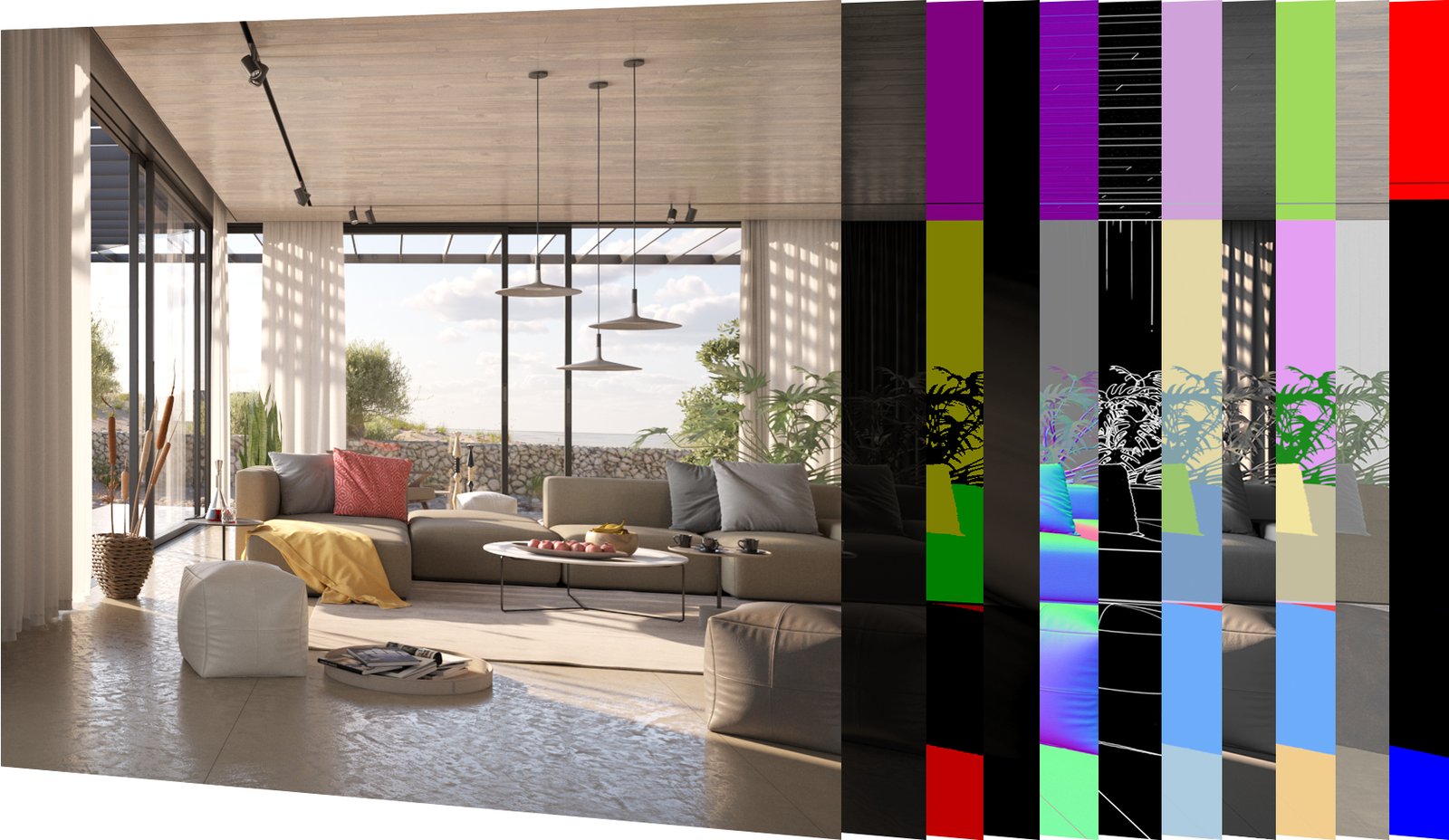
Render elements separate a render into parts, such as diffuse colour, reflections, shadows and mattes. You can adjust these parts in compositing or image editing software, then combine them into the final image. Render elements are also called render passes.
Choose your render elements before rendering. V-Ray generates them during the render. Most render elements have parameters you can adjust to customise the element or its use in compositing software. Each render element's page explains its parameters, common uses and any notes about how it is generated and used.
For the full list of render elements supported in SketchUp, see the Supported Render Elements page.
UI paths
||V-Ray Asset Editor|| > Create Asset (left-click) > Render Elements
||V-Ray Asset Editor|| > Render Elements (right-click to add Render Elements)
Denoise
Some render elements have a Denoise option in their Parameters rollout. This enables denoising for that render element if the scene's Denoiser option is switched on.

Notes
- V-Ray always bases anti-aliasing on the RGB colour channel. Other channels may look jagged or noisy in areas where V-Ray uses fewer samples.
- Render elements work in Distributed Rendering mode.
- Render elements need extra storage during rendering, which increases RAM use. When rendering to the V-Ray VFB, you can reduce RAM use by rendering directly to a .vrimg file on disk without storing the final image in memory.
- Render elements may slightly slow the final image render, depending on how many you select. They do not affect calculations for GI, reflections or similar effects.
- Creating or removing render elements during interactive rendering takes effect only after you restart the render.
- Use the Color Slot context options to Copy and Paste a colour between colour slots. Use Reset to return the colour selection to its default value.
- You can apply VFB colour corrections to each render channel when you save the channels to disk as separate image files.