V-Ray for SketchUp
TriPlanar
This page provides information about the Tri-Planar texture in V-Ray for SketchUp.
Last updated 1 September 2026
This page provides information about the Tri-Planar texture in V-Ray for SketchUp.
Overview
The Tri-Planar texture allows quick assignment of bitmap and other 2D textures on objects that don't have suitable UV coordinates. The texture works by projecting one or more textures along the object-space axes depending on the surface normals of the shaded object.
The texture works both for colors and bump maps.


UI Paths
||V-Ray Asset Editor|| > Textures (right-click) > Tri-Planar
||V-Ray Asset Editor|| > Create Asset (left-click) > Textures > Tri-Planar
Parameters
Mode – Specifies whether to use the same texture on all axis, or separate textures for each axis. See the Texture Mode example below.
One Texture – Projects the same texture along each local axis.
X/Y/Z Projection – Uses a different texture along each axis.
Cubic Projection – Enables projection of a different color or texture for each direction of each axis.
Texture X – The base texture, or the texture for the X axis if the texture mode is set to different textures. When a texture is selected, it overrides the color as long as the texture checkbox is enabled.
Texture Y – The texture for the Y axis. When a texture is selected, it overrides the color as long as the texture checkbox is enabled.
Texture Z – The texture for the Z axis. When a texture is selected, it overrides the color as long as the texture checkbox is enabled.
Texture (-X) – The texture projected along the negative direction of the X axis if the texture mode is set on Cubic Projection.
Texture (-Y) – The texture projected along the negative direction of the Y axis if the texture mode is set on Cubic Projection.
Texture (-Z) – The texture projected along the negative direction of the Z axis if the texture mode is set on Cubic Projection.
Size – Controls the size of the projected texture. See the Size example below.
Blend – Controls the amount of blending at the plane seams. Lower values produce sharper transitions between projections. See the Blend example below.

Example: Texture Mode

Mode = One Texture
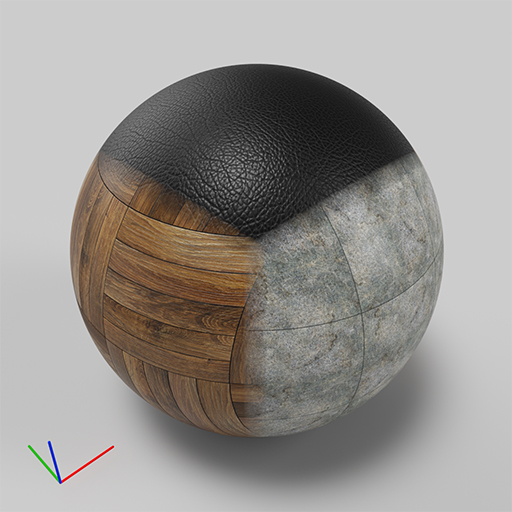
Mode = X/Y/Z Projection
Example: Size
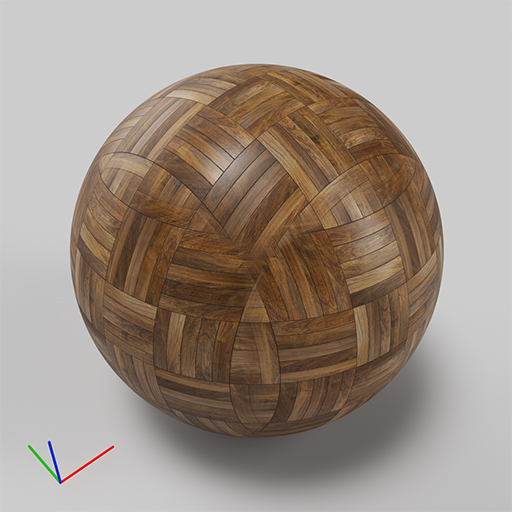
Size = 25cm

Size i= 50cm

Size = 100cm
Example: Blend
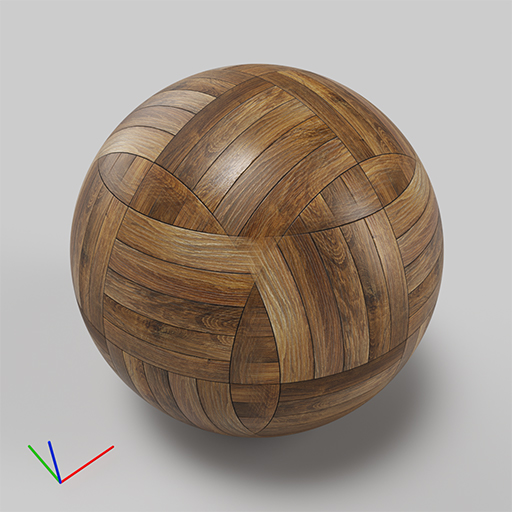
Blend = 0.1
Blend = 0.0

Blend = 0.3
Texture Transforms
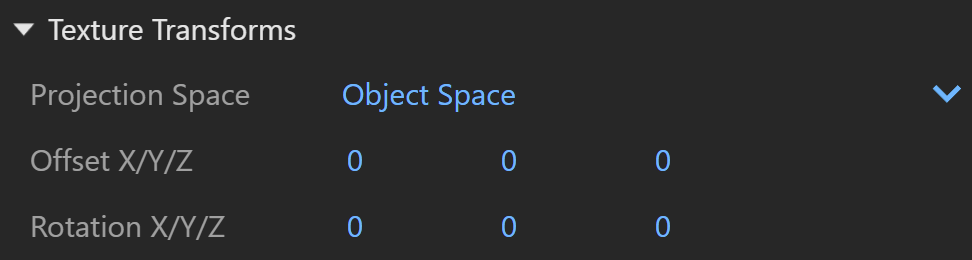
Projection Space – Specifies the 3D space where the texture projection takes place:
World Space – Uses world coordinates.
Object Space – Uses each object's local coordinates.
Offset X/Y/Z – Specifies the offset from the reference frame center (object or reference node).
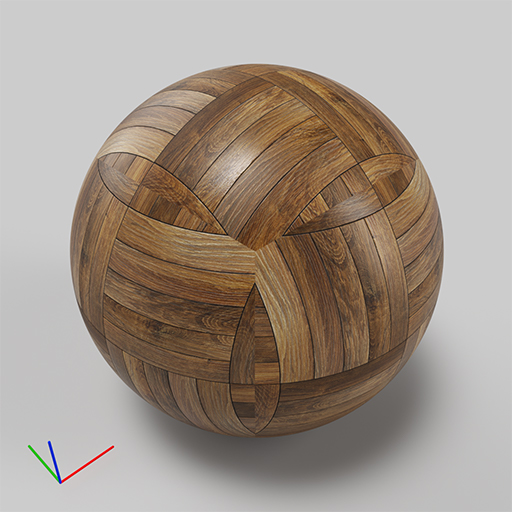
Rotation X/Y/Z – Specifies the texture rotations for the three axis, in degrees, in texture space. See the Texture Rotation example below.
Example: Texture Rotation
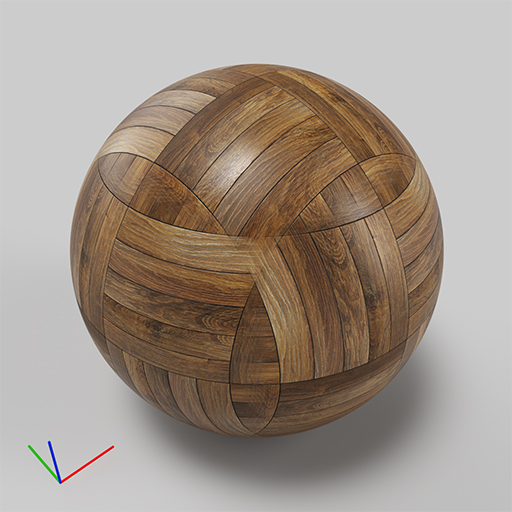
Texture rotation
= 0, 0, 0
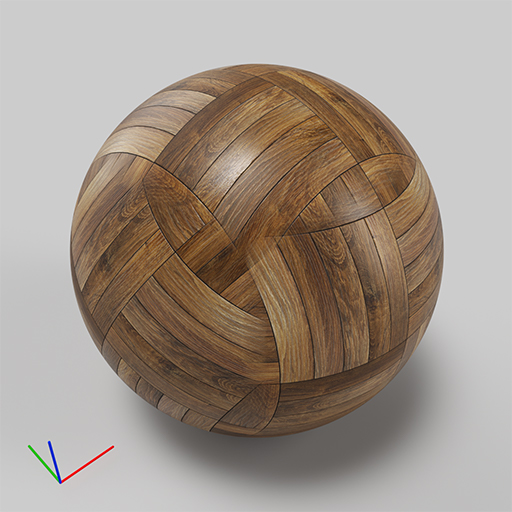
Texture rotation
= 30, 0, 0

Texture rotation
= 0, 30, 0

Texture rotation
= 0, 0, 30
Randomization
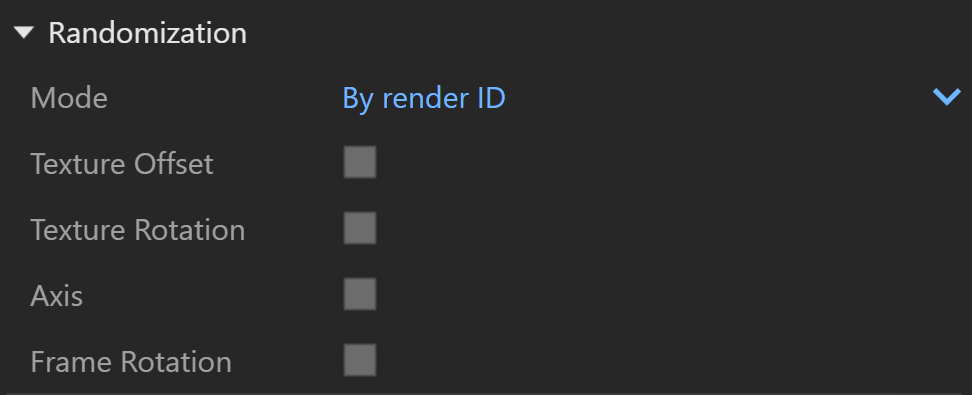
Mode – Specifies what to use to randomize the offset/rotation: See the Randomizations example below.
By face ID – Computes the seed based on the face material ID of the mesh.
By render ID – Computes the seed based on the render ID of the objects.
Texture Offset – Randomizes the texture offset in texture space.
Texture Rotation – Randomizes the texture rotation from one object to another in texture space.
Axis – Randomly permutes the projection axes.
Frame Rotation – Random frame rotation (in object or reference space).
Example: Randomizations
This example shows the effect of the different randomization options; the random mode is set to By render ID. The Projection Space is set to World Space and Gradient textures are used for the example.

no randomizations
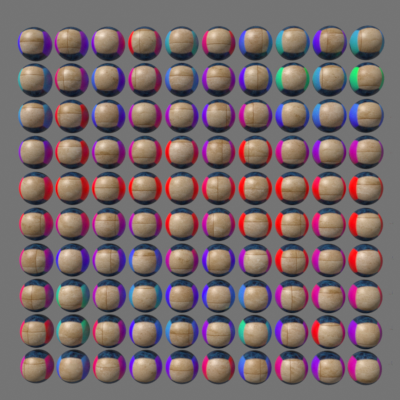
Random texture offset
= On
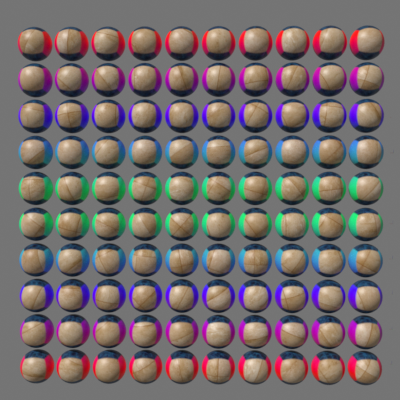
Random texture rotation
= On

Random axis
= On

Random Frame Rotation
= On
Multipliers
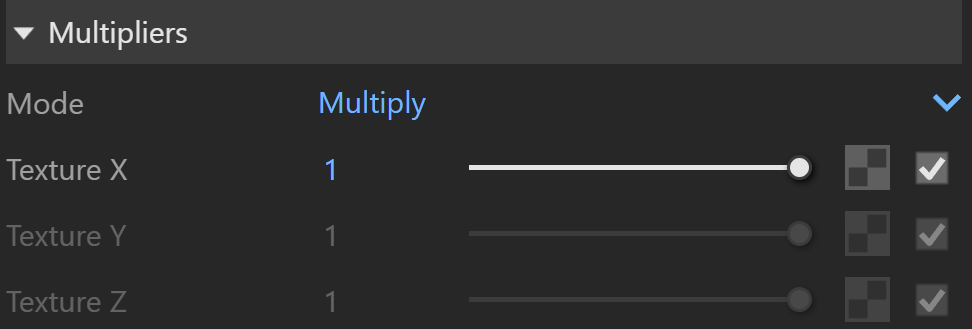
Mode – Specifies the multiplication mode of the colors.
Multiply – The color used for blending is black.
Blend Amount– The color used for blending is the one specified in the color slot.
Texture X – Blends between a color and a texture, if specified.
Texture Y – Blends between a color and a texture, if specified.
Texture Z – Blends between a color and a texture, if specified.