V-Ray for SketchUp
V-Ray Menu
This page includes details on the items available from the main V-Ray menu in the SketchUp interface.
Last updated 1 September 2026
This page includes details on the items available from the main V-Ray menu in the SketchUp interface.
Overview
V-Ray includes a menu with easy shortcuts to some of the most commonly used V-Ray components. The menu can be accessed in SketchUp's Extensions menu.
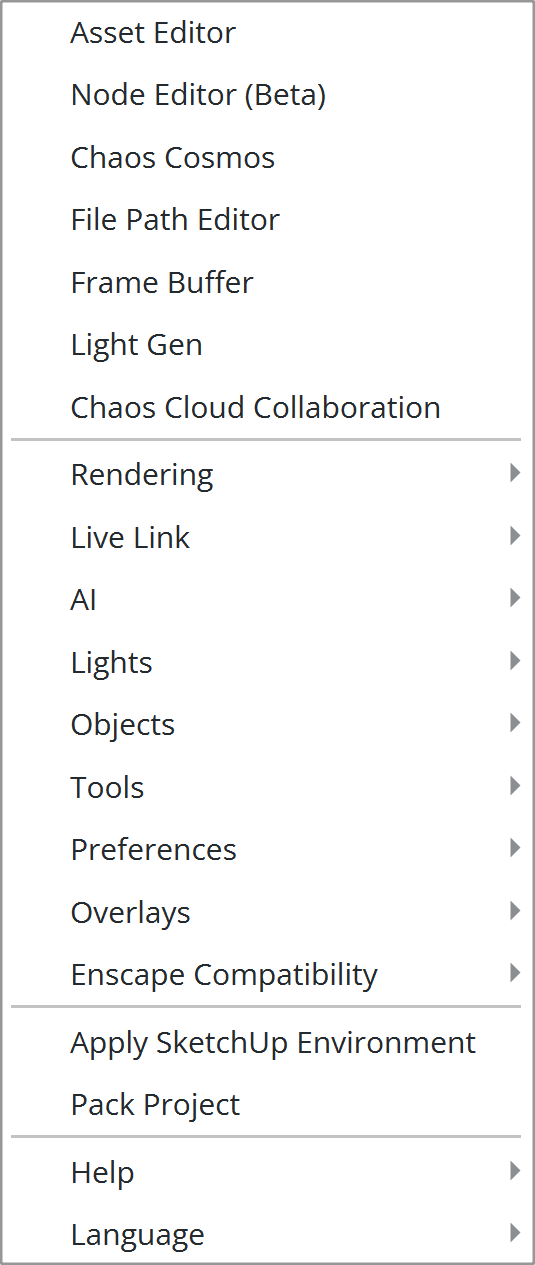
The menu consists of the following submenus: Asset Editor, Node Editor (Beta), Chaos Cosmos, File Path Editor, Frame Buffer, Light Gen, Chaos Cloud Collaboration, Rendering, Live Link, AI, Lights, Objects, Tools, Preferences, Overlays, Enscape Compatibility, Apply SketchUp Environment, Pack Project, Help, and Language.
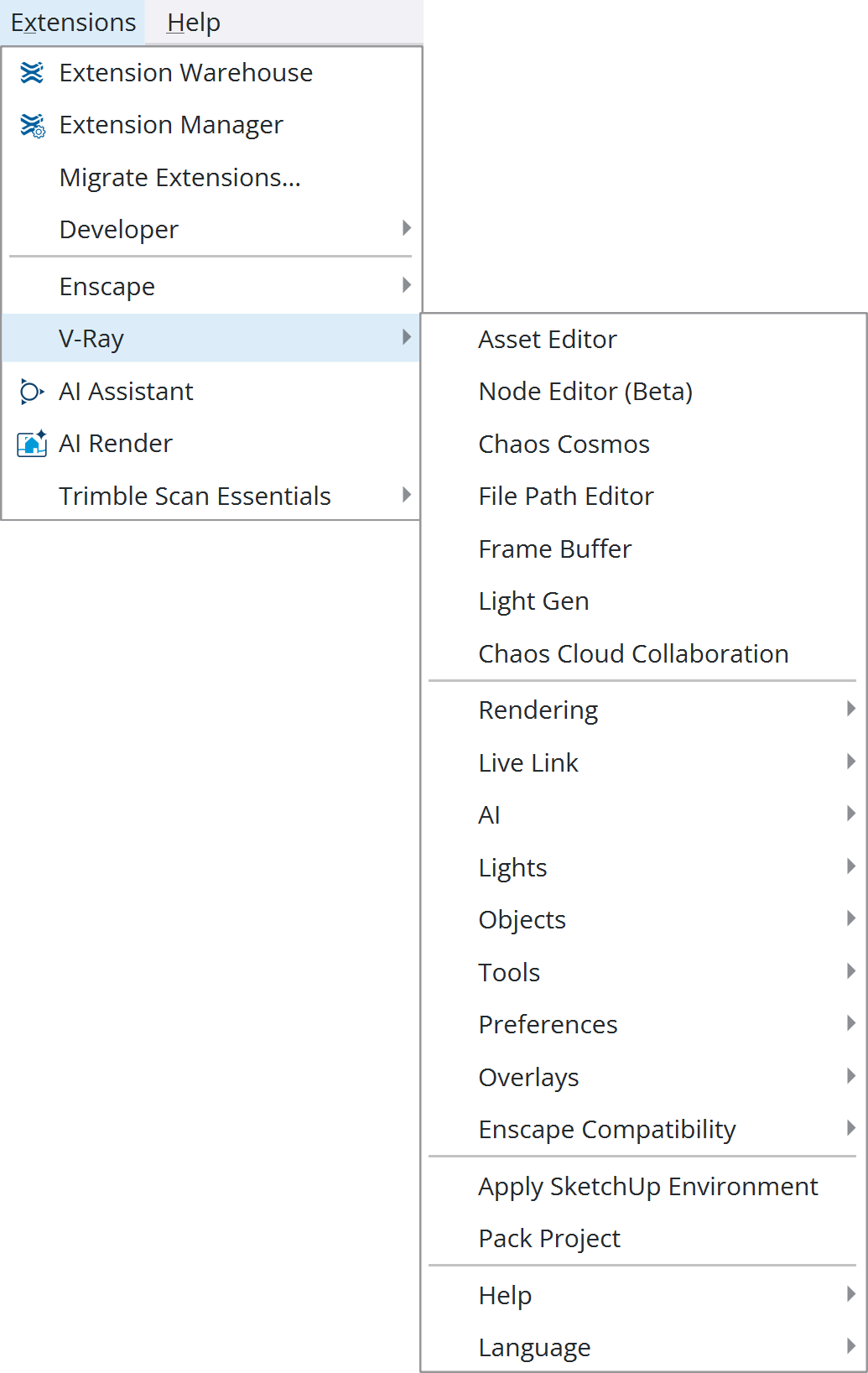
V-Ray Submenu
Menu | Description |
|---|
Menu | Description |
|---|---|
Asset Editor | Opens the V-Ray Asset Editor. |
Node Editor (Beta) | Shows the V-Ray Node Editor window. |
Chaos Cosmos | Opens the Chaos Cosmos Browser. |
File Path Editor | Opens the V-Ray File Path Editor. |
Frame Buffer | Opens the V-Ray Frame Buffer. |
Light Gen | Opens the V-Ray Light Gen. |
Chaos Cloud Collaboration | Opens the Chaos Cloud Collaboration window. |
Rendering | Opens the Rendering submenu. |
Live Link | Opens the Live Link submenu. |
AI | Opens the AI submenu. |
Lights | Opens the Lights submenu. |
Objects | Opens the Objects submenu. |
Tools | Opens the Tools submenu. |
Preferences | Opens the Preferences submenu. |
Overlays | Opens the Overlays submenu. |
Enscape Compatibility | Opens the Enscape Compatibility submenu. |
Apply SketchUp Environment | (SketchUp 2025 only) Creates a V-Ray Dome Light that matches the current environment in SketchUp. Keep the Dome Light's original name to maintain the connection between them. |
Pack Project 2 | Allows you to create a Zip file that contains the .skp file and all the assets used in the file (textures, environment maps, proxies, etc). |
Help | Opens the Help menu. |
Language | Opens the Languages submenu. |
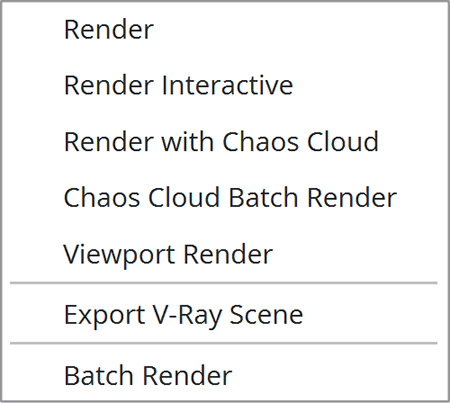
Rendering Submenu
Menu | Description |
|---|
Menu | Description |
|---|---|
Render | Renders the current view with the V-Ray production renderer. |
Render Interactive | Starts a V-Ray Interactive Render. |
Render with Chaos Cloud | Opens the Chaos Cloud rendering home page. |
Chaos Cloud Batch Render | Starts a batch render in the Chaos Cloud. This feature is temporarily unavailable. |
Viewport Render | Starts a render directly in the viewport. |
Export V-Ray Scene | Exports a VRScene for render. |
Batch Render | Starts a V-Ray Batch Render. |
Live Link Submenu
Menu | Description |
|---|
Menu | Description |
|---|---|
Start V-Ray Vision (deprecated feature) | Starts V-Ray Vision. |
Start Vantage | Starts a Vantage live session. Connects to an already running Vantage instance. |
Vantage Viewport Render | Starts the Vantage Viewport Render. |
Start Envision | Starts an Envision live session. Connects to an already running Envision instance. |
Start Custom Live Link | Starts a live link server with settings specified in the Customized Live link menu. |
Customize Live Link | Specifies the IP/port for the live link server. |

AI Submenu
Menu | Description |
|---|
Menu | Description |
|---|---|
Viewport to AI Visualization | Opens the AI Visualization window (Veras) and sends a viewport screenshot to be used as a generation source. |
Render to AI Visualization | Opens the AI Visualization window (Veras) and sends the latest render to be used as a generation source. |

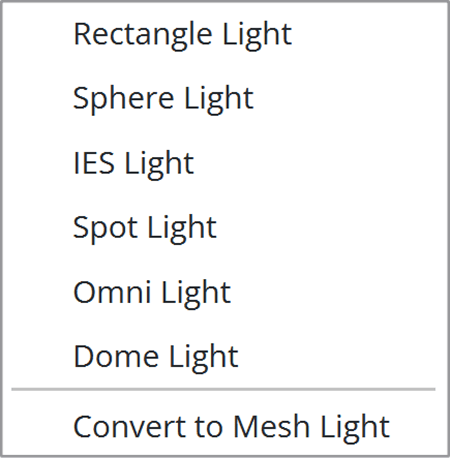
Lights Submenu
Menu | Description |
|---|
Menu | Description |
|---|---|
Rectangle Light | Creates a Rectangle Light, also known as Area Light. Specify three points in the viewport to define the rectangle and create the light. |
Sphere Light | Creates a Sphere Light. Click in the viewport to define the sphere and create the light. |
IES Light | Creates an IES Light. Click in the viewport to define the cone of light. |
Spot Light | Creates a Spot Light. Click in the viewport to define the spotlight's cone of light. |
Omni Light | Creates an Omni Light, also known as an Omni Light. Click in the viewport to place the point light. |
Dome Light | Creates a Dome Light. Click in the viewport to place the sphere. SketchUp prompts the user to specify a dome light texture. |
Convert to Mesh Light | Creates a Mesh Light from a specified mesh. Click a mesh in the viewport to turn it into a Mesh Light. |
Object Submenu
Menu | Description |
|---|
Menu | Description |
|---|---|
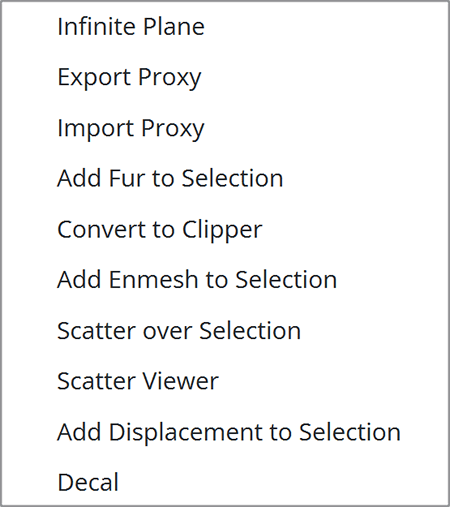
Infinite Plane | Creates an Infinite Plane. |
Export Proxy | Exports a Proxy object. |
Import Proxy | Imports a Proxy object or a V-Ray Scene file into the scene. |
Add Fur to Selection | Creates a Fur Object. Specify an object in the viewport that the fur is applied to. |
Convert to Clipper | Creates a Mesh Clipper plane. |
Add Enmesh to Selection | Creates an Enmesh surface object. |
Scatter over Selection | Converts selected objects to Scatter hosts. |
Scatter Viewer | Makes Scatter preview visible in the viewport. |
Add Displacement to Selection | Adds Displacement to the selected Group or Component. |
Decal | Creates Decal that projects one material on top of another. |
Tools Submenu
Menu | Description |
|---|
Menu | Description |
|---|---|
Camera Focus Tool | Sets a focus point for the camera directly in the viewport. |
Wipe V-Ray Data from Project | Purges the scene of all V-Ray related information. This includes the removal of all V-Ray Lights, Component Definitions, Proxies, and Materials. |
Randomize Project Material ID Colors | Allows you to assign a random color ID to your materials. This provides a workaround for materials from v2.0 scenes which all have black color IDs. |
Rebuild All Viewport Widgets | Rebuilds All V-Ray viewport widgets in the project, resolving issues by accidental and manual widget geometry manipulation. |
Convert to V-Ray Material | Converts the current active SketchUp or Enscape native material to V-Ray material. |
Remove V-Ray Properties from Material | Strips all V-Ray data from the current active material. This action converts the material to a SketchUp native one. |
Reset Frame Buffer | Resets the V-Ray Frame Buffer settings and position to the defaults. |
External | Opens the External options menu. |

External Submenu
Menu | Description |
|---|
Menu | Description |
|---|---|
GPU Device Selection | Opens the GPU Selection menu. |
Opens the V-Ray denoising tool. | |
Opens the V-Ray Mesh Viewer. |

Preferences Submenu
Menu | Description |
|---|
Menu | Description |
|---|---|
Enable Solid Widgets | Enables the use of faces for the viewport widgets. Only lines are used when this option is disabled. |
Hide V-Ray Widgets | Hides V-Ray Lights, Fur, Infinite Plane, and Mesh Clippers widgets from the viewport. This option does not affect rendering. |
Object Animations Export | Enables object visibility changes management during animation export. |
Viewport Texture Resolution | Controls the size of V-Ray procedural textures in the viewport. |

Overlays Submenu
Menu | Descrition |
|---|
Menu | Descrition | |
|---|---|---|
Render Overlay | Export Viewport Image | Exports the image currently available in the viewport to an image file. |
Preview Overlay | Preview toggles | Enable or disable the Fur, Scatter, IES Lights, and Gaussian Splat previews. |
Viewport Point Size | Controls the viewport size of all point previews, including the Gaussian Splat preview. |
Viewport Point Size


(Render Overlay)

(Preview Overlay)
Enscape Compatibility
Menu | Description |
|---|
Menu | Description |
|---|---|
Enable Enscape Compatibility | Enables the Enscape Compatibility. See the Enscape Compatibility page for more information. |
Apply Enscape Settings | Synchronizes Enscape’s environment and illumination - Sunlight, Sky, and Camera exposure settings with V-Ray's. |
Download Enscape Assets | Downloads and prepares all Enscape assets in the project for V-Ray rendering. |

Help Submenu
Menu | Description |
|---|
Menu | Description |
|---|---|
Notification Center | Opens the Notifications window. |
Chaos Academy | Opens the Chaos Academy online learning resources page. |
Chaos Forum | Opens the Chaos Forum webpage for discussions and support. |
Online Help | Brings you to the Chaos Group Online help site. |
API Documentation | Opens V-Ray for SketchUp Ruby API documentation. |
Support Request | Submits a new support request to the Chaos Support team. |
Ideas Portal | Leads to the Chaos Forum Suggestions for V-Ray for SketchUp, where you can suggest and track product feature ideas. |
License | Opens the License submenu. |
Chaos Account | Opens the Chaos account management window. |
About | Opens the About Chaos V-Ray window where you can find information about the installed version. The About Chaos V-Ray window also includes links to Chaos website, and information about the V-Ray Asset Editor Session Log, EULA, Chaos Global Privacy Policy and Copyright notices. |

License Submenu
Menu | Description |
|---|
Menu | Description |
|---|---|
Release V-Ray License | Releases the V-Ray license. |
Activate V-Ray License | Activates the V-Ray license. |

Chaos Account
This window shows you which account is currently used as a license holder.
Press the Manage account button to open My Chaos portal and manage the licenses. You can assign, remove, and allocate licenses to different users. For more information, see the My Chaos Portal Guide page.
To switch the current account, press the Sign Out button.
If you haven't signed in during the installation, you can do so in this window:

See Chaos plans & pricing link leads you to V-Ray's pricing list on Chaos website.
This window blocks all the rest of the UI, so make sure to close it once done to go back to SketchUp.

About Chaos V-Ray
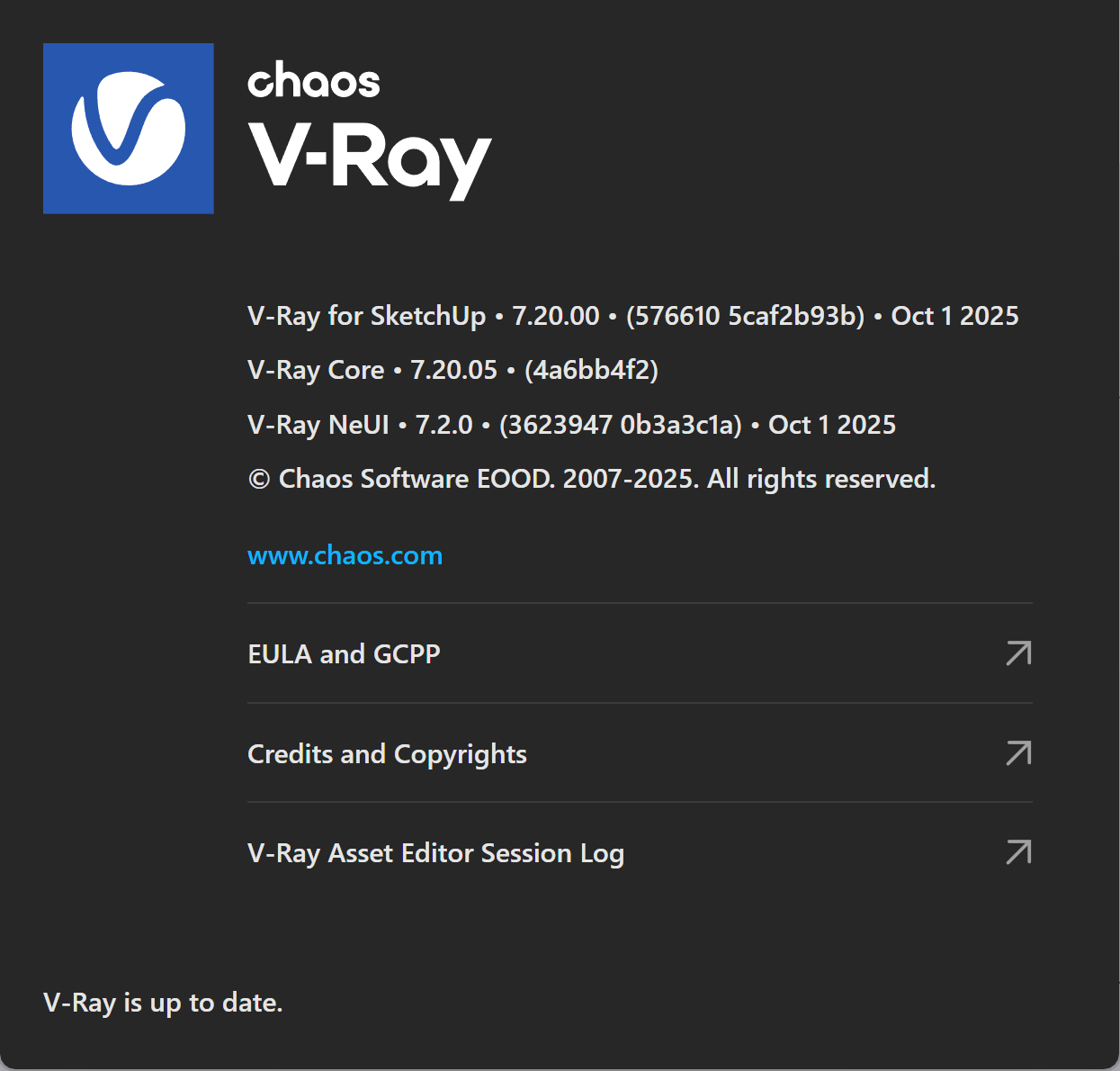
The About Chaos V-Ray window is accessible from Extensions menu > V-Ray > Help > About.
The windows shows information about the installed V-Ray version. It also provides links to the following:
- Chaos website
- End-User License Agreement
- Chaos Global Privacy Policy
- Credits and Copyrights
- V-Ray Asset Editor Session Log
Language
Menu | Description |
|---|
Menu | Description |
|---|---|
Auto-detect | Autodetects the language. |
English | Changes the language to English. |
Chinse | Changes the language to Chinese. |
Japanese | Changes the language to Japanese. |

Object ID Context Submenu
This submenu is only visible when right-clicking on a group or component and contains the tools to set/change and remove an Object ID number.
Menu | Description |
|---|
Menu | Description |
|---|---|
Set | Opens an Object ID pop-up window, where you can assign or change a numeric value as an object ID. |
Remove ID | Removes the set Object ID. |
Select Similar | Adds to the selection all other objects with the same ID number. |
Clear all IDs | Removes the assigned Object ID value(s). |
List of Object IDs | Lists all set object IDs in the scene. Each one can be changed or removed. |


UV Tools Context Submenu
This submenu is only visible when right-clicking on an object with textured material already assigned to it. When used, the textured material gets projected to each geometry face, not the object itself.
Menu | Description |
|---|
Menu | Description |
|---|---|
Tri-Planar projection (World) | Applies Tri-Planar projection UV coordinates to the currently selected object. |
Tri-Planar projection (Fit) | Applies cubic projection UV coordinates to the currently selected object. |
Spherical projection (World) 1 | Applies world-space spherical projection UV coordinates to the currently selected object. |
Spherical projection (Fit) 1 | Applies spherical projection UV coordinates to the currently selected object. The texture image fits the size of the object. |
Remove materials | Removes all materials applied to the current selection group and all its child objects. |
The V-Ray UV Tools can be used to apply a material and set the mapping at the same time. This can be achieved by executing the V-Ray UV Mapping function with a material selected and the Paint Bucket (SketchUp tool) active.

Footnotes
- With V-Ray 6.10.01 Parent Frame Buffer option is implemented for macOS. It is located in Extensions / V-Ray / Preferences / Parent Frame Buffer. The option is enabled by default, which ensures that the V-Ray Frame buffer window stays on top of the SketchUp window. The new option can be disabled in specific situations like viewing the VFB on a secondary display or using SketchUp in fullscreen mode.
1 – When applying Spherical projection only to specific parts of an object, its mapping may appear incorrectly.
2 - When you use the Pack Project option, a pop-up message appears that asks you whether or not to pack Cosmos asset files with the project.