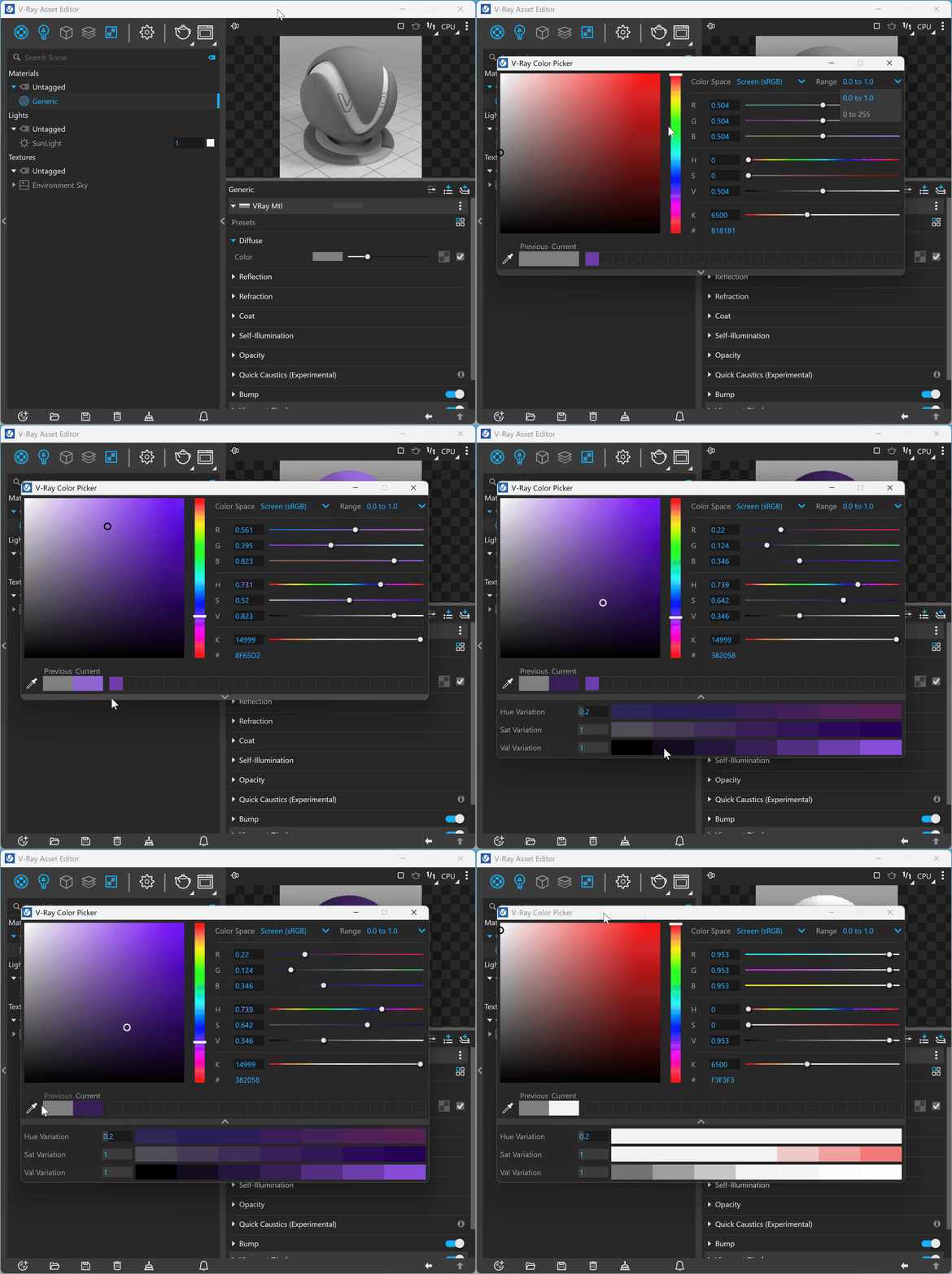
This page provides information on the V-Ray Color Picker and its Color Assistant.
Overview
The V-Ray Color Picker is a colour manager that allows numeric colour value selection in Screen (sRGB) and Rendering (RGB) or Rendering (ACEScg) Color spaces depending on the global setting (Settings > Render Parameters > Color Management).
It provides the option to set the RGB values in two scales - 0.0 to 1.0 or 0 to 255. The V-Ray Color Picker has swatch slots to keep your favourite colours.
V-Ray Color Picker automatically converts Kelvin to RGB values, as well as RGB to Kelvin whenever possible.
The V-Ray Color Picker has a Color Assistant that provides colour palettes to pick a colour from. The Color Assistant can be opened when you click on the side bar at the bottom of V-Ray Color Picker window.
UI Path
||V-Ray Asset Editor|| > click on any colour slot
Parameters
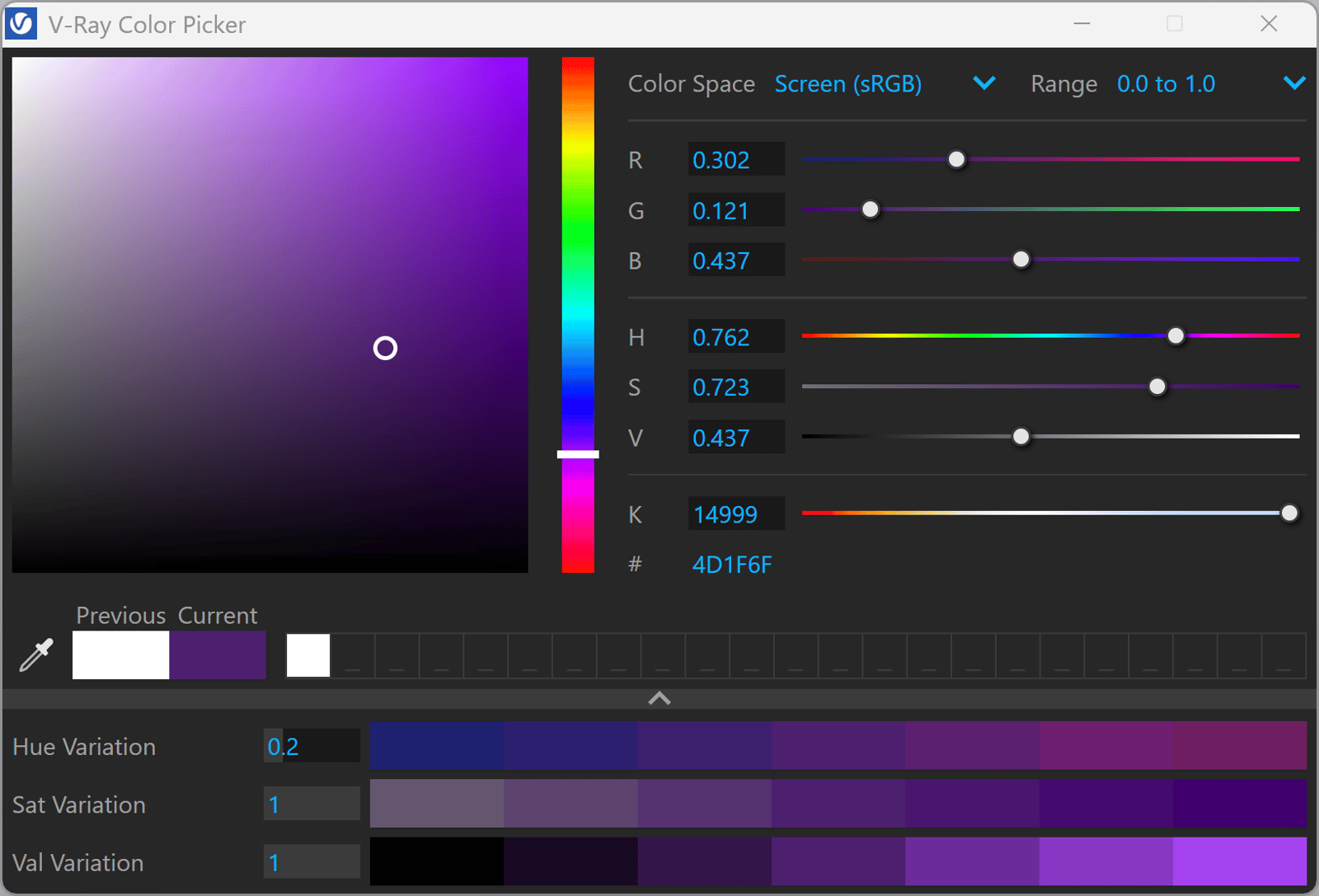
Color Field – Selects a colour from the colour spectrum, i.e. from the Color Slider.
Color Slider – Specifies the colour spectrum for the Color Field.
Color Space – Changes the mode of the colour values displayed. Note that changing the mode does not visually affect the colour selected. It just changes the numeric values describing the colour.
Screen (sRGB) – The colour values displayed match the colour in the rendered image viewed in sRGB space (the VFB default behaviour). This means that if a colour is set with exact RGB values, rendered and then picked from the image, the values match.
Rendering (RGB) – The colour values displayed match the colour values that V-Ray uses for internal calculations (and the values listed in a .vrscene). This means that if a 0.5 in value, grey colour is selected, it appears bright when rendered and viewed in sRGB space. On the other hand, if two colours are blended with a Layered texture using the same 0.5 mix colour, the result is exactly 50% colour blend. This mode is useful when blending materials or textures with exact colour values. It also allows for specifying exact (might be measured) material parameters.
Rendering (ACEScg) – The colour values displayed match the colour values that V-Ray uses for internal calculations (and the values listed in a .vrscene). This option is available when the Color Management's RGB Primaries option is set to ACEScg.
Range – Changes the RGB colour slider ranges. Note that changing the mode does not visually affect the colour selected. It just changes the numeric values describing the colour.
0.0 to 1.0 – RGB values range from 0 to 1.
0 to 255 – RGB values range from 0 to 255.
R/G/B – Adjusts the Red/Green/Blue value of the respective channel within the selected RGB Range.
H/S/V – Adjusts the Hue/Saturation/Value of the respective channel within the [0 - 1] range.
K – Adjusts the Kelvin temperature. Changing slider values automatically updates the current colour. Changing the colour updates the temperature (K) value to the closest approximate temperature (based on its RGB value). Note that not every colour can be translated to a temperature value. This means that in some situations a slight temperature tweak might result in a relatively big colour change.
# – HEX colour code. Type or paste a 6-digit code, with or without a leading #. An 8-digit code is also accepted, but its alpha is ignored.

Eyedropper tool () – When activated, this tool samples the pixel colour under the cursor. Upon a left-click, it transfers the selected value to the Current Color swatch. Press the Esc key to terminate the action.
Previous – The initial slot colour. Note that when a new colour slot is selected in the Asset Editor (without closing the Color Picker), the Previous swatch is updated.
Current – Left-click on the current colour to save it in the colour palette. Note that there is a live link between the active colour slot and the picker. Changing the colour leads to an interactive render update. Left-click on the colour from this swatch to save it.
Delete – Right-click on any previously saved colour swatch to delete it.
Color Assistant
Hue/Sat/Val Variation – Variation of the current colour. Clicking on a variation changes the current colour in the picker. The variations help view the current colour with different HSV values in a given range. Click on a colour from the Color Assistant to pick the current colour.
Example Workflow
Left-click a colour to add it to the swatch palette.
Right-click on any colour swatch to delete it.