V-Ray for SketchUp
Z Depth
This page provides information on the Z Depth rollout in the Render Elements.
Last updated 20 May 2026
This page provides information on the Z Depth rollout in the Render Elements.
Overview
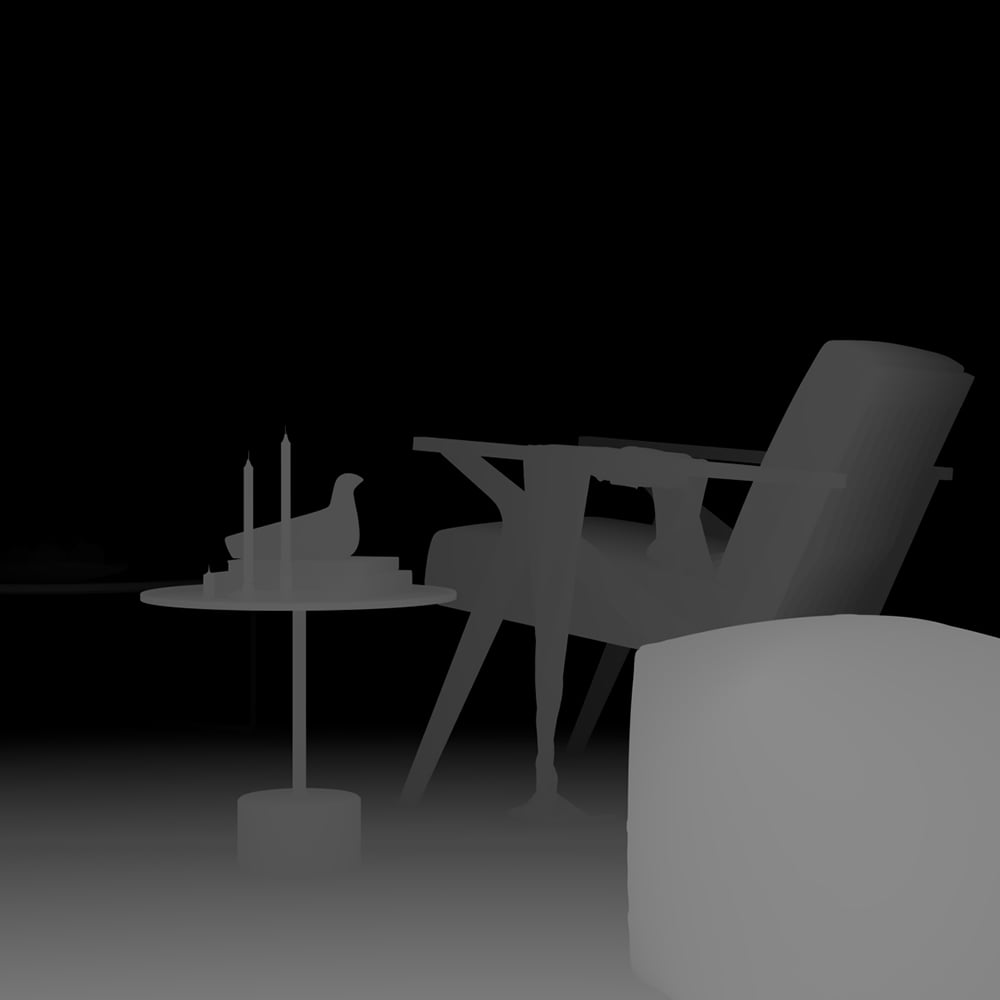
The Z Depth Render Element provides information about each object's distance from the camera in the current view. Each pixel representing the object is evaluated for distance individually; different pixels for the same object can have different grayscale values. In this render element, objects (or portions of objects) closest to the camera appear as white while those furthest away appear black. Objects between the furthest and nearest points are rendered in varying shades of gray. The lighter the gray, the closer an object pixel is to the camera.
The most common usage of the Z Depth Render Element is as a control for depth of field in the composite.

UI Paths
||V-Ray Asset Editor|| > Render Elements (right-click) > Z Depth
||V-Ray Asset Editor|| > Create Asset (left-click) > Render Elements > Z Depth
Parameters
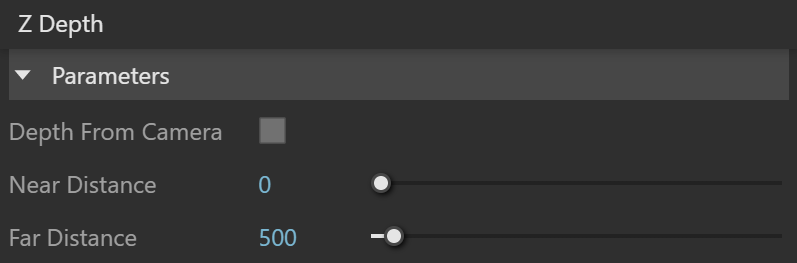
Depth From Camera – Specifies whether to use the Camera Clipping boundaries. When enabled, the black and white values are inverted. When disabled, the distance can be set manually by the Near and Far Distance options.
Near Distance – Objects up to this distance from the camera render as white. This option is available only when Depth From Camera is disabled.
Far Distance 1 – Objects further than this distance from the camera render as black 2. This option is available only when Depth From Camera is disabled.
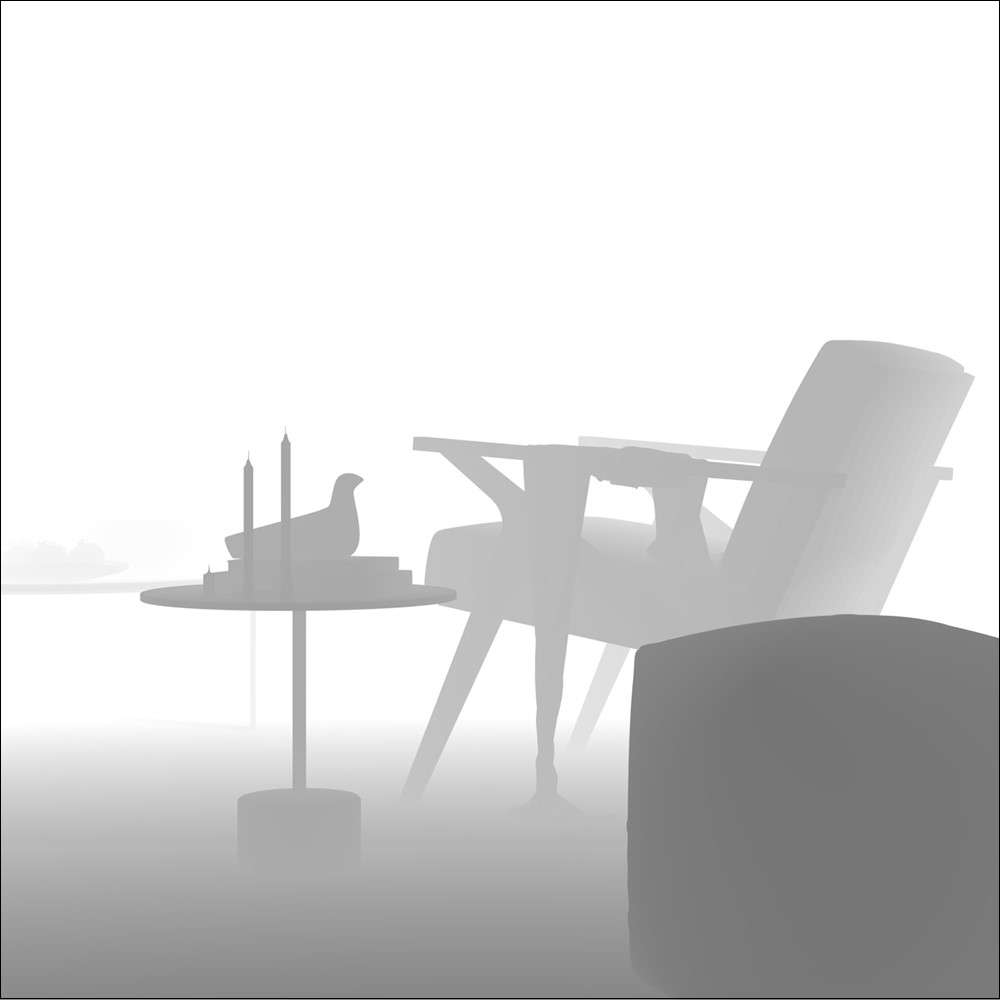
Example: Invert Z Depth
The black and white values in the Z Depth Render Element can be inverted by enabling the Depth From Camera option. If disabled, an inverted result could also be achieved by swapping the Near and Far values.
Common Uses

Depth of field applied to composite using Z Depth Render Element
Original Beauty Composite

Basic fog applied to composite using Z Depth Render Element
Footnotes
- Calculated in the default SketchUp unit - inches.
- You can reset the Input Number Slider's value to its default value by right-clicking on the slider and selecting the Reset context menu option.