Use the KeyShot Studio Color Library to drag predefined colours onto any part or object in the Real-Time View. This replaces the material's primary colour. To change another colour parameter, hold Alt while dragging the colour onto the material, then choose which colour value to replace.
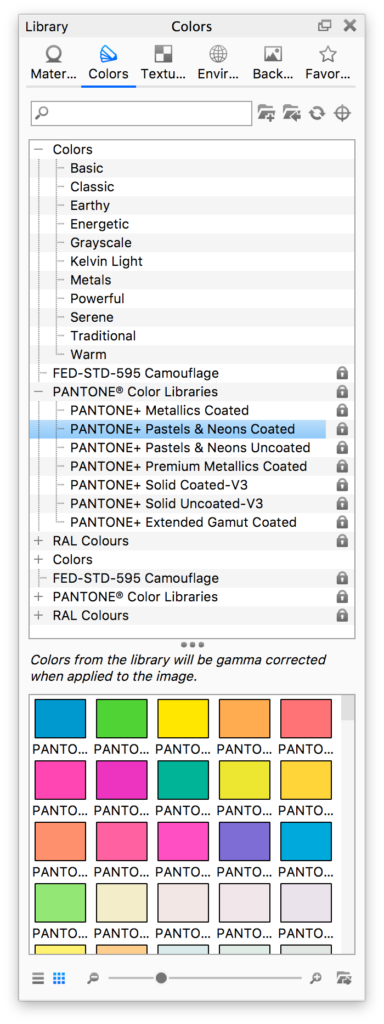
Search Click the search box at the top right and type the colour's name. Find Similar Colors Click the |
 crosshair icon at the top right of the dialogue to open the colour picker. Enter the colour you want, or use the
 eyedropper to select a colour in the scene. The current colour group then shows only swatches similar to that colour. Click
 refresh to clear the search.
Import
You can import colour libraries from .KCP or .CSV files. Imported colours go into the currently active Color Group. If you want a separate folder for them, create it and make it active before importing.
When creating a CSV file, use these formats for colour entries:
- RGB – Name; R; G; B;
- RGB (0-1) – Name; R; G; B;
- HEX – Name; hex code (incl. #);
- CMYK – Name; c; m; y; k;
- HSV – Name; H; S; V;
- CIE-L*ab – Name: L; A; B;
Separate the values with commas, semicolons or tabs.
Add colour groups
Create colour groups to organise your custom colours. Select the folder where you want the colour group. Click the add folder icon and name the group.
Add a colour
You can add your own colours in two ways:
- When defining a colour in the colour picker, for example for a material, click
 to save the colour. Choose Color Group and name the colour.
- Right-click inside the colour library and select Add Color. Define your colour in the colour picker, then click OK to save the swatch.
Export a colour group
Export a colour group to create a .kcp file.
Read-only colour groups
Colour groups with a  lock icon beside their name contain industry standard colours, such as PANTONE, RAL and FED-STD 595. You cannot add colours to these groups or export them.