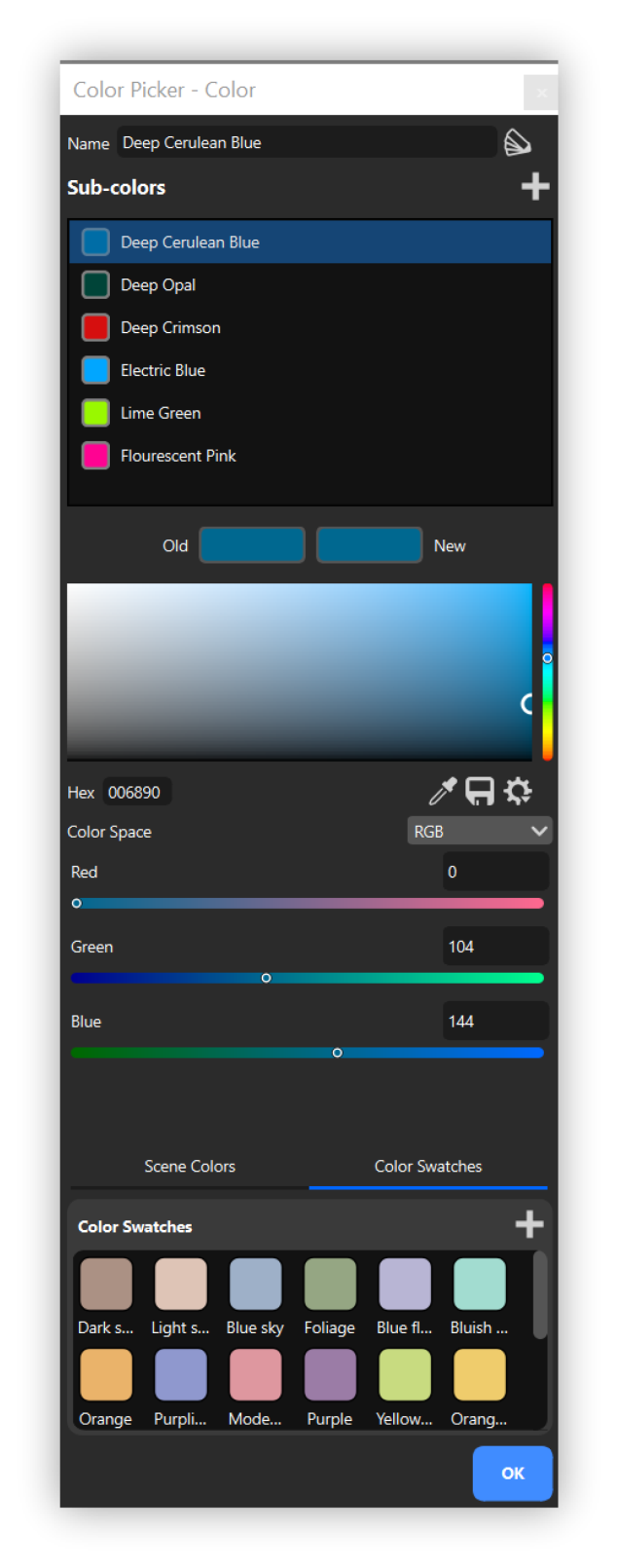
Use the Color Picker in KeyShot to change colours and compare them visually. Click any colour property to open it, then use the Color Bar, Color Map, Color Sliders and their numerical inputs, or drag colours from the Color Swatches.
Colour names
You can give your colour a name.
Multi-Colors
To create a Multi-Color, click the Multi-Color icon  next to the Color Name field. To add sub-colours, click the plus icon and change the colour manually, or drag an existing colour from the library.
Linking and unlinking colours
Linking
An icon marks each linked colour. It appears at the top of the Color Picker next to the name field, or beside the linked colour in the sub-colour list.
You can link colours in two ways.
As a single colour:
- Double-click a scene colour at the bottom of the Color Picker.
If you double-click a scene colour while working on a Multi-Color, it is added as a linked sub-colour.
As a Multi-Color:
- Click the Multi-Color button to open the list of Multi-Colors.
- Double-click a Multi-Color to link it.
Unlinking
Click the link icon to unlink a colour.
Color Bar
The Color Bar shows the current colour and a New/Old comparison when you change it. It also contains the Eye Dropper tool and an option to save a colour to the Library.
Color Sliders
The Color Sliders provide controls for different Color Spaces and Value scales. To change the Color Space, use the Color Space drop-down menu at the lower right corner of the Color Map. These options are available:
- RGB has colour channels for Red, Green and Blue.
- CMYK has colour channels for Cyan, Magenta, Yellow and Black.
- HSV has colour channels for Hue, Saturation and Value.
- Grayscale has a value channel for Brightness.
- CIE-L*ab has value channels for Lightness (L), red-green (a) and blue-yellow (b).
- Kelvin has value channels for Temperature.
When you select a Color Map, the Color Sliders update to match its Color Space. Selecting a different Color Space does not change the Color Map's appearance. Adjusting the sliders or entering values updates the Color Bar and Color Map to show your selected colour. The Model also shows the new colour in the Real-time View.
Colour options
Click the gear icon  directly below the Color Map to access more colour options.
- Use gamma corrected values for input
Select this option to apply gamma correction to the Color Sliders. It is selected by default. - Apply Image Gamma to colors in Swatches and Color Pickers
Select this option to apply gamma correction to material colour swatches and the Color Picker. It changes the colour preview only, leaving the values unchanged. It is selected by default.
You can also switch between the Hue Color Field and the Triadic Color Wheel here.
Color Swatches
The Color Swatches at the bottom of the Color Picker give you access to colours you use across scenes. They contain preset colours. You can add and refine swatches, then save individual colours to a colour folder later if needed.
Add new swatch
Drag either the New or Old colour from the Color Bar at the top of the Color Picker to the Color Swatch grid to create a colour palette. To overwrite a swatch, drag a new colour onto it or drag another swatch onto it within the Color Swatch area.
Scene Colors
The Colors list shows swatches for colours used in the scene. Selecting a swatch changes your current colour to that colour and links it to every other place it is used.
Using the Color Picker
When you open the Color Picker, you see the Color Bar, Color Map, Color Sliders and Color Swatches. The Color Bar shows your current colour. A white/black circle marks its position in the Color Map. Vertical lines and a value mark it on the Color Sliders, based on the Color Space selected in the Color Space drop-down menu.
Click another area of the Color Map to select a new colour, or hold the mouse button and drag to change the colour as you move. For finer control, select the Color Space that provides the controls you need. Then adjust the colour or value channels and input fields.
Using the Eye Dropper tool
Use the Eye Dropper tool  to select any colour on your display. When you select the tool, the colour under your mouse cursor appears in the New area of the Color Bar. Click the left mouse button to select the colour, or press Esc to exit Eye Dropper selection mode.
Saving a colour
After selecting a colour, drag it from the new area of the Color Bar to the Color Swatch grid for later use. To save a New colour to your library, click the Save icon  . A prompt asks you to choose a Color folder in the KeyShot Studio Library.