Use Color Mode in KeyShot Studio to work with colours and create Colorways while most of the interface is hidden.
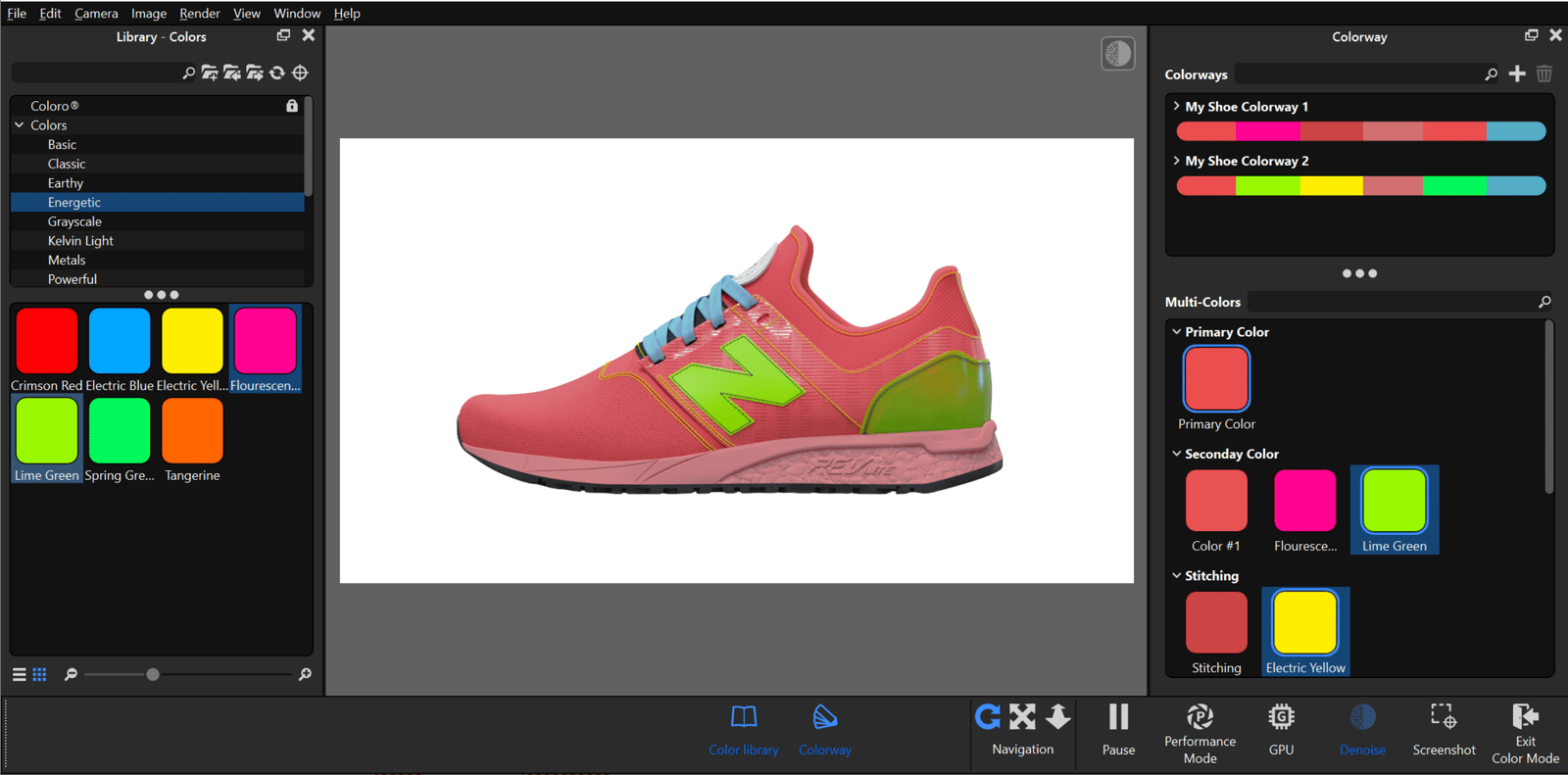
Color Library
Use KeyShot Studio's Color Library to add new sub-colours to your existing Multi-Colors. Drag colours from the library into the Multi-Colors listed in the Colorway panel. You can also drag and drop colours directly onto a part in the Real-time View if the part already has a Multi-Color.
Colorway
Use Colorways to combine Multi-Colors from different parts and save the combination.
Click the plus icon to add a new Colorway. It uses the active colours in each Multi-Color.
Click a Colorway to expand its view for easier editing. Drag and drop any colour from your Multi-Color list into the Colorway.
Outside Color Mode, access Colorways from the Ribbon in KeyShot Studio. You can also add Colorways to Studios.
Output
Use the Render Dialog to add Colorways to the Queue.