KeyShot Studio
Environment Settings
KeyShot Studio allows you to adjust your HDRI lighting through a set of easily adjustable Settings found in the Project window > Environment tab.
Last updated 3 August 2026
KeyShot Studio allows you to adjust your HDRI lighting through a set of easily adjustable Settings found in the Project window > Environment tab.
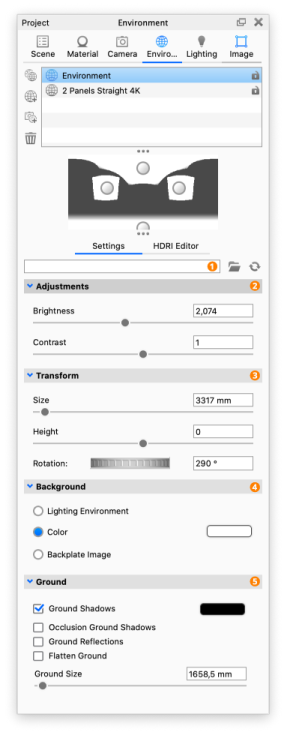
1. File Load a lighting environment from a file (.hdri, .hdz, .exr). Select the 2. Adjustments
3. Transform
|
 icon to open a new environment. Select the
  icon to reload the current environment. Hovering over the file name will display the file path. Right-click to display options to Copy Path, Show in Explorer, Reload or Open a new environment file.
4. Background
- Lighting Environment uses the image of the lighting environment as background in the scene. The hotkey E will activate the Lighting Environment as background.
- Color allows you choose a solid color for the background. The hotkey C will activate theColor background.
- Backplate Image allows you add and use an image as the background for the scene. Supported file formats include .jpg, .jpeg, .tif, .tiff, .bmp, .png, .gif, .dds, .hdr, .hdz, .exr, .tga, .ppm, .ktx, .psd. The hotkey B will activate the Backplate Image, If none is set, you will see a browser where you can select an image.
5. Ground
- Ground Shadows is an option to change the visibility of ground shadows and allows you to set the base color.
- Occlusion Ground Shadows is an option to see occlusion shadows in place of drop shadows.
- Ground Reflections is an option to change the visibility of ground reflections.
- Flatten Ground will project the part of the environment that is below the ground onto the ground plane, correlating height and width if the lighting environment is visible as the background in the scene. The hotkey G will toggle the Flatten Ground option.
- Ground size allows you to set the size of the virtual ground plane and only effects the ground shadows.