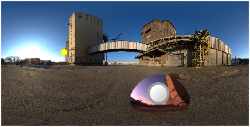
When this options is selected, a snapshot of a section of the background is used as a new pin. A pin handle and a marker of the copy-origin (yellow dot) will appear on the preview window.
Last updated 3 August 2026
When this options is selected, a snapshot of a section of the background is used as a new pin. A pin handle and a marker of the copy-origin (yellow dot) will appear on the preview window.
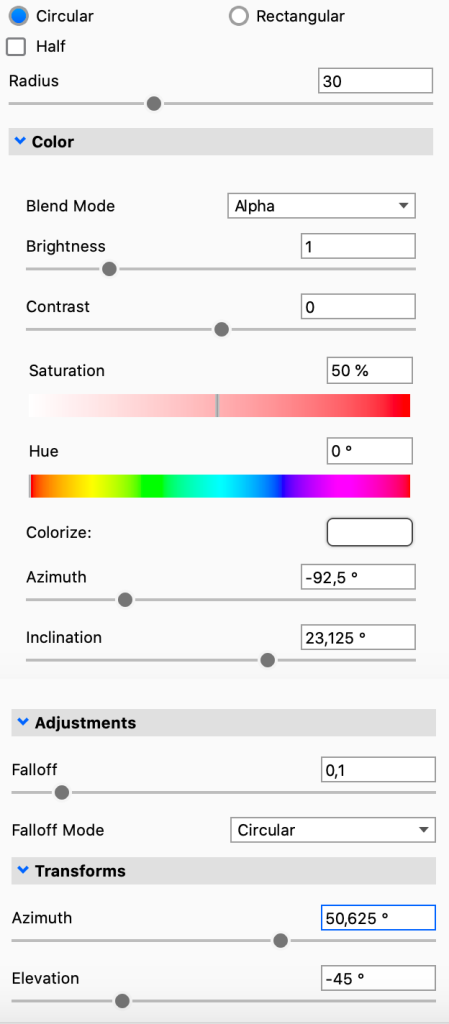
Color
Blend Mode – With this option, choose different ways to have the pins blend and interact with each other. Pin order becomes very important with this function
Brightness – Use this to adjust the intensity of the pin light.
Contrast – Use this to adjust the contrast of the pin light.
Saturation – Use this to adjust the saturation of the pin light.
Hue – Use this to adjust the hue of the pin light.
Colorize – With this you can add a color overlay to the pin.
Azimuth – Sets the horizontal position of the point the pin is copied from (yellow dot).
Inclination – Sets the height of the point the pin is copied from (yellow dot).
Adjustments
Angle – The angle slider lets you rotate the pin (Rectangular pins only)
Rounded corner – This will let you round the corners on the pin (Rectangular pins only)
Falloff Mode – This controls the falloff of the light from the center of the pin. Different modes have different behaviors. You can see the effect of the various modes both in the editor as well as in the KeyShot Studio Real-Time View.
Falloff – This controls the softness of edge of the pin light. Increase the falloff for more blended, softer edges.
Transforms
Azimuth – Sets the horizontal position of the pin.