Skip to content
07-848 2005

KeyShot Studio, environments

Gradient Pin

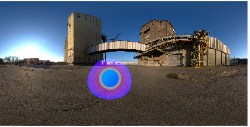
Use a Gradient Pin to place a light source with colour and opacity variations.

Gradient pin preview

Use a Gradient Pin in KeyShot to place a light source with colour and opacity variations.
Gradient pin

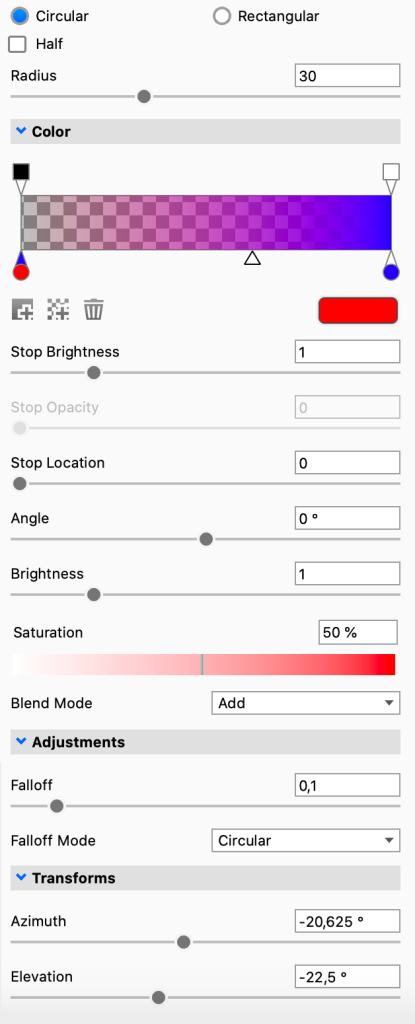
Circular/Rectangular – Switch the pin shape to control the shapes and reflections in your render.

Half – Show half of either pin shape. All adjustments work the same, but you see only half of the pin.

Radius (Circular) – Set the size of circular pins.

Width/Height/Angle (Rectangular) – Set the shape and size of rectangular pins.

Color

  • Color Bar – Set the colour gradient by selecting or adding colours and opacity levels. Drag them into position.
    • The drop-shaped stops are Color stops. Click a stop, then use the colour swatch to choose a colour. You can also double-click the stop. To add another colour to the gradient, click Color stop.
    • The small triangles between colours mark where the 2 colours mix 50-50. Drag them to adjust the blend.
    • The square stops above the colour bar are Opacity stops. Use them to add opacity to the gradient. Click Opacity stop to add an Opacity stop.
    • To delete a colour or opacity stop, select it and click the Trash icon Trash icon.
    • The Stop colour, brightness, opacity and location settings control the selected stop's appearance and position.
  • Brightness – Adjust the overall intensity of the pin light.
  • Saturation controls the saturation of the entire gradient.
  • Blend Mode – Choose how pins blend and interact with each other. The pin order affects the result.

Adjustments

  • Angle lets you rotate rectangular pins with the angle slider.
  • Rounded corner lets you round the corners of rectangular pins.
  • Falloff Mode – Choose how the light falls off from the centre of the pin. Each mode behaves differently. You can see the effect in the editor and the KeyShot Studio Real-Time View.
  • Falloff – Control the softness of the pin light's edges. Increase the falloff for softer, more blended edges.

Transforms

  • Azimuth – Set the horizontal position of the pin.
  • Elevation controls the height of the pin.
Adapted from KeyShot Studio documentation: Gradient Pin. © 2026 KeyShot

Procadsys customer support

Still need help?

Licences, renewals and billing

Our New Zealand team looks after your KeyShot licences, renewals and invoices.

Monday to Friday, 9:00 am to 4:30 pm NZ time, excluding New Zealand public holidays.

Technical problems

Installation errors, crashes and other technical problems with KeyShot are handled by KeyShot support.