To export files from KeyShot Studio Pro, select File>Export and choose a format. For GLB/glTF, USD, AR or Web Viewer, select Export Mode or click the Export Mode icon in your Toolbar.
KeyShot Studio Pro supports the following export formats:
Format | Materials | Textures | Normals | UVs | Cameras | Animation |
|---|---|---|---|---|---|---|
OBJ | Color | No | Yes | Yes | No | No |
STL | Vertex Colors | Vertex Colors | Yes | No | No | No |
FBX | Color | Yes | Yes | Yes | Yes | No |
glTF/GLB | Baked | Baked | Yes | Yes | Optional | No |
USD | Baked | Baked | Yes | Yes | No | No |
3MF | Baked | Baked | No | Yes | No | No |
OBJ
Object files store 3D geometry in a simple format. Many 3D graphics applications support this format.
OBJ stores scene geometry and colours. It does not store textures or the environment.
Export to OBJ
Select File > Export > OBJ, choose a location and name the file.
KeyShot Studio exports two files:
- An OBJ file contains all the geometry data.
- An MTL file contains the objects' diffuse colour information.
GLB/glTF
GL transmission format transfers 3D content from 3D content creation tools to modern 3D applications. You can also use it with AR viewers, mainly on Windows and Android.
The glTF format bakes materials and textures into a single texture file.
See how to export to GLB/glTF.
STL
STereoLithography files use a common 3D format, mainly for 3D printing.
STL mainly exports geometry. You can also convert the colour from materials and textures to vertex colours.
Export to STL
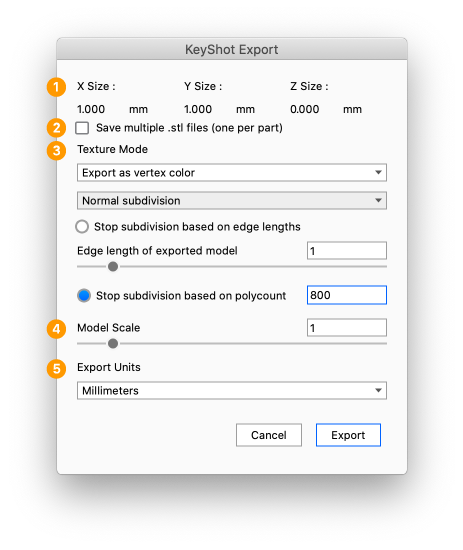
Select File > Export > STL, choose a location and name the exported file.
- Check the size of the exported geometry. This updates when you change Model Scale or Export Units.
- Enable Save multiple .stl files to export each part as a separate STL file. KeyShot Studio creates a folder for the exported files.
- Use Texture Mode to choose how to convert materials and textures.
- Export as single color gives all parts in the scene the same colour.
- Export as vertex colors sets the colour of each face (triangle in the mesh). If you select this option, choose the method and level of detail.
- No subdivision sets the colour of each existing face in your mesh.
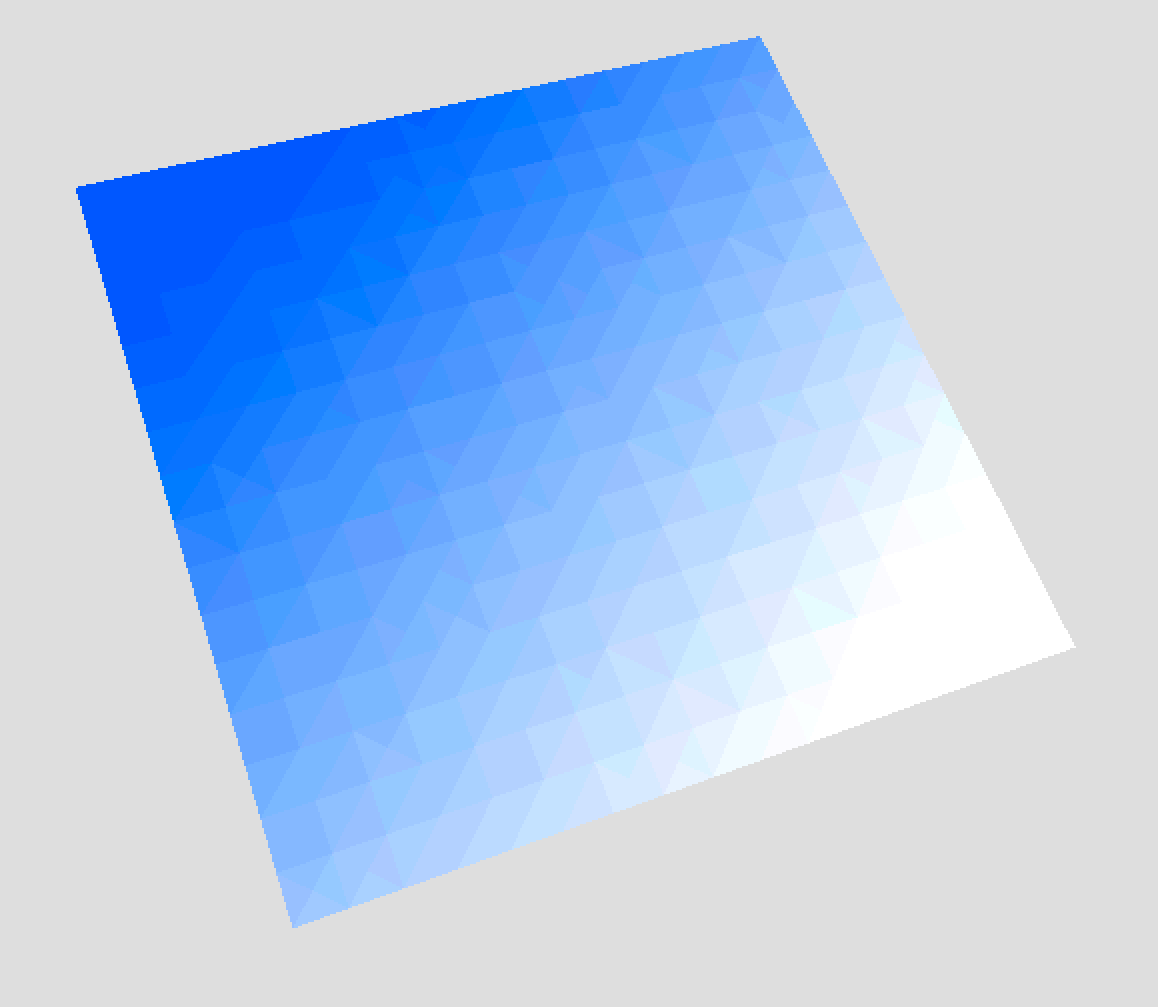
- Normal Subdivision divides the surface into evenly distributed faces. Choose whether to limit the number of faces by Edge length or Polycount.
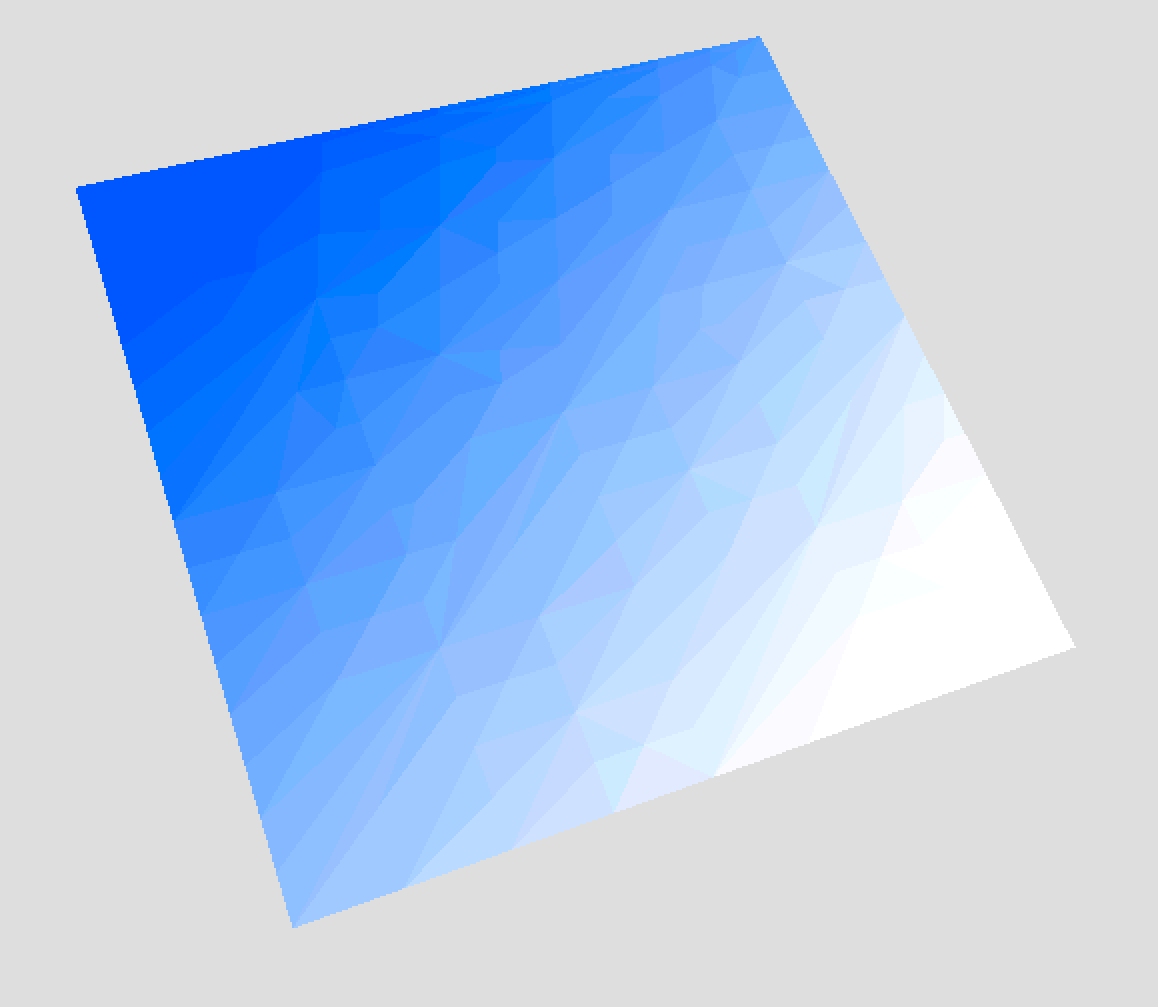
- Adaptive Subdivision divides the surface based on the texture. As with normal subdivision, limit the number of faces by Edge length or Polycount.
- Use Model Scale to scale the geometry.
- Use Export units to change the STL file's units. This does not convert the model's size. Changing from millimetres to centimetres makes the model 10 times its original size.
FBX
Filmbox files use a widely supported 3D format owned by Autodesk.
FBX exports a file containing the colour/diffuse textures used in the scene. The exporter always converts texture mapping to UV maps using the default position. Texture settings or transformations (scale/move/rotate) may be discarded. The exported file also includes cameras.
Export to FBX
Select File > Export >FBX, choose a location and name the exported file.
3MF
The 3D Manufacturing Format (3MF), developed by the 3MF Consortium, is used for 3D printing. The 3MF format sends complete 3D textured models and colour information to supported apps, services and printers. See Table 1 above for supported export features.
Export to 3MF
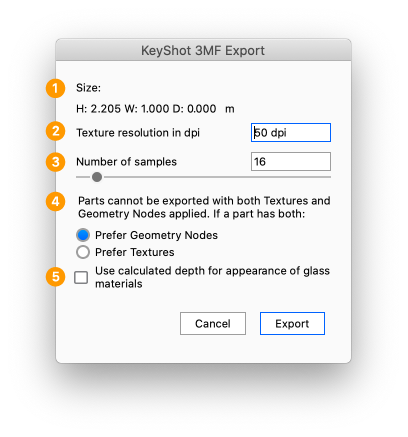
Select File > Export > 3MF, choose a location and name the file.
- Size: Select the geometry's scale if your scene has no scene units defined.
- Texture resolution in dpi: Set the texture resolution for each part. The dialogue suggests a value based on your model's scale. Higher dpi produces sharper, more precise textures but increases file size.
- Number of samples: Set how many times the exporter calculates each pixel in the baked texture. A value that is too low produces excessive image noise. Higher values improve accuracy but take longer to export.
- Use Prefer Geometry Nodes or Textures to choose which takes priority when a part has both. The format cannot include both Geometry nodes (bubbles, flakes, displacement) and textures on the same part.
- Enable Use calculated depth for appearance of glass materials to account for part thickness when baking textures. Thickness affects the appearance of coloured glass (dielectric materials).
Some advanced 3D printers can print coloured cores. In some cases, a texture over a standard resin core is preferable, such as a label on a dielectric material.
This setting substantially increases export time.
USD
USD stands for Universal Scene Description. Pixar developed this 3D file format. Its variants are USD, USDa, USDc and USDz. It transfers 3D scene information between 3D tools. It also displays content such as AR, mainly on MacOS and iOS.
USD, UDSa and UDSc export a file and a folder containing all relevant textures.
USDz is a zip-compressed USD file that includes the relevant textures.
See how to export to USD.
AR (.usdz, .glb)
This option exports both .usdz and .glb versions of the scene. Some AR viewers require both formats.
See how to export to AR.