KeyShot Studio
Export Mode
In Export Mode you can export to Web Viewer, GLB/glTF, USD and AR. It enables you to configure your export settings and preview your baked textures and/or geometry nodes.
Last updated 3 August 2026
In Export Mode you can export to Web Viewer, GLB/glTF, USD and AR. It enables you to configure your export settings and preview your baked textures and/or geometry nodes.
Export to Web Viewer
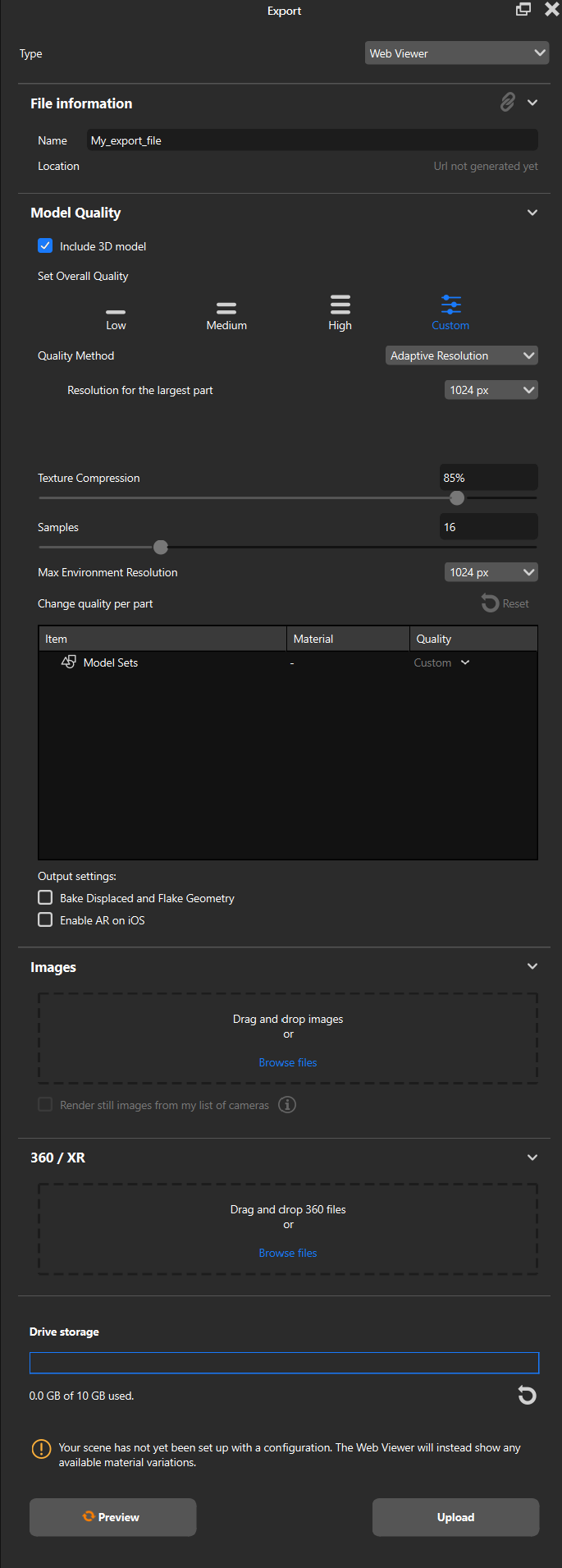
File Information Name This requires you to set a scene name. Location This is the URL of your uploaded scene. Model Quality Include 3D Model Allows you to exclude your 3D Model from the Web Viewer upload. Set Overall Quality For a quick and easy upload you can choose between one of three Quality Presets. You can also choose the custom quality option, this allows you to access the following:
|
Change Quality Per Part
This section allows you to change the quality of specific parts of your scene. You can for example lower the quality of hidden parts to improve performance and upload speed.
Output Settings
- Bake Displaced and Flake Geometry - This will bake any displacement and flake geometry nodes in your scene.
- Enable AR on iOS - To use AR on iOS enable this and open the scene in Safari.
Note that on Android you can use AR on Chrome with any upload.
Images
This allows you to drag and drop any images you want to add to your Web Viewer scene. You can also choose to render images from your list of cameras.
360/XR
When rendering a KeyShotXR you will also get a .360 output file. You can add one or multiple of these files to your Web Viewer upload.
Drive Storage
This shows you how much drive storage you have used. You can find all your uploaded Web Viewer Scenes by signing into you KeyShot Account on drive.keyshot.com.
Preview/Export
- Preview - Preview your scene before you do the final export.
- Export - This exports your scene.
Export to GLB/glTF
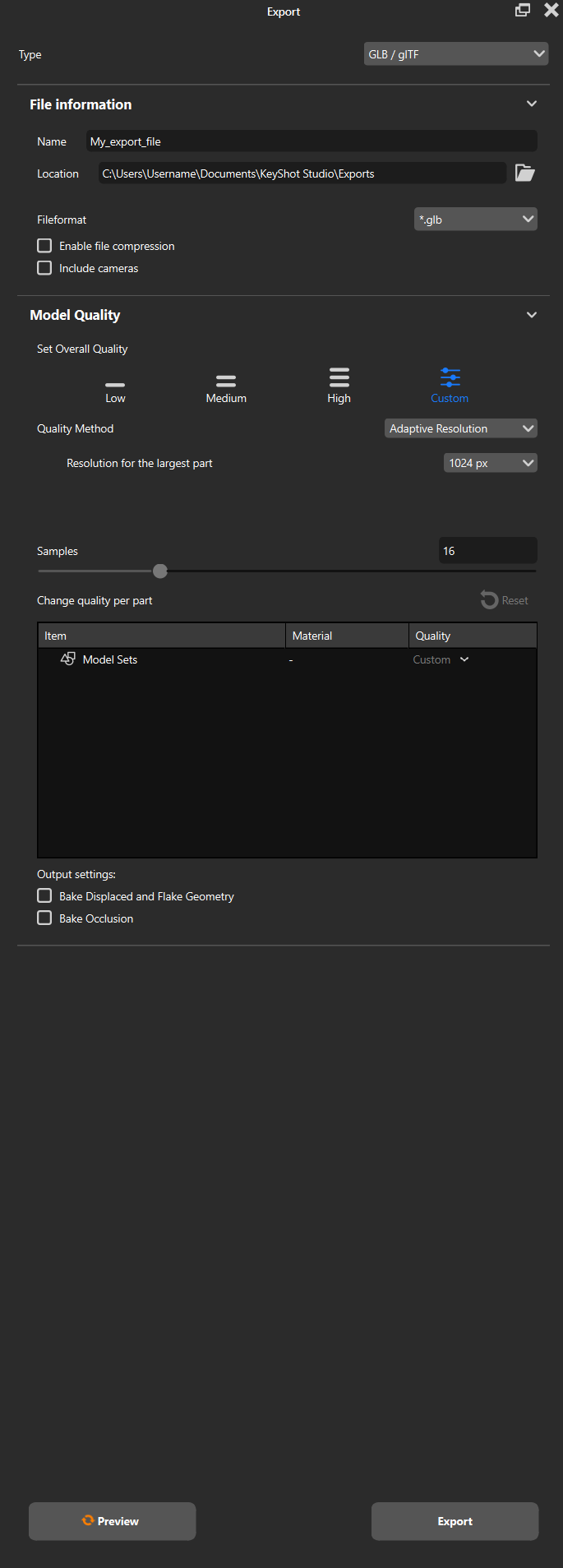
File Information Name This requires you to set a scene name. Location This is the file path to where your scene is exported. Enable File Compression This reduces the file size by compressing the geometry. The compression method does not compress textures and therefore does not affect texture quality. Include Cameras Allows you to include your cameras in the exported file. Model Quality Set Overall Quality For a quick and easy upload you can choose between one of three Quality Presets. You can also choose the custom quality option, this allows you to access the following:
|
Change Quality Per Part
This section allows you to change the quality of specific parts of your scene. You can for example lower the quality of hidden parts to improve performance and upload speed.
Output Settings
- Bake Displaced and Flake Geometry - This will bake any displacement and flake geometry nodes in your scene.
- Bake Occlusion - When enabled occlusion will be included in the baked texture.
Preview/Export
- Preview - Preview your scene before you do the final export.
- Export - This exports your scene.
Export to USD
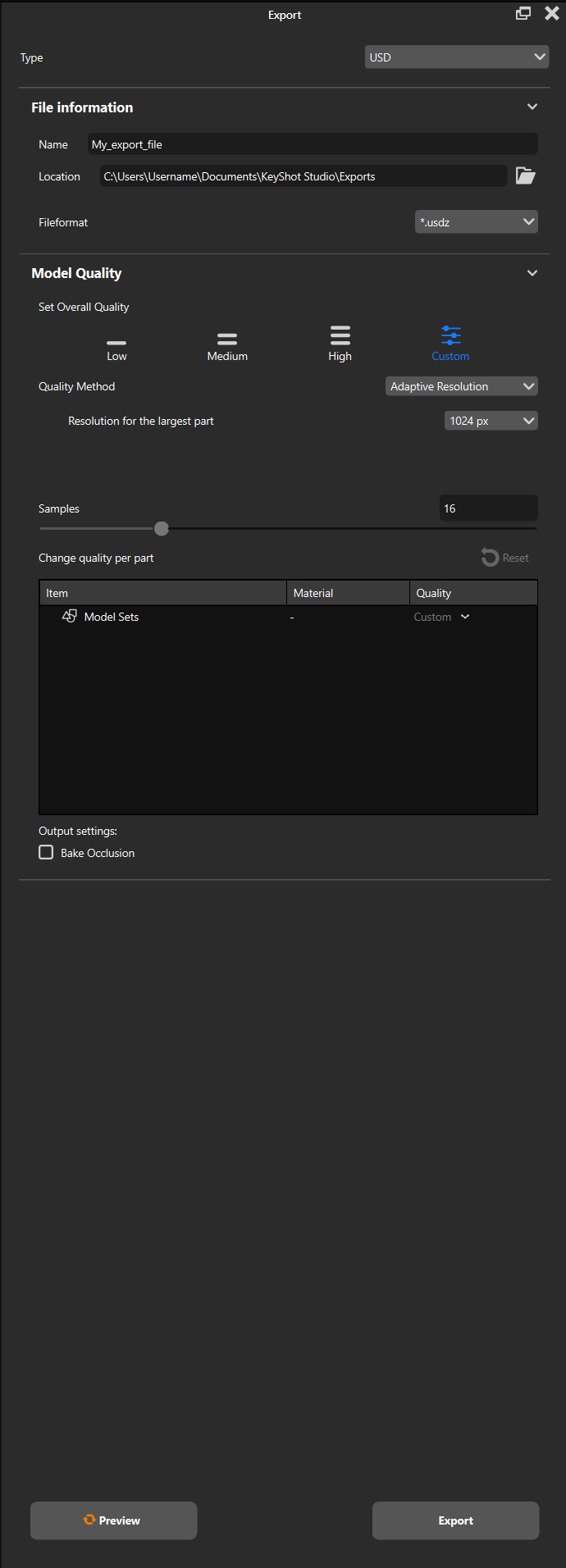
File Information Name This requires you to set a scene name. Location This is the file path to where your scene is exported. Model Quality Set Overall Quality For a quick and easy upload you can choose between one of three Quality Presets. You can also choose the custom quality option, this allows you to access the following:
|
Change Quality Per Part
This section allows you to change the quality of specific parts of your scene. You can for example lower the quality of hidden parts to improve performance and upload speed.
Output Settings
- Bake Occlusion - When enabled occlusion will be included in the baked texture.
Preview/Export
- Preview - Preview your scene before you do the final export.
- Export - This exports your scene.
Export to AR(USDz+GLB)
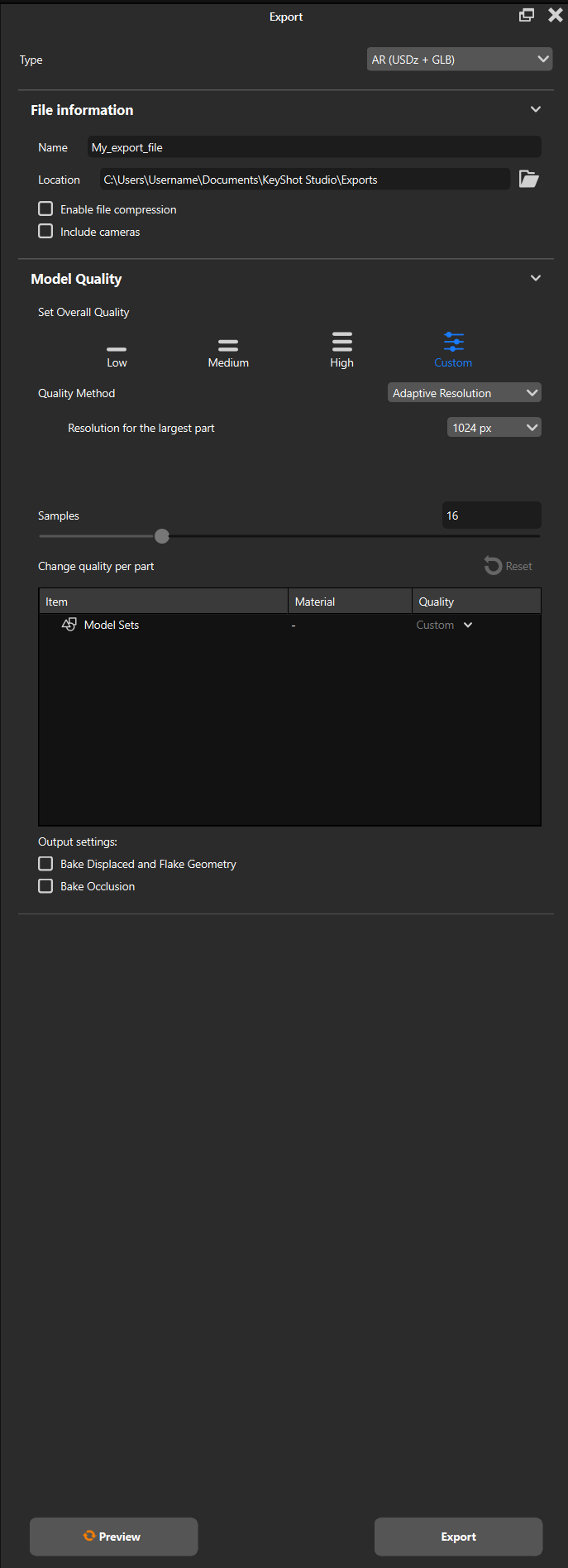
File Information Name This requires you to set a scene name. Location This is the file path to where your scene is exported. Enable File Compression This reduces the file size by compressing the geometry. The compression method does not compress textures and therefore does not affect texture quality. Include Cameras Allows you to include your cameras in the exported file. Model Quality Set Overall Quality For a quick and easy upload you can choose between one of three Quality Presets. You can also choose the custom quality option, this allows you to access the following:
|
Change Quality Per Part
This section allows you to change the quality of specific parts of your scene. You can for example lower the quality of hidden parts to improve performance and upload speed.
Output Settings
- Bake Displaced and Flake Geometry - This will bake any displacement and flake geometry nodes in your scene.
- Bake Occlusion - When enabled occlusion will be included in the baked texture.
Preview/Export
- Preview - Preview your scene before you do the final export.
- Export - This exports your scene.