Use the Models Tab  in the Library panel to add models to your KeyShot scene. Models range from primitive geometry and products to complete scenes with lighting and cameras for displaying your product in context. You can also download models from KeyShot Cloud.
Add model resources to your scene
You can add models from the local library in 3 ways.
- Drag and drop: A bounding box shows the model's size as you drag it. Move it around the scene and drop it where you want it.
- Double click: Double-click a model in the library to add it to the centre of your scene on the ground plane.
- Context menu: Right-click a model in the library and select Add to scene. This adds the model to the centre of your scene on the ground plane.
Drag models from KeyShot Cloud onto the Real-time View. You can also download models and add them from the local library. Both methods save the model in the library's downloads folder. You can then drag it to the folder you want.
Create your own model resources
Add your own models to the model library using  import. You can also use
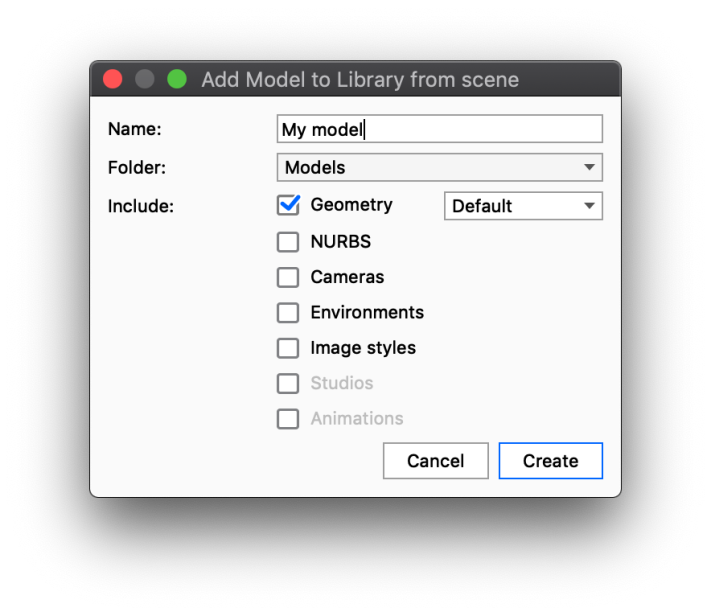
 Add to library to create a resource from the current scene.
Add to Library
Name: Enter the name you want to use for the resource in the library.
Folder: Select where to store the resource in the model library.
Include: Choose what to include in your model resource.
- Geometry: Choose which Model Sets to include if you include geometry. All visible Model Sets are selected by default.
- NURBS: If your scene contains NURBS data, you can remove it from the resource to save space.
- Cameras: Choose whether to include cameras in the resource.
- Environments: Choose whether to include environments in the resource.
- Image styles: Choose whether to include Image styles in the resource.
- Studios: If you include studios, their cameras, environments and image styles are included only if you also select those options for the resource.
- Animations: If your scene contains animations, you can include them in the model. If you leave out geometry or cameras, their related animations are also left out.
Delete models from the library
Deleting a model from the library also deletes all its associated resources. Models, textures, backplates and other resources are stored together in self-contained folders inside the general Models folder. Before deleting a model, save any texture you want to reuse in the texture folder and apply it from there, or save the new scene as .ksp. Otherwise, resources may be missing. To delete a model, right-click it in the library list and select Delete.
Model library hotkeys
In earlier versions of KeyShot Studio, you added Primitives through Main menu > Edit > Add Geometry. Primitives are now in the Model library's Geometry folder. There are 10 hotkeys (ctrl/cmd+0-9) for adding models. By default, they are assigned to the first 10 Primitives in the Geometry folder, sorted by a-z.
Models you add to the Geometry folder are also included in the automatic hotkey assignment.
You can override the alphabetical hotkey assignment or assign a hotkey to a model outside the Geometry folder. Right-click the model and select Assign Hotkey, then assign one of the 10 hotkeys. The model appears in the Add geometry list.