Skip to content
07-848 2005

KeyShot Studio

Models Tab

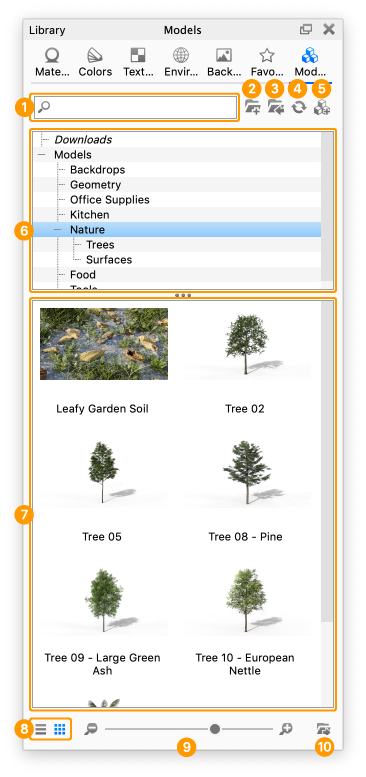
The Models tab located in the Library window contains a selection of models you can use to add context to your scene, as well as whole scenes in which you can display your products.
Last updated 3 August 2026

The Models tab located in the Library window contains a selection of models you can use to add context to your scene, as well as whole scenes in which you can display your products.

Library models
  1. Add Folder
    Click this button to add custom folders for your model library.
  2. Import
    import a scene to your library
  3. Refresh
    Refresh model list if any changes were made.
  4. Add
    Add current scene to the library
  5. Folder Tree
    Contains the folder structure of the model folders.
  6. Model list
    The list contains all the models that match the current filtering (folder and search)
  7. List/Thumbnail Toggle
    Switch displaying the model thumbnails in a list or grid view.
  8. Zoom Slider
    Slide to change the size of the thumbnails. You can also use Zoom out iconZoom icon to change in steps.
  9. Export
    Export a model as KSP.

Visit the Library Models page for more information.