Use the Camera tab to create and configure cameras in KeyShot.
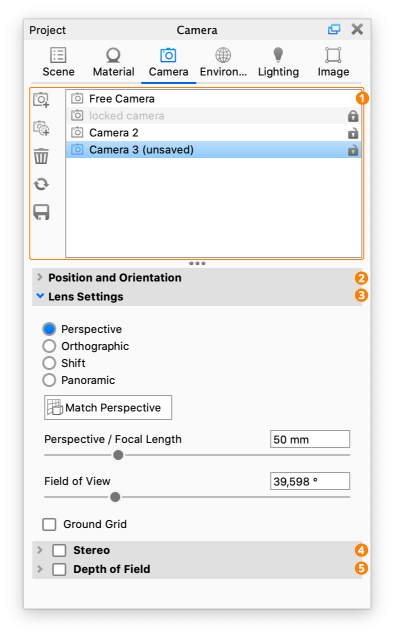
1. Camera List Use the Camera List to set up and save multiple cameras in your scene. You can reuse, modify or animate them, or use them in Studios. The Free Camera is always available in the camera list. You cannot lock or overwrite it. You can always select it, and it stays independent of camera animations. See the Camera List section for details. 2. Position and Orientation You can click and drag in the real-time view to move the camera. Use this section to position the camera more precisely and set its target. See the Position and Orientation section for details. |
3. Lens settings
Use this section to change the camera lens settings.
4. Stereo
Use Stereo mode to render a stereoscopic image for viewing through a head-mounted VR display. You can also view the scene in real time through a VR headset such as the Oculus Rift or the HTC Vive. See the Stereo (VR) page and the Virtual Reality section for details.
5. Depth of Field
Use Depth of Field to set the camera's focus distance and f-stop, as you would on a regular camera.
See the Depth of Field section for details.