Use Depth of Field in KeyShot to set the camera's focus distance and f-stop, as you would with a physical camera.
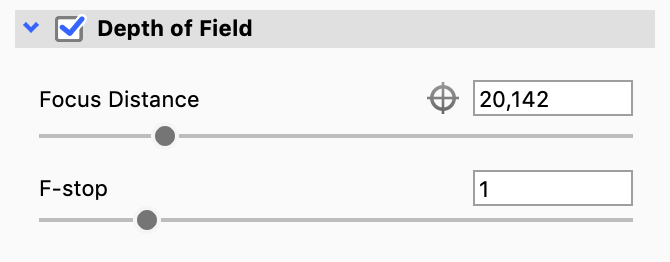
To enable depth of field, go to Project > Camera and select the Depth of Field check box, or press the D hotkey. Then use the Select Focal Point button or enter manual values to set the focal distance.
Select Focal Point
Click the Select Focal Point icon in front of the Focus distance input. Select any part in the Real-time View as the camera's Focal point. KeyShot Studio focuses on that point and blurs the rest of the scene according to the F-stop.
Focus Distance
The distance from the camera to the point where the image is sharpest.
F-stop
Sets the camera's virtual aperture. This controls how much of the scene is in focus.
High F-stop values keep more of the scene in focus. Smaller f-stop values create a shallower depth of field, with the foreground and background blurred.
Set Number of Camera Blades
Set the number of simulated camera blades to change the shape of the Depth of Field bokeh. A low number produces a triangular shape. A higher number produces a rounder shape. To give the bokeh a custom appearance, choose Texture from the drop-down and insert the texture you want to use. Choose None for perfectly round bokeh.
Depth of field works only with Perspective, orthographic or shift lenses.