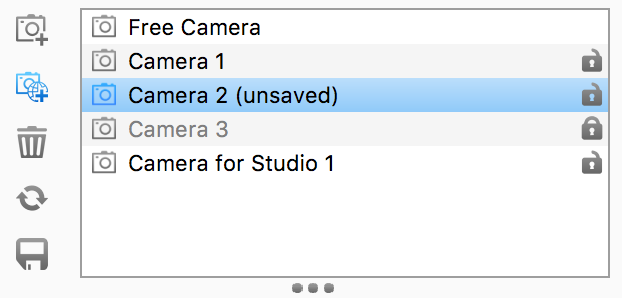
The camera list at the top of the Camera tab in KeyShot contains all cameras in your scene. The Free Camera is always available to select and cannot be locked or overwritten. It stays independent of camera animations.
Add a camera
You can create a camera in two ways:
- Select the
 Add Camera option to the left of the Camera List. This adds the current camera view to the Camera List, ready for you to name it.
- Select the Add Camera button in the Ribbon. This saves the current view as a new camera but does not open the name for editing. See the renaming instructions below.
Add Camera and Environment Studio
Add Camera and Environment Studio is a Pro feature. It adds a Studio with the currently active camera and environment.
Add a camera animation
To add a camera animation, right-click the camera you want to animate. Select Animation, then choose the animation type. See Camera Animations for details.
Edit a camera
When you change a saved camera while it is active, (unsaved) appears after its name.
 Save Camera: Select Save Current Camera to save your changes.
 Reset Camera: Select Reset Camera to discard your changes and return the active camera to its last saved state.
Adding a camera to the list saves the current setup as a new camera. The previously selected camera returns to its last saved state.
Lock a camera
Right-click a camera's name or select the lock icon to lock or unlock it. When a camera is locked, the Tumble/Pan/Dolly options in the ribbon are disabled.
Delete a camera
Select Remove current camera to delete an unlocked camera.
Duplicate a camera
Select the camera, right-click it and select duplicate.
Rename a camera
Click the selected camera's name to edit it, or right-click it and select rename.