Use camera animations in KeyShot to animate camera movement, rotation and focal length, or switch from one camera to another.
Before you start, create the cameras in your scene and set their targets.
Add a camera animation
Add a camera animation in any of these ways:
- Scene Tree: Right-click your camera in the scene tree (Project > Scene) and select the animation type you want.
- Camera List: Right-click your camera in the list and select the animation type you want.
- Animation Wizard: See the Animation Wizard instructions.
Camera animations appear as blue nodes on the timeline. Camera switch events appear as blue dots.
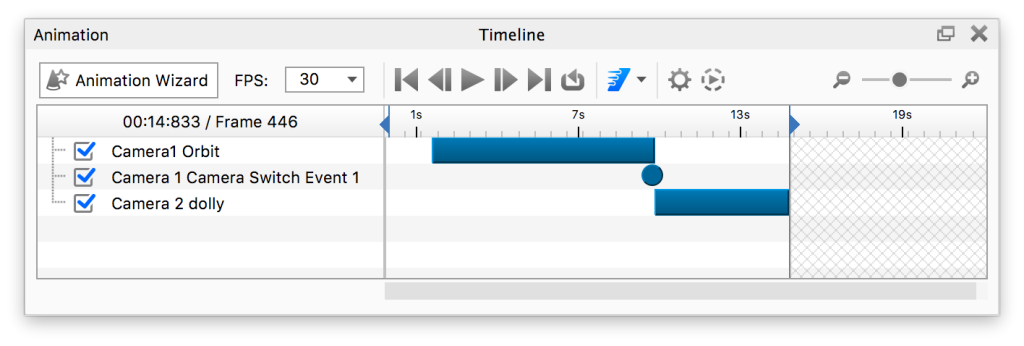
Adjust your animation's properties. See Animation Timeline for details about the timeline options.
You can also copy an existing animation from one camera to another using the context menu in the scene tree. When you paste it, choose an independent animation or a Linked animation.
Camera animation types
See the instructions for each animation type: