Use the Animation Wizard to choose an animation type and set it up step by step in KeyShot Studio. Your version must include animation.
See Animation Types for details about each animation type (note 1).
Open the Animation Wizard

- Click the Animation button in the Toolbar.
- Click the Animation Wizard button in the animation timeline.
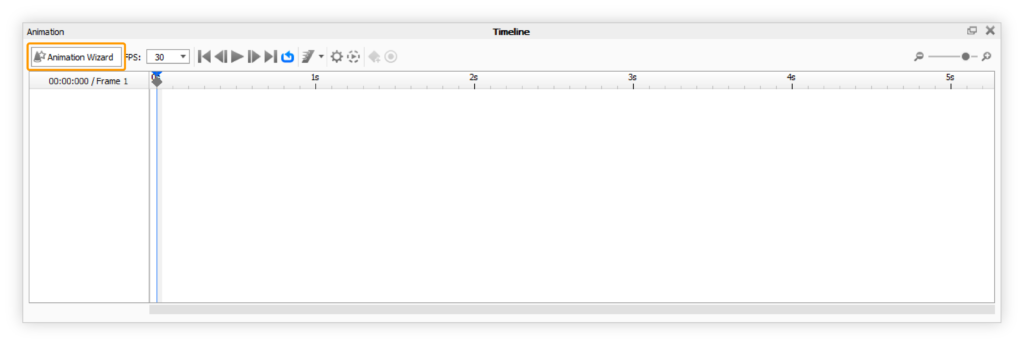
Set up the animation
The Animation Wizard has 3 steps for every animation type.
- Select the animation type.
- Select what you want to animate.
- Adjust the animation settings. See Animation Types for detailed descriptions of each type.
Your animation appears in the timeline when setup is complete. To change its settings, click the animation node in the timeline and edit its properties.
See Animation Timeline for details about the timeline options.
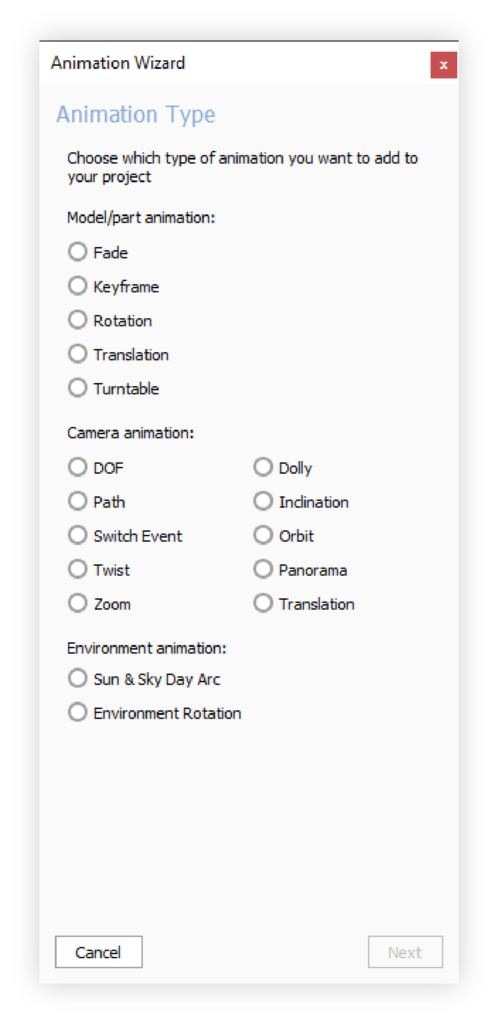
1 The Animation Wizard does not currently include Material Animations.