KeyShot Studio
Material Animations
Material Animations enables you to create animations of a material’s value based or color properties.
Last updated 3 August 2026
Material Animations enables you to create animations of a material’s value based or color properties.
Adding a Material Animation
The Material animations can currently only be added through the Material Graph.
- Right-click the material you want to animate either in the Real-time View or in the In-Project Library and select Edit Material Graph.
- Inside the Material Graph go to Nodes > Animation and select the type of animation you want to add.
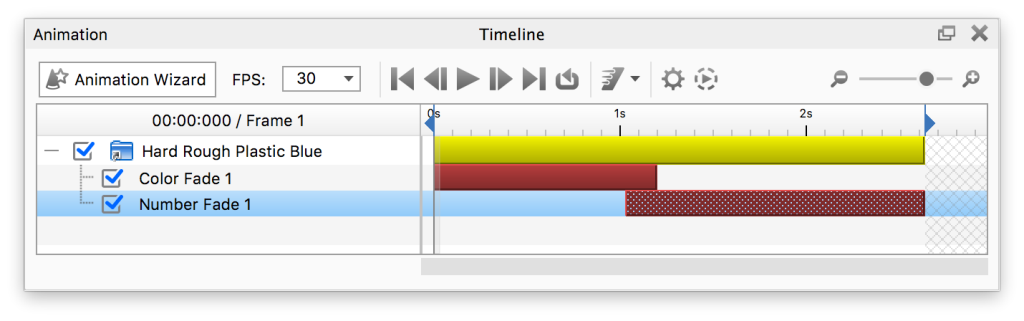
This will add a folder (yellow node) in the timeline witch contains all animations of the material. The Material animation nodes are represented as red nodes in the timeline.
Material Animation Types
Color Fade
Provides a smooth transitions between two or more color values. You can apply a Color Fade to your material’s diffuse, specular, and opacity map. You may also apply a Color Fade to any material value like roughness, refraction index, power, contour width, etc.
Learn about the Color Fade Node.
Curve Fade
The Curve Fade animation provides custom transitions between numerical values. You can apply a Curve Fade to your material’s diffuse, specular, and opacity map. You may also apply a Curve Fade to any material value like roughness, refraction index, power, contour width, etc.
Learn about the Curve Fade Node.