Types
- Part Animations: Change your model's position, orientation and visibility in the scene with a Transform animation or a Keyframe animation. Read about Part animation types.
- Environment Animations: Create Environment Rotations and Sun & Sky Day Arcs. Read about Environment animations.
- Material Animations: Animate a material's value-based or colour properties. Read about Material animation types.
- Camera Animations: Animate cameras or switch between them. Read about Camera animation types.
- Deformation Animations: KeyShot Studio cannot create deformation animations. You can import deformations created in CAD as an Alembic (.ABC) file. Read about Deformation animations.
- Studio Switch events: Switch between studios to change the active environment, Model Sets and other settings. Read about Studio Switch Events.
Timeline appearance
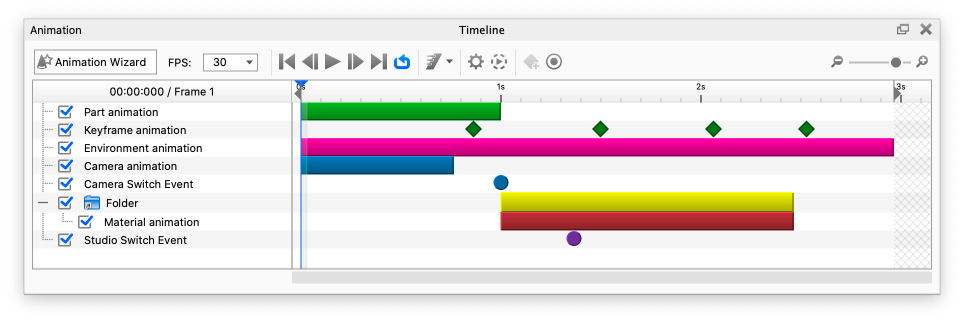
Each animation type has a colour in the Animation timeline.
- Part animations are green.
- Keyframe animations are green or orange, depending on their selection state.
- Environment animations are pink.
- Camera animations and switch events are blue.
- Material animations are red.
- Folders are yellow.
- Studio Switch Events are purple.
Add folders to organise your animations. Folders appear yellow in the timeline.
You can also import models that contain animations, such as Keyframe animations and Deformable meshes. These appear as purple and orange nodes.
Time settings
Use Time Settings to control your animation's timing and duration. These settings apply to all animation types except Curve Fade animations*.
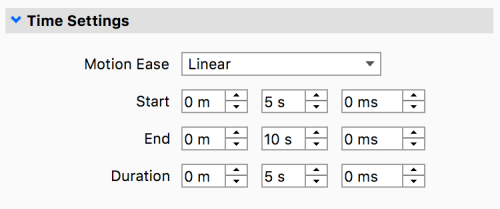
Motion Ease Start End Duration |
*Curve Fade animations have easing built into the animation type. Read the Animation Node Types page for details.