Create camera path animations in KeyShot Studio by recording camera movement to a Keyframe.
Before you start, create cameras in your scene. Read about cameras and their settings.
Adding a camera keyframe animation
You can add a Camera Keyframe animation in three ways:
- Scene Tree - Right-click your camera in the scene tree (Project > Scene) and select the animation type you want.
- Camera List - Right-click your camera in the list and select the animation type you want.
- Animation Wizard - Read about the Animation Wizard.
Properties
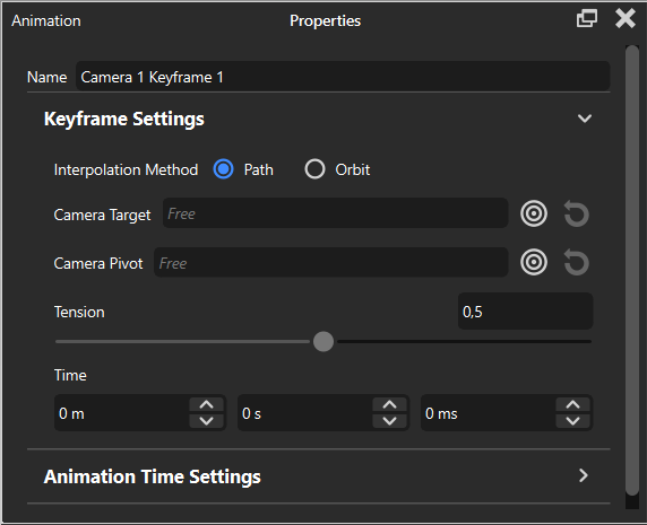
Keyframe Settings Each Keyframe on the Animation Timeline saves its own settings. You can use different settings for each Keyframe. Interpolation Method The Interpolation Method controls how your camera moves between two Keyframes. The Path Method moves the camera in a straight line. The Orbit Method tries to keep the camera at the same distance from its target, creating an orbit. Camera Target Use Camera Target to choose the object your camera keeps as its target. Camera Pivot Use Camera Pivot to choose the object your camera rotates around. Tension Adjust the sharpness of the path. Higher values make direction changes sharper at the Keyframes. Lower values make the path smoother. Time Use Time to set the exact time of your Keyframe on the timeline. |