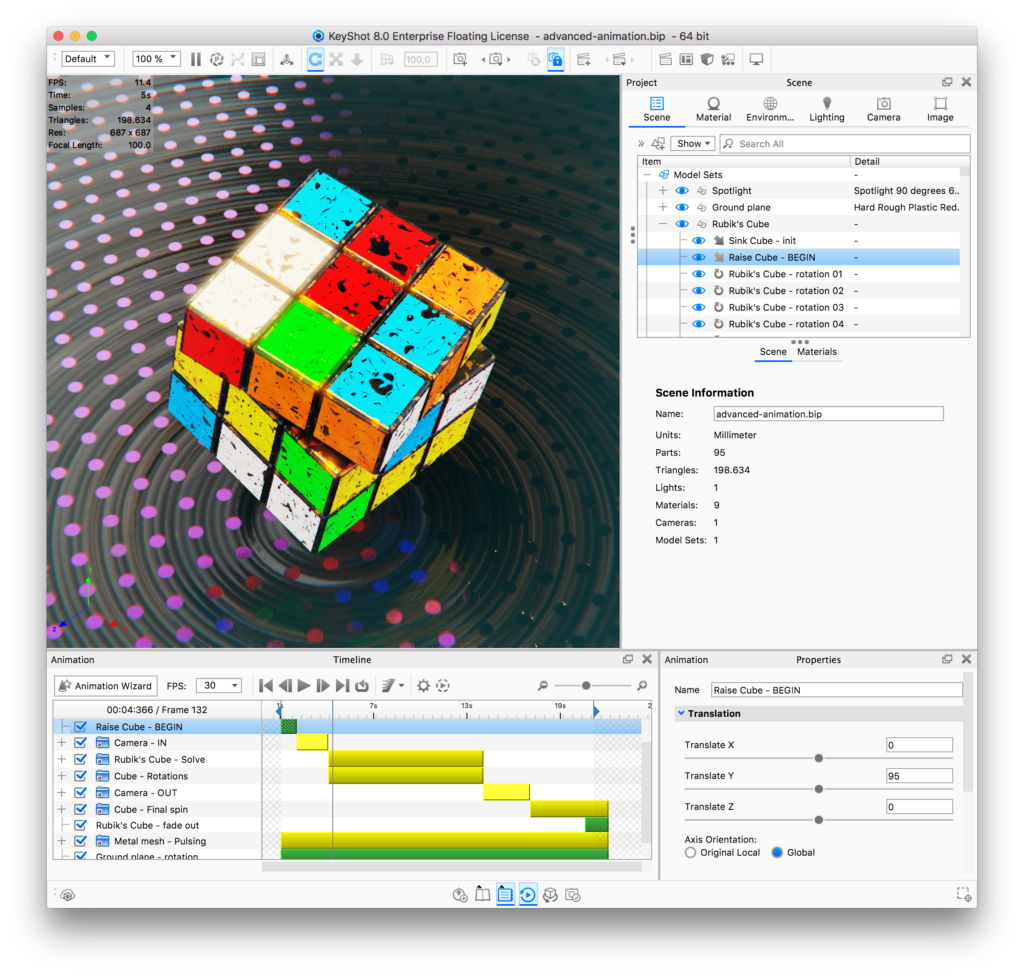
Use KeyShot Studio Animation (Pro feature) to animate your Models, Environments, Materials and Cameras.
To move a part across the scene, right-click the part in the Scene Tree, select Animation > Translation and adjust the animation settings. To animate a camera, right-click a camera in the Scene Tree or the Camera List, select the animation type and adjust its settings. To animate an environmnet, right-click an environment in the Scene Tree or the Environment List. You can also open the Animation Wizard (Animation > Animation Wizard) and follow the prompts.
Add animation to materials through the Material Graph's Animation Nodes.
You can also import animated geometry created in your CAD program, such as Deformation Animations.
Timeline
KeyShot Studio shows animations as rectangular nodes in the animation timeline. Each node's left side marks its start time, its right side marks its end time, and its length shows its duration. You can move, scale, stack or arrange nodes in sequence to create different effects. To sort the animation nodes, right-click in the list, select Sort by and choose time, type or name.