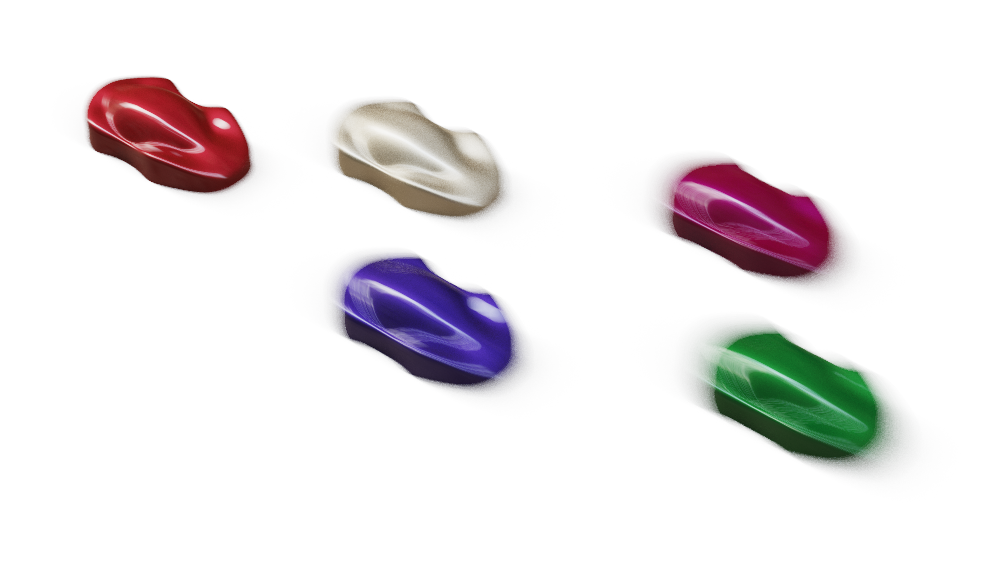
Use Motion Blur in KeyShot Studio to preview blurred movement in real time as objects or cameras rotate or move across the screen. You can see the effect before you play an animation or render an image.

To apply motion blur, select "Motion Blur" on the Animation window toolbar. Click the arrow to switch motion blur between Model/Part and Camera animation. If your objects or cameras already have animations applied, the real-time view updates to show their movement.
To see "Motion Blur" after you turn it on, add a "Translation" animation to an object or an "Orbit" animation to a camera. In the "Animation" settings, adjust how fast and how far the object or camera moves to control the amount of motion blur. When "Motion Blur" is enabled, the real-time motion preview depends on the FPS setting.