Use Studio Switch events in KeyShot to change the active studio during an animation. You can change the active Environment, Image Style, Model Set and other studio settings without editing the video afterwards.
Add a Studio Switch event
- Right-click the studio you want to switch from.
- Select Add Studio Switch Event.
- In the fly-out menu, select the studio you want to switch to.
The switch event appears in the Animation timeline. A purple dot marks when the studios switch. Drag the dot to adjust the time, or set the exact time in the animation properties.
Properties
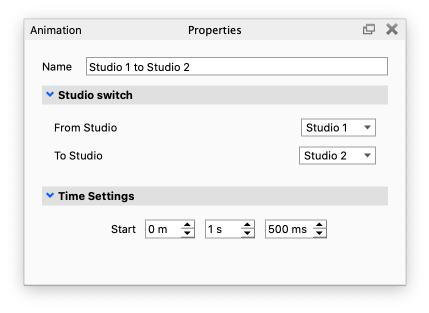
Name sets the switch event's name in the animation timeline. You can also change it by right-clicking the node and selecting Rename. Studio Switch From Studio sets the active studio before the switch. To studio sets the studio that becomes active when the switch occurs. |
Time settings
Use the time settings to set the exact time for the switch.