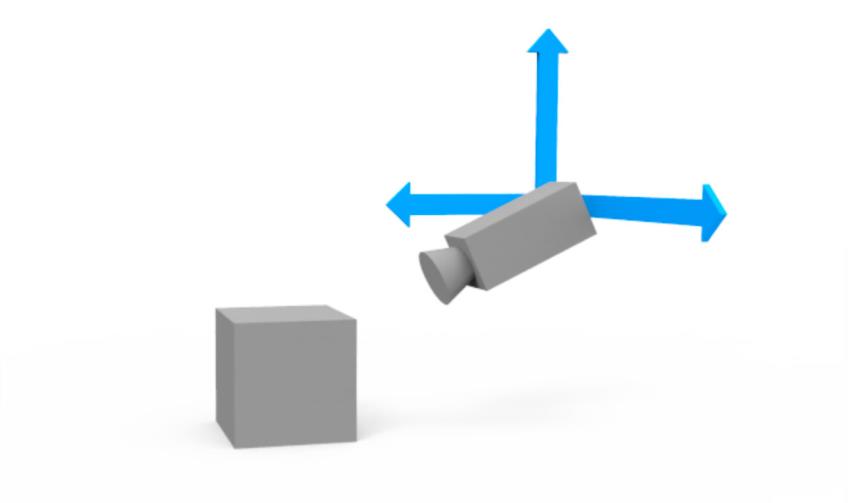
Move the camera along the X, Y and Z axes in KeyShot.
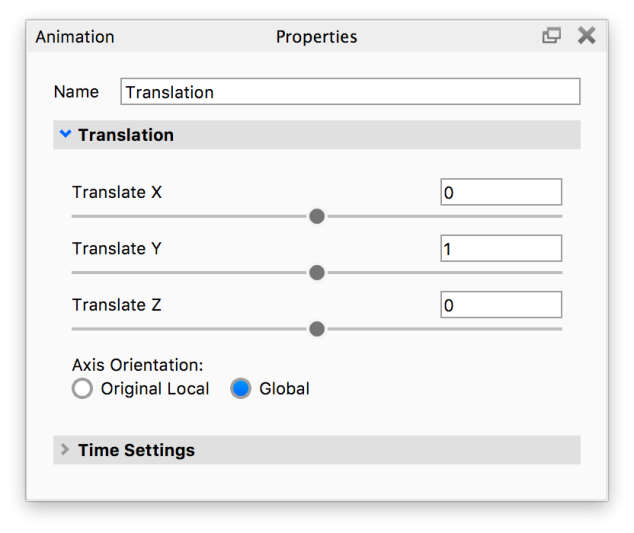
Properties
Translate X, Y, Z
Controls movement along the X / Y / Z axes.
Axis Orientation
When you rotate your model, choose the rotation axis: X, Y or Z. These axes have two states: Original Local and Global.
- Original Local – Uses the rotating part's local axis. If Y originally pointed up, rotating the part by 45 degrees also tilts its Y axis by 45 degrees. Use this state if your model's axes are tilted relative to KeyShot Studio's global axes. To show the global axis, press the "Z" key on your keyboard.
- Global – Uses KeyShot Studio's global axis. To show the global axis, press the "Z" key on your keyboard. The Y axis always points up, even if you rotated a part in your modelling software.