Skip to content
07-848 2005

KeyShot Studio, User Interface

Colours tab

Find preset colour libraries and saved colours in KeyShot's Colors tab.

Use the Colors tab in KeyShot to find preset colour libraries and saved colours.
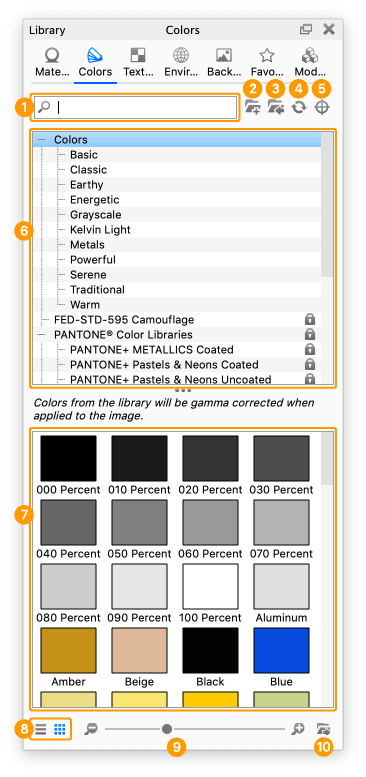
Library colors
  1. Search
    Enter a keyword to search for a colour by name.
  2. Add Folder
    Click this button to add custom colour folders.
  3. Import
    Import a KCP or CSV colour file.
  4. Refresh
    Refresh the colour list if you have made changes.
  5. Color Search
    Open the colour picker panel to search for the closest colour match.
  6. Folder Tree
    Shows the colour folder structure, including folders for RAL and Pantone Color Libraries.
  7. Color Swatches
    Shows colour swatches in the selected folder.
  8. List/Thumbnail Toggle
    Switch between thumbnail and list views of the colours.
  9. Zoom Slider
    Move the slider to resize the thumbnails. Use +/- to change the size in steps.
  10. Export
    Export a KCP colour file.

For more information, see the Color Library page.

Adapted from KeyShot Studio documentation: Colours tab. © 2026 KeyShot

Procadsys customer support

Still need help?

Licences, renewals and billing

Our New Zealand team looks after your KeyShot licences, renewals and invoices.

Monday to Friday, 9:00 am to 4:30 pm NZ time, excluding New Zealand public holidays.

Technical problems

Installation errors, crashes and other technical problems with KeyShot are handled by KeyShot support.