The Floating License Configurator application automatically creates a service in LMTools.
Use these instructions to create a custom licence service. You need to understand LMTools to do this. The KeyShot licensing team provides your licence file and software links.
If you already have a licence server, see the Changing Server Connection page. It explains how to set up more than one KeyShot licence server at the same or multiple locations.
Custom licence server setup
1. Download and run the "keyshot_license_server_setup" installer. Follow the prompts and make sure "Run KeyShot License Server" is disabled. Click Finish.
2. Open LMTools from C:\Program Files (x86)\KeyShot License Server and go to the Config Services tab.
3. Enter a new service name.
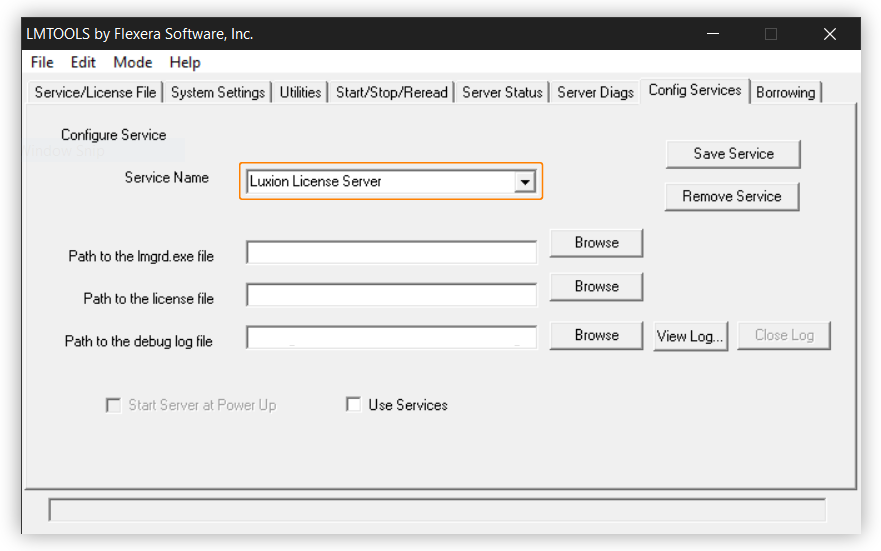
4. Browse to the lmgrd.exe, licence (.lic) and debug.log files. These files should be in C:\Program Files (x86)\KeyShot License Server. The debug log is created after you start the service. For now, specify this path: C:\ProgramData\KeyShot\License\LUXION.log
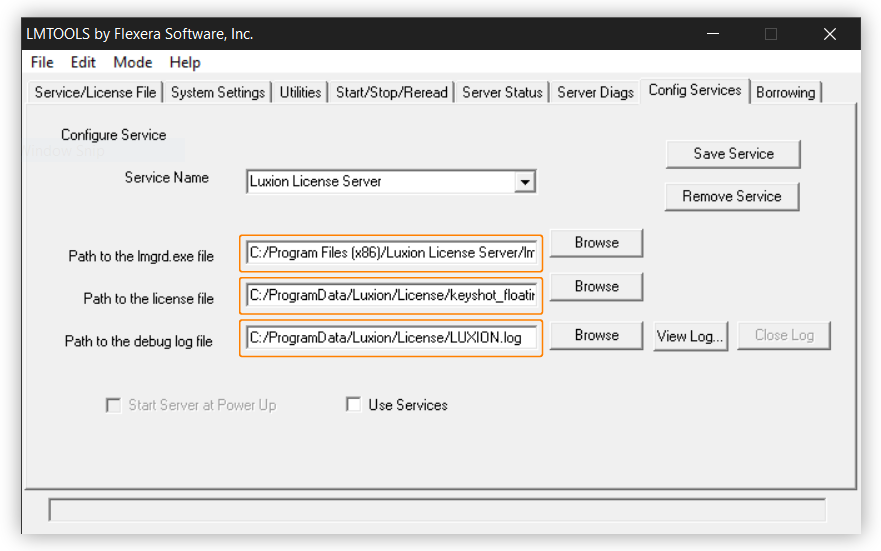
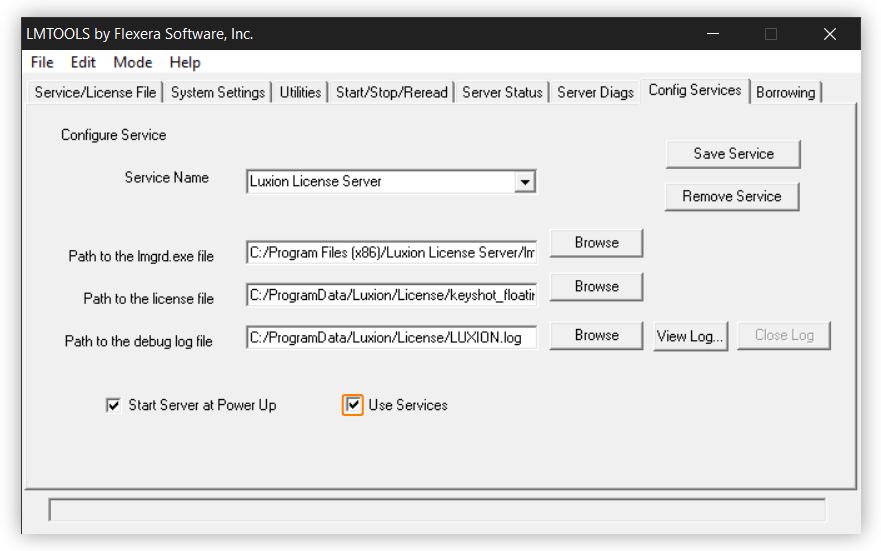
5. Enable Start Server at Power Up and Use Services. Click Save Service and confirm.
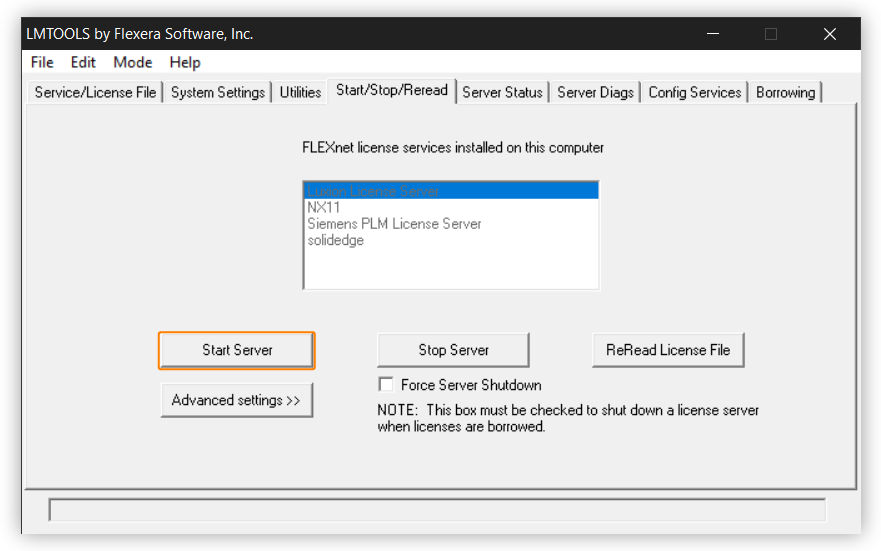
6. Go to the Start/Stop/Reread tab. Enable Force Server Shutdown and click Stop Server. You can also stop KeyShot License Server in the Windows Services dialogue (services.exe).
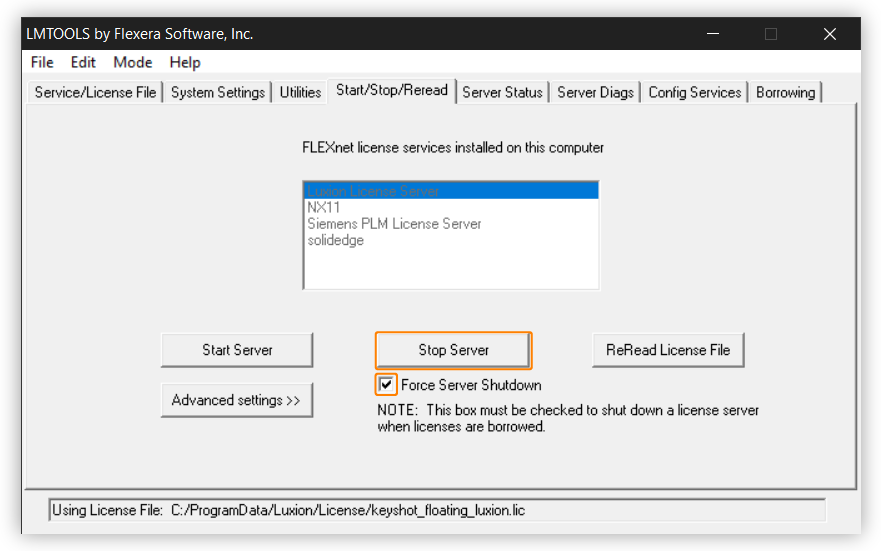
7. Click Start Server. You can also start KeyShot License Server in the Windows Services dialogue (services.exe).
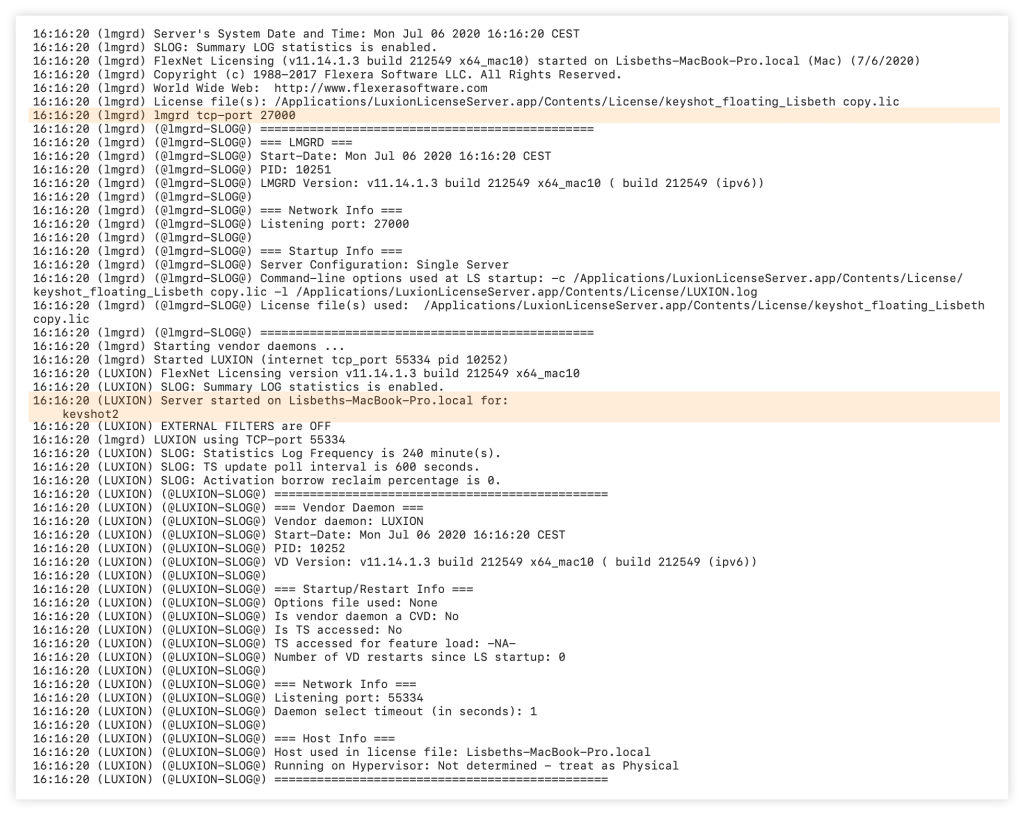
8. Open LUXION.log in your C:\ProgramData\KeyShot\License folder, which contains the licensing software. Check that the debug log references your licence file and confirms that the server started on your computer.
Set up the licence server with a firewall
FlexLM uses 2 ports for the licence server. The LMGRD port is 27000 by default. The LUXION Vendor Daemon Port is assigned randomly unless you fix it in the licence file.
You can set these ports in the licence file.
- Set the lmgrd port after the computer's MAC address on the "SERVER Line".
- Set the vendor daemon port after the vendor name on the "VENDOR Line" using this syntax:
port={your port}
The example below uses ports 27000 and 27010.
SERVER Hostname ffffffffffff 27000
VENDOR LUXION port=27010
FEATURE keyshot2 LUXION 10.0 permanent 2 DUP_GROUP=UHD BORROW=720 \
SIGN="XXXX XXXX XXXX XXXX XXXX XXXX XXXX XXXX XXXX XXXX XXXX \
XXXX XXXX XXXX XXXX XXXX XXXX XXXX XXXX XXXX XXXX XXXX XXXX \
XXXX XXXX XXXX XXXX XXXX XXXX XXXX"
For this example, open ports 27000 and 27010 in the firewall so the server can function.