When you first install a new KeyShot Studio version on your PC/Mac, the Migration Assistant can transfer settings and resources from a previous version installed on the same computer. Choose Settings, Resources or both.
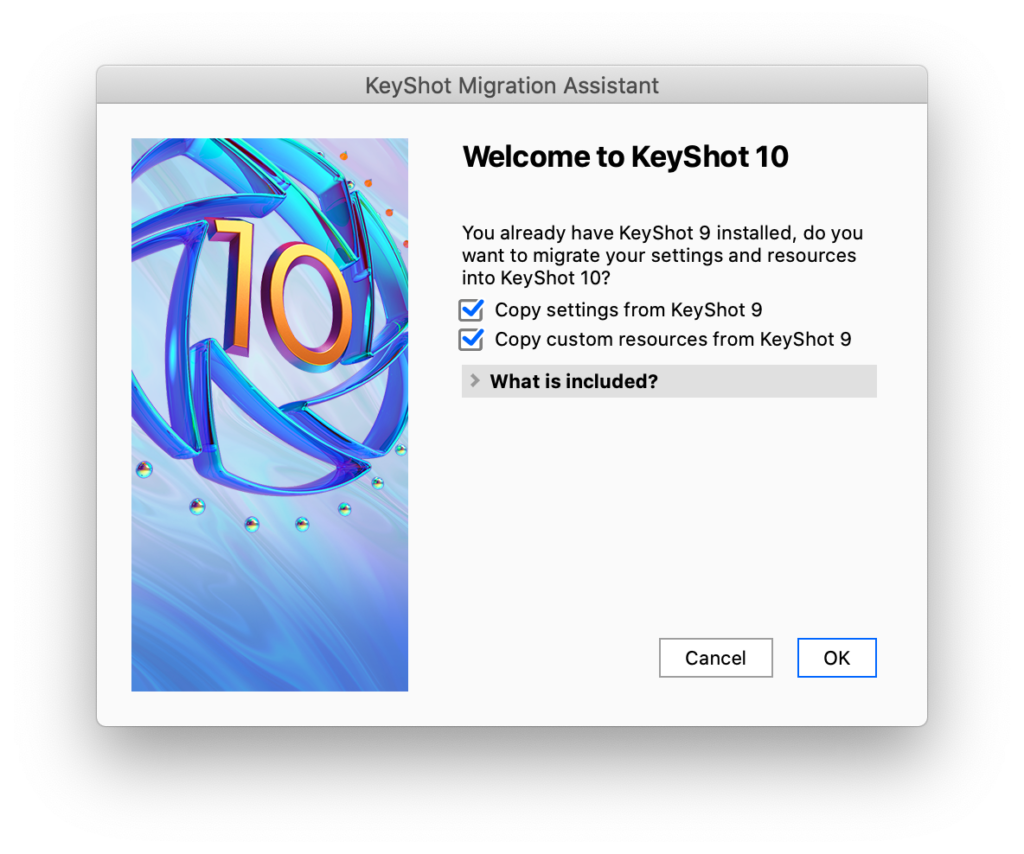
Migrating settings
You can migrate the following settings.
Preferences
The Migration Assistant transfers any changes you have made to the default Preferences.
Workspaces
You do not need to recreate your favourite Workspaces.
Swatches saved in Color Picker
The Migration Assistant transfers any colour swatches you have added to the Color Picker.
Licence information
- Node Locked license: Your name, company and other details are prefilled in the Registration dialog.
- Floating license: KeyShot Studio connects to the same licence server you used in the previous KeyShot Studio version. If the server has no licences for KeyShot Studio 2026, KeyShot Studio uses the previous version's information to prefill your server details in the Registration dialog.
Migrating resources
You can migrate the following resources.
Library resources
The Migration Assistant copies all non-stock resources to the Migrated folder in each corresponding KeyShot Studio 2026 library.
If you have customised the folder settings, the Migration Assistant adds all KeyShot Studio 2026 resources to your custom folders.
Material Templates
The Migration Assistant copies any Material Templates you have created to KeyShot Studio 2026.
Scripts
The Migration Assistant copies all custom scripts to the Migrated folder in your scripts list.