Skip to content
07-848 2005

SketchUp, 3D Warehouse and Extension Warehouse

Axes and origin points

Choose a component axis origin in SketchUp that suits how the component is placed. By default, SketchUp uses the lower left corner of the selection bounding box. The red, green and blue axes meet at the origin, which has two purposes.

By default, SketchUp sets a component's axis origin at the lower left corner of the selection bounding box. This point may not suit every component. The red, green and blue axes meet at the origin.
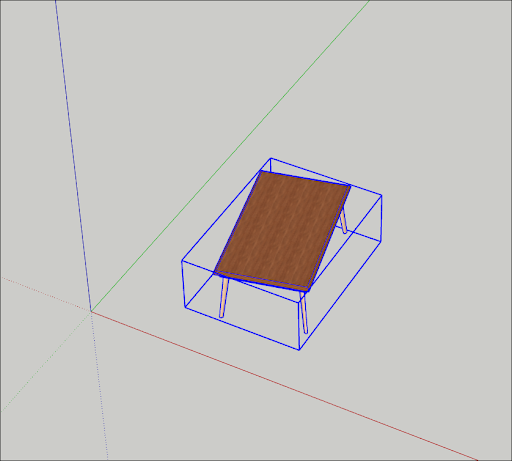
Selected SketchUp table component in a blue bounding box, with red, green and blue axes meeting at the origin.

SketchUp uses the axes origin for two purposes:

  1. The origin sets the placement point for a component downloaded from 3D Warehouse. If a product has a specific installation point, consider using that point as its origin. For example, use a lamp's centre line at its base, or a tap's centre of flow line at its base midpoint.
  2. The origin is the reference point when you replace or reload a component. For example, a light fixture might use a point on a wall from which it extends outwards.

Choose a point on the object's 'ground plane' that matches a key point on the object, such as its centre, a common installation point or a reference point. Choose a placement point that makes sense to anyone downloading the model.

Procadsys customer support

Still need help?

Licences, renewals and billing

Our New Zealand team looks after your SketchUp licences, renewals and invoices.

Monday to Friday, 9:00 am to 4:30 pm NZ time, excluding New Zealand public holidays.

Technical problems

Technical support from our New Zealand team is available with a current Procadsys SketchUp Plus subscription: Pro Plus, Pro Scan Plus, Pro Civil Contractor Plus, Pro Advanced Workflows Plus or Studio Plus.

Initial response within one business day.

On another SketchUp plan? Technical problems go to Trimble support.