You can download materials from 3D Warehouse directly into your models or as standalone .skm files.
Downloading in SketchUp
Follow these steps to download a material from 3D Warehouse into a SketchUp model.
- Click
 or File > 3D Warehouse to open 3D Warehouse.
- Search for the material you want to download.
- Click Download on the material's preview card or details page.
- A progress bar appears while the material downloads. The 3D Warehouse window closes when the download finishes.
- The downloaded material is selected in SketchUp's Materials panel. The Paint Bucket tool is active.
- Use the Paint Bucket tool to apply the material to faces in your model.
Downloading from 3D Warehouse
On the 3D Warehouse website, you can download materials as .skm files. Click Download on a material's preview card or details page to save the file to your device.
You can also download materials from models other users have added to 3D Warehouse. Follow these steps to download a material without downloading the whole model.
- In the model containing the material, click Material Count under Model Info.
- A panel on the right lists all the materials used in the model. Select the material you want to download.
- Click Download on the material.
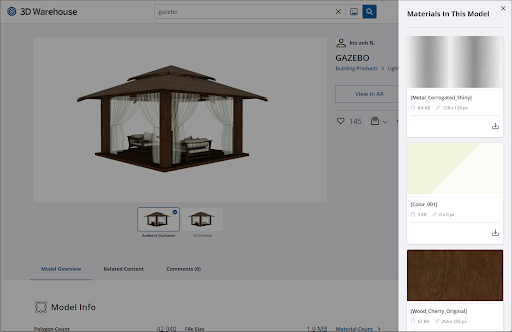
- If you access 3D Warehouse from SketchUp, the material appears in the materials panel. If you use a web browser, the material's .skm file saves to your device.