Environments in 3D Warehouse
Environments allow you to add 360°panoramic backgrounds and image-based lighting conditions to your SketchUp models. The Environments panel offers a few environment options. If you want to add more, check out the Environments section of the SketchUp Content Library in 3D Warehouse.
Last updated 17 July 2026
Environments allow you to add 360°panoramic backgrounds and image-based lighting conditions to your SketchUp models. The Environments panel offers a few environment options. If you want to add more, check out the Environments section of the SketchUp Content Library in 3D Warehouse.
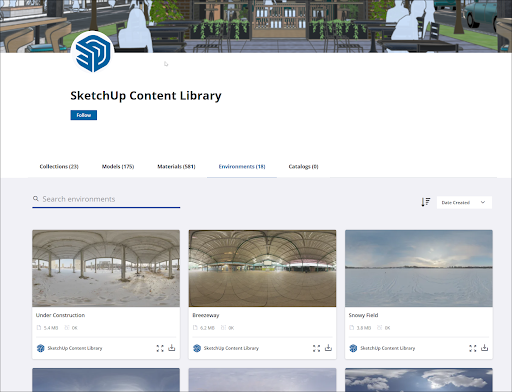
Add an Environment in 3D Warehouse to SketchUp
To add an environment you find in the SketchUp Content Library to your environment collection in SketchUp, follow these steps:
- Navigate to the SketchUp Content Library. Learn how to access the SketchUp Content Library in Accessing the SketchUp Content Library.
- Click Environments.
- Locate the environment you want to add to SketchUp and click Download (
 ).
). - In the SketchUp Environments panel, click Add (
 ). A file selection dialog appears.
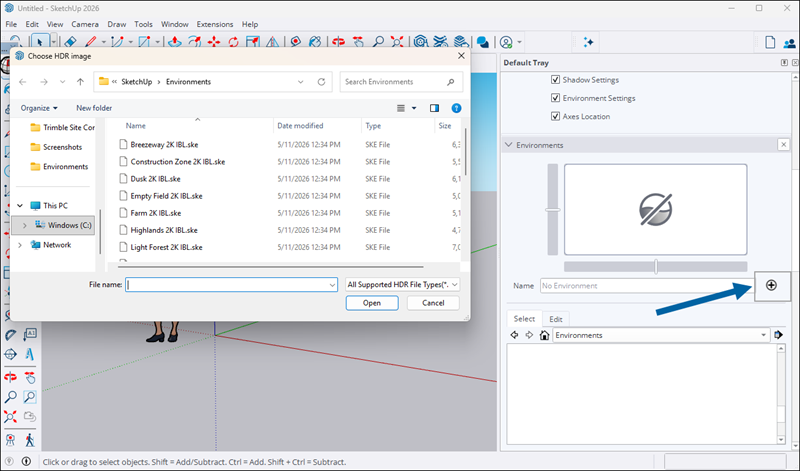
- Locate the downloaded .
skefile and click Open.
Sketchup will apply the environment to your model. The environment will also appear on the Environment panel for the model.
Still need help?
Technical support from our New Zealand team is available to customers with a current Procadsys SketchUp Plus subscription: Pro Plus, Pro Scan Plus, Pro Civil Contractor Plus, Advanced Workflows Plus or Studio Plus. Self-help articles are public.
Contact SketchUp support