Use your 3D Warehouse profile to tell other users about yourself and where they can connect with you.
Signing in
You can browse 3D Warehouse without signing in. To share your creations or download other users' models, sign in with your Trimble ID. See Trimble ID to create an account or learn how it works.
Other profiles
You can access your SketchUp and Trimble profiles from your 3D Warehouse profile page. Your SketchUp profile supplies additional information for your 3D Warehouse profile. Your Trimble profile is separate from both. See Manage My Trimble ID Profile for details.
Your 3D Warehouse profile
Once you access 3D Warehouse, you can review or edit your profile settings. See Accessing 3D Warehouse for help signing in. Your profile picture and display name appear at the top right of 3D Warehouse.
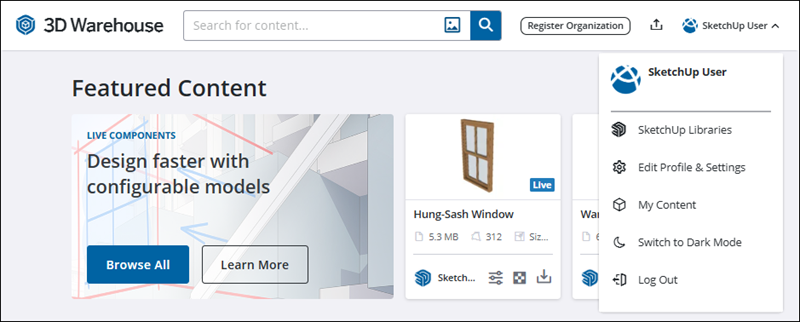
Select Edit Profile & Settings to open your 3D Warehouse profile page. It has three sections: Public Profile, Website & Social, and Preferences.
Public Profile
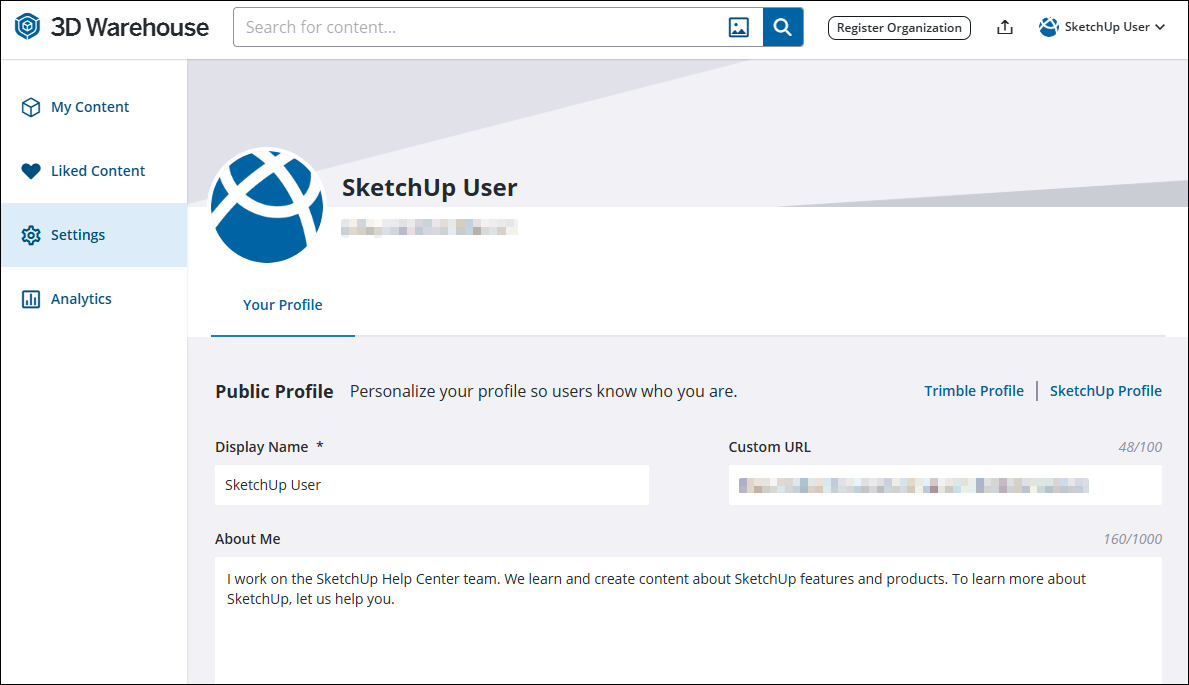
Use the Public Profile section to manage what other users see on your profile. It contains these settings:
- Trimble Profile links to your Trimble profile.
- SketchUp Profile links to your SketchUp profile.
- Display Name lets you choose the name other users see.
- Custom URL lets you create a link to your profile page on 3D Warehouse. Add unique text (your text here) to the standard 3D Warehouse URL, then use your custom URL to share your profile.
- About Me lets you describe yourself in 1000 or fewer characters. You can include your work, hobbies or other interests.
Editing your profile
To edit your 3D Warehouse profile settings:
- In 3D Warehouse, click your display name.
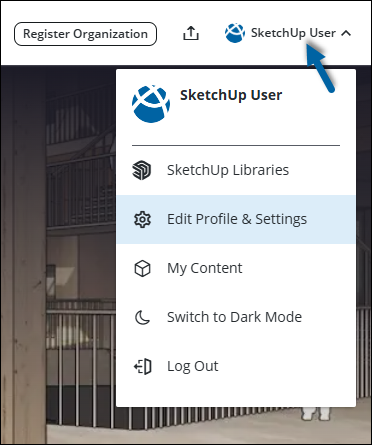
- Select Edit & Settings to open your 3D Warehouse profile page.
- Update your profile settings.
- Click Save Changes.
Editing your SketchUp profile
Your SketchUp profile supplies information for your 3D Warehouse profile, including your profile picture.
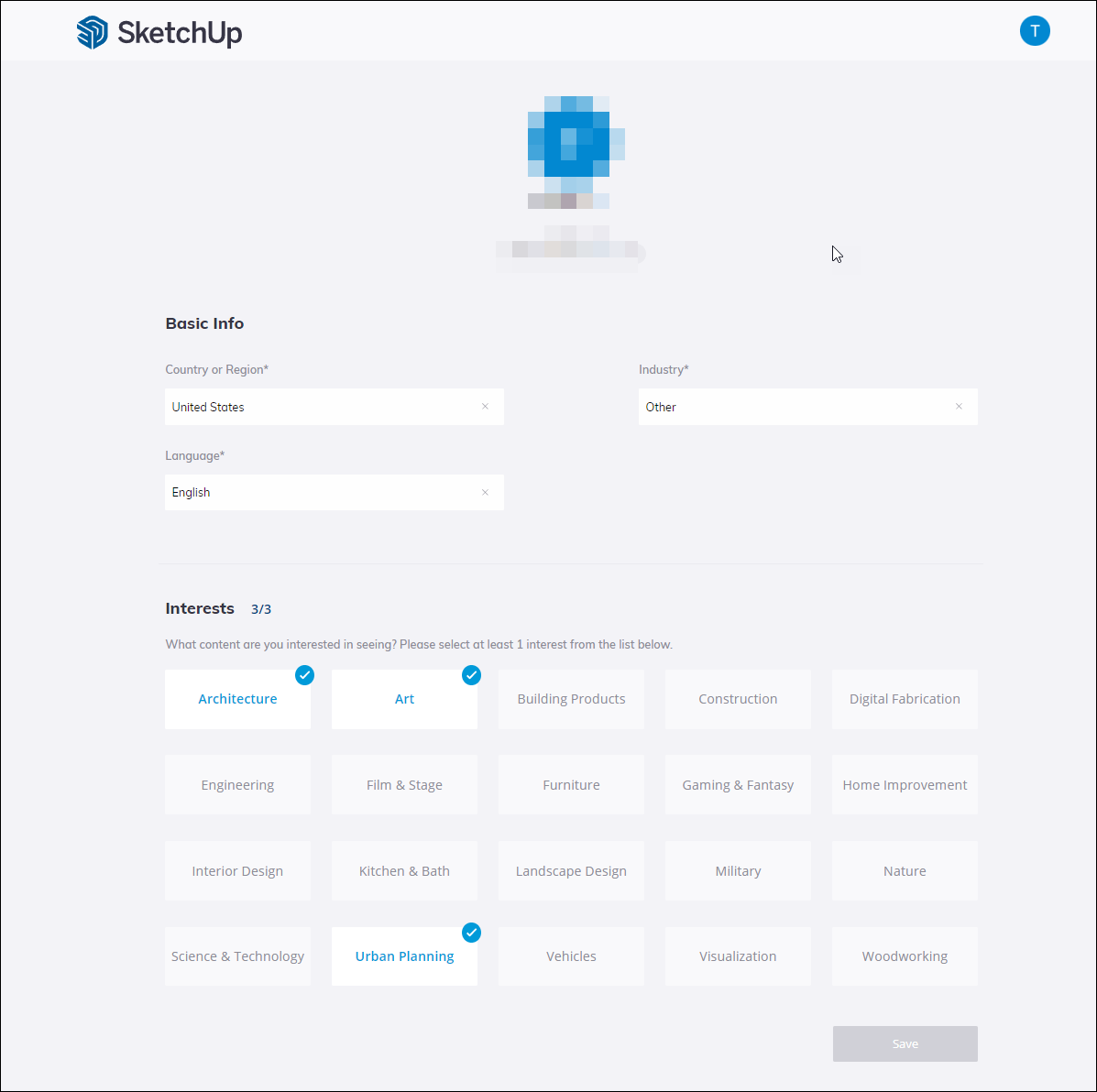
Open your SketchUp profile from your 3D Warehouse profile page. You can edit these details:
- Profile picture
- Country or region
- Industry
- Preferred language
- Up to three types of content that interest you
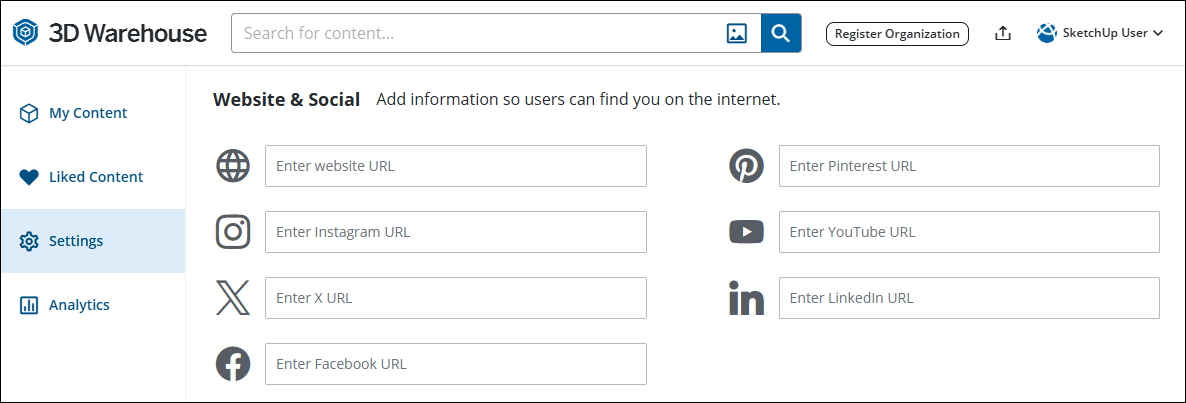
Website & Social
Enter the URLs of websites or social media accounts you want to share on your 3D Warehouse profile.
Preferences
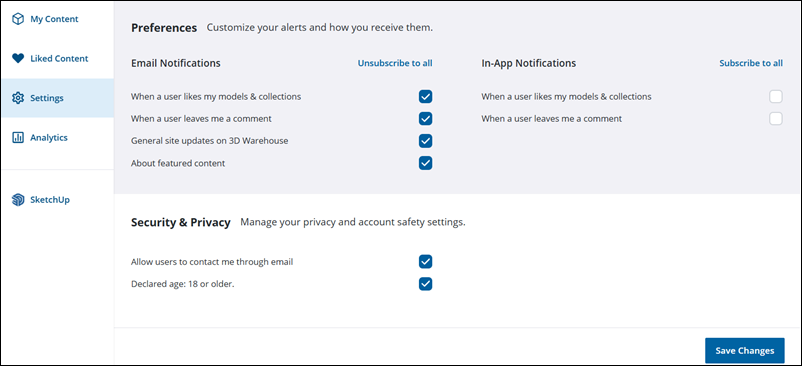
Use the Preferences section to control who can see your profile and which notifications you receive. It also contains your account's security and privacy settings.
- Email Notifications has check boxes that control when you receive email notifications.
- In-App Notifications – Choose which notifications you see while using 3D Warehouse.
- Security & Privacy has check boxes to allow email contact and confirm you are 18 or older.